
 FlowMic
Dictate in 8 Languages, Translate Into 9
Multilingual voice dictation and translation lets you speak in one language and put either the recognized words or a finished translation straight into the text box at your computer cursor with FlowMic. This open source (AGPL-3.0) app turns your phone into a microphone for your computer. You press and hold a button on the phone screen, speak, and let go. Your words then appear in the ordinary text box where your computer cursor is.
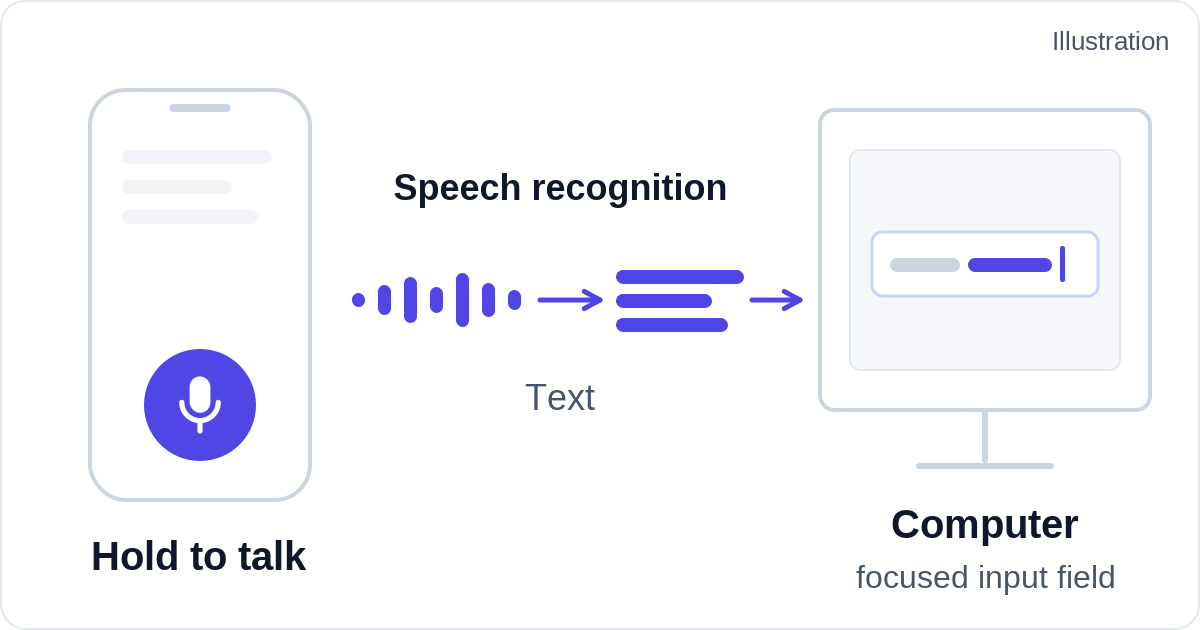
Which languages can you speak and translate into?
FlowMic separates language settings into three distinct choices on your phone: 8 spoken languages for voice recognition, 9 written languages for translation output, and 9 interface display languages. You pick the language you want to speak under "Spoken language" and the language you want to produce under "Translate into", so you can speak one language and get text in another at your cursor.
What each menu offers:
- Under "Spoken language" in the phone settings, you can choose from 8 options: English, Simplified Chinese, French, Spanish, German, Japanese, Korean, and Russian. Traditional Chinese is not a separate spoken option.
- Under "Translate into", you can choose from 9 languages: English, Simplified Chinese, Traditional Chinese, French, Spanish, German, Japanese, Korean, and Russian. English is selected by default.
- For the app menus and labels, you can set the interface to any of 9 languages: English, Simplified Chinese, Traditional Chinese, French, Spanish, German, Japanese, Korean, or Russian.
When you use "Translate" mode, FlowMic outputs only the translated text, without a preface or comments. You can read more about cross-language workflows on the cross-language use case page or in our guide on how to speak your language and type English.
How do you set up multilingual dictation and translation?
To set up FlowMic, install the app on your computer and phone, scan the pairing QR code, choose your spoken and translation languages, and hold the talk button to dictate. Once paired, you click inside a text box on your computer, speak into your phone, and release the button to send the text across.
- Get the desktop and mobile apps from the download page, or install from the App Store, Google Play, Microsoft Store, or GitHub Releases.
- Open the computer app, go to "Devices", and click "Add phone". A window opens showing a QR code, a 4-digit pairing code, and the countdown "Pairing code expires in". The code is valid for 5 minutes and refreshes automatically when it expires.
- Open the phone app, tap "Add device", and stay on the "Scan" tab selected to scan the QR code on your computer screen, or switch to "Enter manually" to enter the address and 4-digit code.
- In the phone settings, open "Spoken language" and pick the language you will speak from the 8 choices. If you want translated output, open "Translate into" and choose one of the 9 languages, then select "Translate" mode on the conversation screen.
- Click inside the target text box on your computer so the cursor is active. On the phone, press and hold "Hold to talk" and speak. The button label changes to "Release to end". Let go when you finish speaking, or slide your finger up until "Release to cancel" appears if you want to discard the recording. Look at the words in your computer text box and send or save them the way you normally do.

For a full walkthrough of the interface controls, visit the usage guide.
How do the three dictation modes work?
Every time you hold the talk button, FlowMic runs the single mode currently selected on your phone: "Realtime", "Translate", or "Organize". If you switch modes while text is sitting in the phone input box, switching clears the box and saves that draft as "Record only".
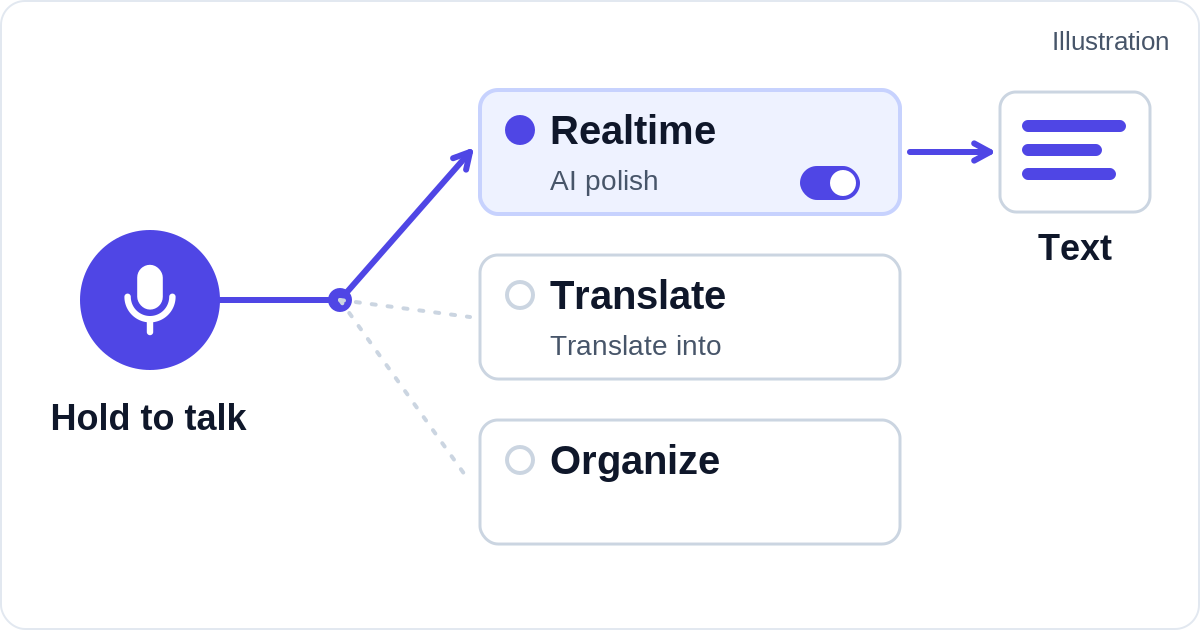
Here is what each of the three modes produces when you release the talk button:
- "Realtime" gives you the recognized words in the language you spoke. Inside "Realtime", an "AI polish" switch (with "Strict" and "Smooth" settings) lets a language model lightly edit the final text when turned on. "AI polish" is a switch inside "Realtime", not a separate mode.
- "Translate" takes what you spoke in your chosen "Spoken language" and outputs only the translation in the language selected under "Translate into".
- "Organize" turns your spoken thoughts into tidy written text in the same language you spoke, removing fillers and false starts without changing the language or turning your words into lists or outlines. You can see how this helps with longer drafts in writing a long email by voice.
When you use "Translate" or "Organize", your original recognized words are still kept on the entry item in the phone app. You can tap "Copy original text" on that row whenever you need the words you spoke before translation or organizing. On the phone entry row, the status "Delivered" means your words reached the computer; the computer then types them into the focused window.
How do Local LAN and cloud connections handle models?
Your "Spoken language" selection applies to both connection types, while speech recognition and language models depend on whether you pair over a local network or the cloud relay. When you connect to your own computer over "Local LAN", FlowMic uses the local speech model on that computer for your chosen language and tells you if none is installed.
For "Translate" and "Organize" over "Local LAN", you also need to configure a model under "Language model" in the computer settings. Those computer model settings apply only to the "Local LAN" connection. You can check the model setup guide for configuration steps.
When you connect over "Cloud relay", the built-in cloud engine handles speech recognition, translation, and organizing without local model setup. You can review the monthly minute allowances on the pricing page.
Common questions
Which spoken languages can I choose on the phone?
Under Spoken language in the phone settings, you can select one of 8 options: English, Simplified Chinese, French, Spanish, German, Japanese, Korean, or Russian. Traditional Chinese is not a separate spoken language option.
Which languages can I translate into?
Under Translate into on the phone, you can pick from 9 output languages: English, Simplified Chinese, Traditional Chinese, French, Spanish, German, Japanese, Korean, or Russian. English is the default.
What does FlowMic cost?
The Free plan is $0 for 20 managed transcription minutes a month and 2 computers. Pro is $12 a month for 1,000 managed minutes and 3 computers. Max is $28 a month for 3,000 managed minutes and 10 computers. Long recording allows up to 10 minutes per recording on Free and 30 minutes on Pro and Max. Subscribe monthly in US dollars on the FlowMic website.
Do I need to configure a language model for translation?
On a Local LAN connection, Translate and Organize require a language model configured in the computer settings under Language model. On a Cloud relay connection, the built-in cloud engine handles translation and organizing.