
 FlowMic
Speak Your Language, Type English: Replies, Emails and Posts
Speaking your language and typing English means you say a reply, an email or a post in the language you think in, and English text appears in the box where your cursor is. FlowMic, an open source (AGPL-3.0) app, does this with its Translate mode: hold a button on your phone, speak, let go, and the translation goes to the cursor on your computer.
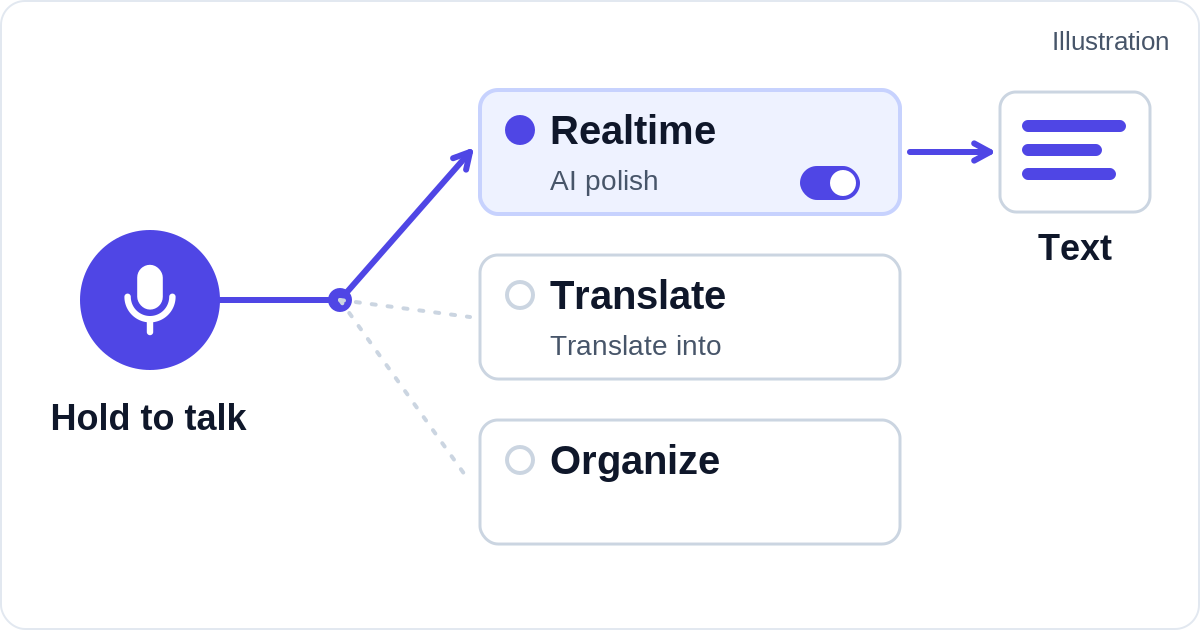
How do you speak your language and get English on your computer?
Pair FlowMic on your phone and computer, set the language you speak, keep English as the target, and pick "Translate" on the phone. Then click the box on your computer where the text should go, hold the talk button, and speak in your own language. When you let go, the English translation goes to your cursor, ready for you to read and edit.
- Get FlowMic for your computer and phone from the download page.
- On the computer, open "Devices" and click "Add phone"; a QR code and a 4-digit code appear. On the phone, tap "Add device" and scan the code under "Scan", or type it under "Enter manually".
- On the phone, set "Spoken language" to the language you speak, check that "Translate into" shows English, and tap "Translate" in the mode selector.
- On the computer, click inside the reply, email or post box so the cursor sits there.
- Hold "Hold to talk" and speak. The button reads "Release to end" while you hold it. Let go when you finish.
- Read the English at the cursor, adjust any word you like, and send or post it the way you normally do.

Which languages can you speak, and which can you get?
You can speak in 8 languages and translate into 9. The spoken languages are English, Chinese, French, Spanish, German, Japanese, Korean and Russian, set on the phone under "Spoken language". The 9 targets under "Translate into" are the same languages with Chinese split into Simplified and Traditional, and English is the default target. So you can speak French and get English, or speak English and get Japanese.
The two settings are separate: "Spoken language" tells FlowMic what you are saying, and "Translate into" tells it what to write. For the full list and how the two settings pair up, read dictate in 8 languages, translate into 9.
What does Translate put at your cursor?
Translate writes only the translated text at your cursor, in the language set under "Translate into". Each recording goes through one mode, so a recording made in "Translate" gives you the English version and nothing else. Your original words are still kept on the phone, so you can go back to what you actually said.
On the phone timeline, the row menu has "Copy original text", which copies the words as you spoke them, before translation. Switching modes clears the phone's text box, and the draft in it is kept as "Record only". If you write longer messages this way, see write a long email by voice.
How can you read the English before it reaches your computer?
The default is "Direct send": when you let go, the translation goes straight to the computer. To look first, switch to "Manual send". Your text then stays on the phone in a card where you can change it, and nothing goes to the computer until you tap "Deliver", or you can tap "Discard" to drop it. This is handy for an email you want to read twice.
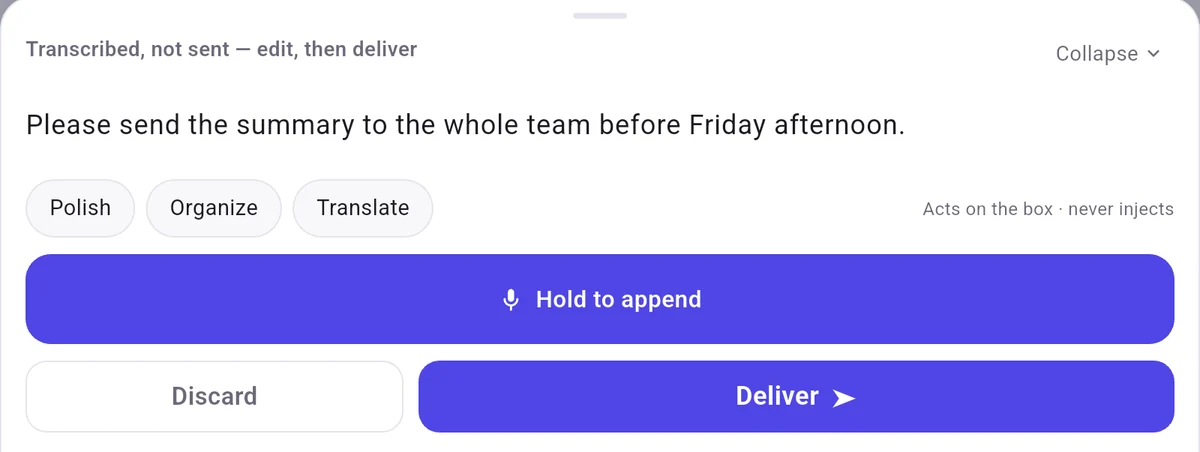
The card also has small "Polish", "Organize" and "Translate" buttons that change only the text in the card on your phone. You can speak in "Realtime" in your own language, read it, tap "Translate", read the English version, and then deliver it.
What does translation need on your computer?
Translation needs a language model, and where it runs depends on how your phone and computer are connected. Through "Cloud relay", which connects them across networks once you sign in on the computer, FlowMic's built-in engine does the translation for you. On "Local LAN", the same network, Translate uses a language model that you set up on the computer under "Language model".
When you are connected to your own computer, FlowMic uses that computer's local speech model for your spoken language. To read where your words go along the way, see does FlowMic keep what you say. For more on working across languages, visit cross-language writing, and check the pricing page for plans.
Common questions
Which languages can FlowMic translate into?
Translate offers 9 target languages: English, Simplified Chinese, Traditional Chinese, French, Spanish, German, Japanese, Korean and Russian. English is the default, and you can change it on the phone under Translate into whenever you want a different target.
Do I need an account?
Cloud relay, for when your phone and computer are on different networks, needs you to sign in on the computer. Long recordings and the cloud Notes space also need sign-in. The Try it page on the FlowMic website lets you test one sentence first, with 120 seconds per browser.
How much does FlowMic cost?
Free is $0 with 20 managed transcription minutes a month and 2 computers, and each long recording can run up to 10 minutes when signed in. Pro is $12 a month with 1,000 minutes and 3 computers, and Max is $28 a month with 3,000 minutes and 10 computers. Translate is included on all three plans, and you subscribe on the FlowMic website.
Which computers and phones can I use?
FlowMic runs on Windows 10/11 64-bit, on macOS 11 or later with Apple silicon, and on Linux x86-64 in an X11 session. The phone app runs on Android 7.0 or later and on iPhone and iPad with iOS or iPadOS 15 or later.