
 FlowMic
Use Your iPhone as a Voice Keyboard for Your PC
Using your iPhone as a voice keyboard for your PC means speaking into your phone so the words appear where your cursor rests on your computer screen, and FlowMic is an open source (AGPL-3.0) app built for this task. Instead of buying a desk microphone or typing long replies by hand, you hold a button on your iPhone, speak, and let go. Your spoken words land in ordinary text boxes in browsers and programs on your computer.
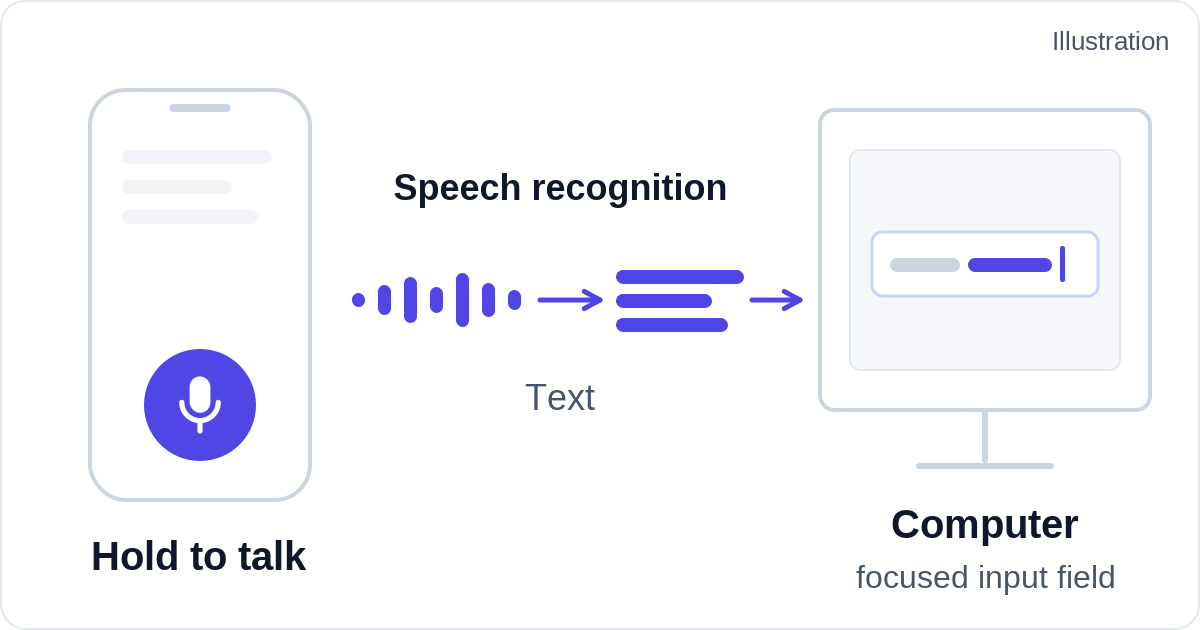
How do you set up your iPhone and PC?
You set up FlowMic by installing the desktop app on your computer first, installing the iPhone app from the App Store, and scanning a pairing QR code on your computer screen. Once paired, you click into a text box on your PC, press and hold the talk button on your iPhone, speak your thoughts, and release the button so the text appears at your cursor.
- Download and install FlowMic on your computer from the download page or the Microsoft Store on Windows. On macOS, move the app into "Applications" before opening it and grant the Accessibility permission. On Linux x86-64, run inside an X11 session.
- On your iPhone or iPad (iOS or iPadOS 15 or later), open the App Store, search for FlowMic, and install it. You can also visit the iOS download page or the iOS installation guide. Nothing else needs to be installed on your phone, and updates arrive through the App Store.
- Open FlowMic on your computer, go to "Devices", and click "Add phone". A dialog displays a QR code, a 9-digit PCID, a 4-digit pairing code, and the countdown label "Pairing code expires in". The window shows "Pairing code valid for 5 minutes", and the code refreshes automatically when it expires.
- On your iPhone, if no computer is paired yet, the screen shows "No paired computers yet". Tap "Add device" to see tabs for "Scan" and "Enter manually". Stay on "Scan" and point your camera at the QR code without pressing a button, or use "Enter manually". The first time you scan, iOS requests camera permission.
- Click inside an ordinary text box in a browser or program on your PC so the cursor is where you want your words to go.
- On your iPhone, press and hold "Hold to talk" (the first time you speak, iOS requests microphone permission). After a moment, the label becomes "Release to end". Speak while holding the button, then let go to finish, or slide up to "Release to cancel" and let go to discard.

What happens when you release the talk button?
When you let go of the button on your iPhone, FlowMic finishes the recording, processes your speech according to your selected mode, and sends the resulting text to your computer so it lands at the active cursor position. You can then review the words in your text box and edit or send them the way you normally do on your computer.
FlowMic tracks your text in two distinct stages. On your iPhone, the conversation row shows "Delivered" once the words reach your computer. Putting those words into the focused window on your computer is a second step, which the desktop timeline records as "Injected", "Not injected · buffered", or "Input sent". If your PC lacks a mic, read about using your phone without a desktop microphone.

How do Realtime, Translate, and Organize modes work?
FlowMic offers three speaking modes on the phone bar: "Realtime", "Translate", and "Organize". Each time you hold the button to speak, your recording runs through the single mode you have selected, and all three modes are included on every subscription tier. You can switch between them on your iPhone before you press the talk button.
- "Realtime" outputs the recognized words in the language you spoke. Inside "Realtime", you can turn on the "AI polish" switch (Strict or Smooth) so a language model lightly edits the final text; "AI polish" is a switch inside "Realtime", not a fourth mode.
- "Translate" lets you speak in one language and get only the translation in the target language chosen under "Translate into" (9 target languages, counting simplified and traditional Chinese separately).
- "Organize" turns speech into tidy written text in the same language, removing fillers and false starts.
How do pricing plans and privacy work?
FlowMic starts with a Free plan at $0 that includes 20 managed transcription minutes a month and pairing for up to 2 computers. Every plan includes "Realtime", "Translate", and "Organize", and FlowMic servers, including the relay, do not store your transcripts.
If you need more minutes or computers, you can subscribe on the pricing page on the FlowMic website (billed monthly in US dollars, with no yearly plan and no upgrading inside the app):
- Free: $0 a month, 20 managed transcription minutes a month, 2 computers.
- Pro: $12 a month, 1,000 managed minutes a month, 3 computers.
- Max: $28 a month, 3,000 managed minutes a month, 10 computers.
When signed in, long recordings allow up to 10 minutes per recording on Free and up to 30 minutes on Pro and Max, which is a separate limit from the 20 minutes a month on the Free plan. Relay traffic uses TLS; the privacy page has the details, and the Android voice keyboard guide covers the same setup on Android.
Common questions
How do you install FlowMic on an iPhone?
Open the App Store on your iPhone or iPad and search for FlowMic to install it. Your device needs iOS or iPadOS 15 or later, and updates come through the App Store. Nothing else needs to be installed on your phone, though you install FlowMic on your computer first so the two devices can pair.
Which computers work with the iPhone app?
You can pair your iPhone with a PC running Windows 10 or 11 64-bit, a Mac with Apple silicon running macOS 11 or later, or a Linux x86-64 computer running an X11 session. On macOS, move the app to the Applications folder before opening it and grant the Accessibility permission.
What does FlowMic cost?
The Free plan is $0 and includes 20 managed transcription minutes a month and 2 computers. Pro is $12 a month for 1,000 managed minutes and 3 computers, and Max is $28 a month for 3,000 managed minutes and 10 computers. All three plans include Realtime, Translate, and Organize, and subscriptions are billed monthly on the FlowMic website.
Does FlowMic keep what I say?
FlowMic servers, including the relay, do not store your transcripts. When your phone and computer use the relay, the connection uses TLS. You can read the full details on the privacy page.