
 FlowMic
Send a Phone Screenshot to Your Computer
Sending a phone screenshot to your computer means getting a picture of your phone screen into the box you are working in on the computer. FlowMic, an open source (AGPL-3.0) app, pastes the screenshot you pick at your computer's cursor. You take the screenshot the usual way on your phone. Then you tap the plus button in FlowMic, tap "Photo" and choose it. Get both apps from the download page.
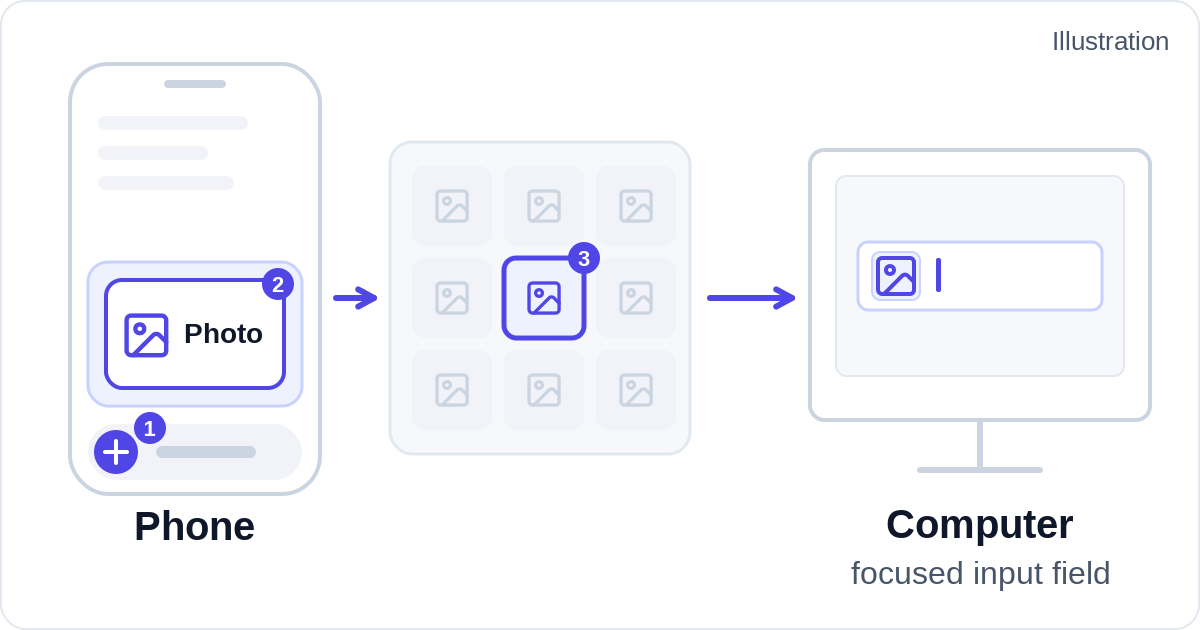
How do you send a phone screenshot to your computer?
First click into the box on the computer where the screenshot should go, so the cursor is there. On the phone, take the screenshot, open the chat screen in FlowMic and tap the plus button next to the input bar. "Photo" is at the top of the panel. Tap it and choose the screenshot in your gallery. It is sent as soon as you choose it, and the computer pastes it once at your cursor.
From there, sending is up to you. Each screenshot is one pick, so a series of them is a few quick rounds of plus, "Photo" and choose. For photos from the camera roll, read Send a Photo From Your Phone to Your Computer.
How do you set it up the first time?
You need FlowMic on the computer and on the phone, paired once. Pairing uses a QR code that the computer shows and the phone scans, as described in the setup guide for every platform. After that, sending a screenshot comes down to the plus button and "Photo". The computer must be a Windows PC or a Mac on Apple silicon with Accessibility permission for FlowMic.
- Install FlowMic on the computer and the phone, and pair them.
- Take the screenshot on your phone the way you normally do.
- On the computer, click into the box where the screenshot should go.
- On the phone, open FlowMic and tap the plus button.
- On the local network, tick "Send original" if you want the original file.
- Tap "Photo" and choose the screenshot.
- Check the result on the phone and at your cursor on the computer.
Will the text in your screenshot stay readable?
On the same local network, FlowMic leaves a picture at its original size if its longest side is within 3456 px, and phone screenshots normally fit inside that. By default the screenshot is encoded again at quality 92, keeping its size. To send the file exactly as it is, tick "Send original" in the panel before you tap "Photo", and the original goes byte for byte. The box starts unchecked each time you open the panel.
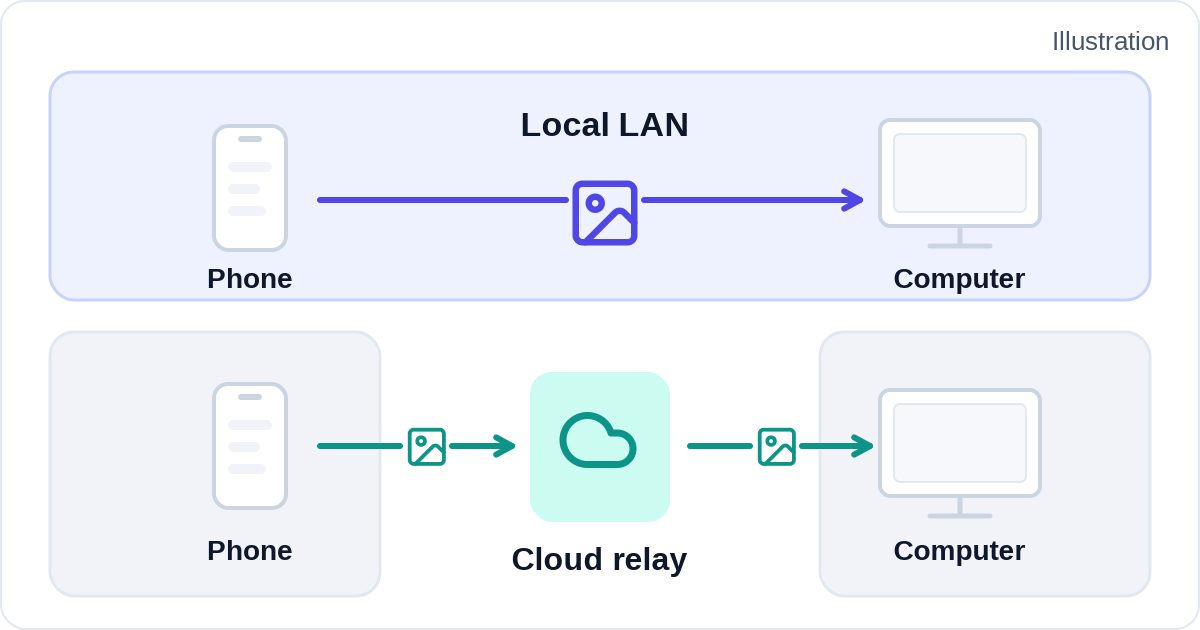
Tick "Send original" for screenshots where the exact pixels count, and leave it off for everyday ones.
What changes when you send over the cloud relay?
When the phone and the computer are on different networks, the screenshot travels through the cloud relay. There, it is resized to at most 1920 px on its longest side at quality 85 and kept within 1 MiB. One account can send up to 200 pictures through the relay in 24 hours, and that allowance is the same on every plan. The computer needs to be signed in to a cloud account for the relay.
To send from mobile data to a computer at home, see Dictate From Anywhere.
What do you see while it sends and after?
While a screenshot is on its way, the phone shows "Compressing the photo…" and then "Transferring to the computer". Each screenshot you send becomes a row in the phone timeline, with its format and size and a 256 px preview. On the phone, "Delivered" means the screenshot reached the computer. The computer keeps its own timeline with its own status, such as "Injected".
Every screenshot that arrives is also saved in the computer's timeline. If you want it in a second place, use "Copy image" there and paste it by hand. To learn how each row is tracked, read See What Happened to Every Sentence You Dictate.
Common questions
How many screenshots can I send at once?
One at a time. Each tap on Photo lets you choose one picture from your gallery, and it is sent as soon as you choose it. For the next screenshot, tap the plus button and Photo again.
Which image formats work?
PNG, JPEG and WebP. If a picture is in another format, the phone tells you which ones it takes.
Do I need an account?
When the phone and computer connect through the cloud relay, the computer has to be signed in to a cloud account. The picture allowance on the relay is the same for every account and does not depend on your plan.
Can I send a screenshot from mobile data to my computer at home?
Yes, through the cloud relay. The screenshot is resized to at most 1920 px on its longest side and kept within 1 MiB, and one account can send up to 200 pictures in 24 hours.