
 FlowMic
Send a Photo From Your Phone to Your Computer
FlowMic lets you send a picture from your phone's gallery to your computer and paste it into the box where your cursor is. FlowMic, an open source (AGPL-3.0) app, pastes the picture you pick into the window at your computer's cursor. You tap the plus button, then "Photo", then choose one picture. It is sent as soon as you choose it, with no confirm screen. Get both apps from the download page.
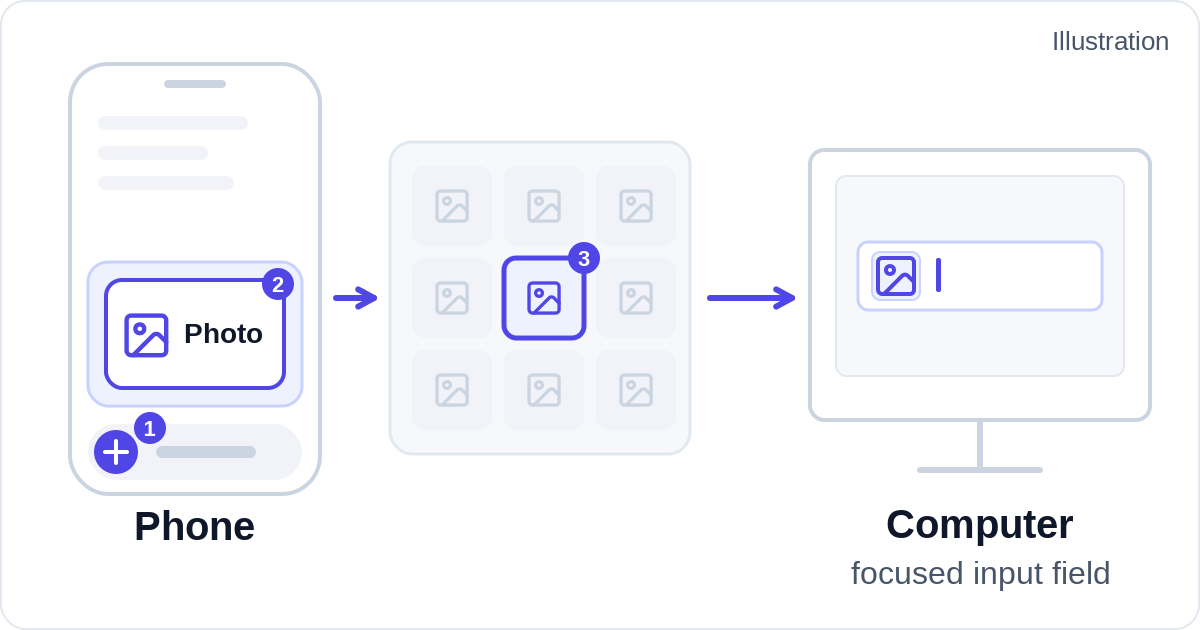
How do you send a photo from your phone to your computer?
Put the cursor on the computer where the picture should go. On the phone, open the chat screen in FlowMic and tap the plus button next to the input bar. The first tile in the panel is "Photo", and its hint says the photo is pasted into the computer window. Tap it and choose a picture from your gallery. FlowMic sends it and pastes it once at your cursor, and what you do next is up to you.
You send one picture at a time. The pictures come from your phone's gallery, so a photo you took with the camera or a screenshot you took is ready to pick. For pictures headed into a report or a chat, read putting a phone photo into a document or chat.
How do you set up photo sending between phone and computer?
Setup is the same pairing you would do for voice typing: install FlowMic on the computer and the phone, then link them with a QR code. The computer must run Windows or macOS on Apple silicon, and a Mac needs Accessibility permission for FlowMic. Once the two are paired, the plus button on the phone is all you use to send a picture.
- Install FlowMic on the computer and on the phone.
- On the computer, open "Devices" and click "Add phone". A dialog shows a QR code, a 4-digit pairing code and "Pairing code expires in", and the code is valid for 5 minutes.
- On the phone, tap "Add device" and scan the QR code from the "Scan" tab, or use "Enter manually".
- Click into the place on the computer where the picture should go.
- On the phone, tap the plus button, then "Photo", and choose a picture.
Which picture formats and sizes can you send?
FlowMic sends PNG, JPEG and WebP pictures, and it recognizes the format from the file itself rather than its name. The size depends on how the phone and computer are connected. On the same local network, a picture is resized to at most 3456 px on its longest side at JPEG quality 92. Tick "Send original" before you tap "Photo", and the original file goes byte for byte instead.
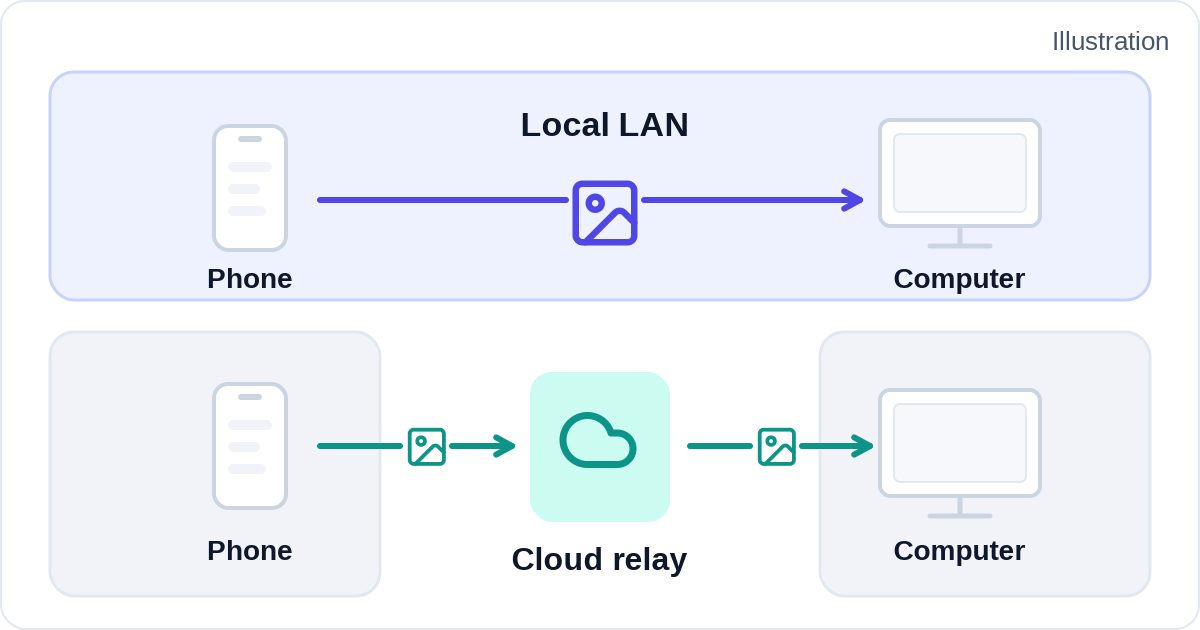
Through the cloud relay, a picture is resized to at most 1920 px on its longest side at quality 85, and each one stays within 1 MiB. One account can send up to 200 pictures through the relay in 24 hours. "Send original" is offered only on the local network. If a picture is too large for the relay, the phone suggests connecting over the same LAN to send it.
What do you see on the phone and the computer after you send?
On the phone, the row for the picture reads "Delivered" once it reaches the computer. That word covers the trip to the computer, and the computer timeline reports the paste on its own side. Every picture that arrives is also saved in the computer's timeline. There, "Copy image" lets you copy it and paste it by hand somewhere else. This is handy when you want the same picture in two documents.
The plus button and "Photo" work the same way for every picture, whether it is a photo or a screenshot. For screenshots in particular, see sending a phone screenshot to your computer. To see how each item is tracked, read See What Happened to Every Sentence You Dictate.
Common questions
Which image formats can I send?
PNG, JPEG and WebP. The phone recognizes the format from the file itself, not from its name. Pictures in other formats are not sent, and the phone tells you which formats it takes.
Is there a size limit?
Through the cloud relay, each picture is kept to 1 MiB or less, and one account can send up to 200 pictures in 24 hours. On the same local network, the picture is resized to at most 3456 px on its longest side unless you tick Send original.
Can I take a photo from inside FlowMic?
FlowMic picks pictures from your phone's gallery. Take the photo with your phone's camera first, then open the plus button in FlowMic, tap Photo and choose it.
Which computers can receive the pictures?
Windows 10/11 64-bit and macOS 11 or later on Apple silicon. On a Mac, FlowMic needs Accessibility permission to paste into other apps.