
 FlowMic
From Rambling to Clean Text: Speak, Then Get a Tidy Draft
Speaking a draft and then tidying it means you talk the way you think, with fillers and restarts, and end up with text that reads as if you had written it. FlowMic, an open source (AGPL-3.0) app, does this with its Organize mode: you hold a button on your phone, speak, and let go, and tidy written text in the same language goes to the cursor on your computer.
What does FlowMic's Organize mode do to your words?
Organize takes what you said and tightens it into clear written prose in the same language. It drops filler words and false starts, and it uses your custom terms to fix obvious recognition mistakes. The language stays the one you spoke and the result reads as prose, so you can speak loosely and then edit the written version. In this mode, the tidy version is what goes to your computer.
Organize is one of three modes, next to "Realtime" and "Translate", and each recording goes through one of them. If you like to think out loud before you know what you want to say, the brain-dump guide shows the same idea for loose notes.
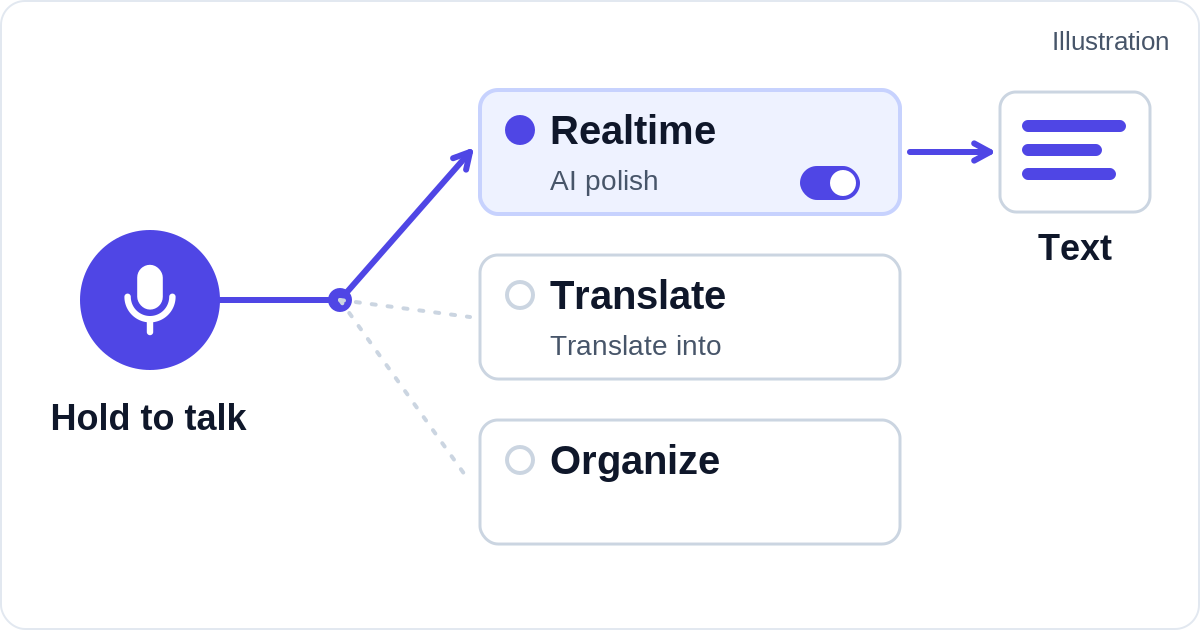
How do you speak a draft and tidy it with FlowMic?
Install FlowMic on your computer and your phone, pair them once, then pick "Organize" on the phone before you speak. Click the text box on your computer where the draft should go, hold "Hold to talk", say the whole thought, and let go. The tidy text arrives at the cursor, and you edit it at the keyboard like any draft.
- Get FlowMic for your computer and phone from the download page.
- On the computer, open "Devices" and click "Add phone"; a QR code and a 4-digit code appear. On the phone, tap "Add device" and point the camera at the code under "Scan", or type the code under "Enter manually".
- On the phone, tap "Organize" in the mode selector above the talk button.
- On the computer, click inside the text box so the cursor is where the draft should start.
- Hold "Hold to talk" and speak. The button reads "Release to end" while you hold it. Let go when the thought is done.
- Read the tidy text at the cursor, change what you want, and send or save it the way you normally do.

Switching modes clears the phone's text box, and the draft in it is kept as "Record only".
When is Realtime with AI polish the better choice?
Pick "Realtime" when you want your own wording kept and only light cleanup. Its "AI polish" switch has two strengths: Strict fixes mistakes and keeps your wording, though some fillers can still go, while Smooth also drops fillers, false starts and repeats and fixes grammar, which reads better but sits further from what you said. The switch starts on, set to Strict.
Turning "AI polish" off skips that step; your custom terms still apply, and spacing, some fillers and end punctuation can still be tidied. If you would rather leave the rewording out, read dictating without AI rewording. Organize goes further than light correction: it tightens the whole recording into clear written prose.
How can you check the tidy text before it reaches your computer?
The default is "Direct send": when you let go, your words go straight to the computer. To look first, switch to "Manual send". Your words then stay on the phone in a card where you can change them, and nothing goes to the computer until you tap "Deliver", or you can tap "Discard" to drop them. This suits a draft you want to read before it lands.
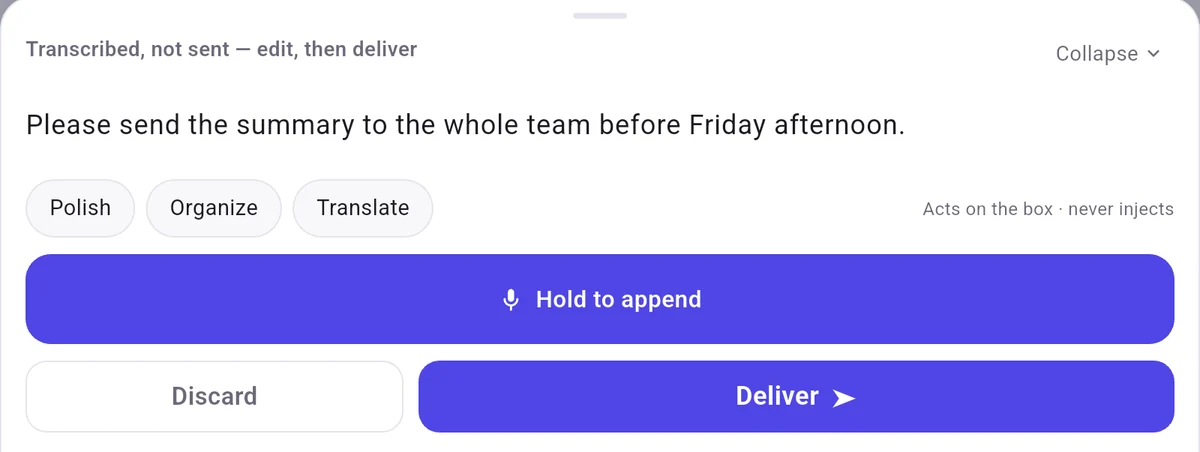
The card has small "Polish", "Organize" and "Translate" buttons. They change only the text in the card on your phone, so you can speak in "Realtime", tap "Organize" to tidy what you said, read the result, and then deliver it. Sentences you already sent stay on the phone timeline, where the row menu has "Re-organize" along with "Copy original text" for the words as you first spoke them.
Where does the tidying happen?
The tidying needs a language model, and where it runs depends on how your phone and computer are connected. Through "Cloud relay", FlowMic's built-in engine handles Organize for you. On "Local LAN", Organize and Translate use a language model that you set up on the computer under "Language model".
Local LAN suits a phone and computer on the same network, and Cloud relay connects them across networks once you sign in on the computer. To read where your words go along the way, see does FlowMic keep what you say. For plans, see the pricing page, and for more ways to talk a draft through, see talk it through.
Common questions
Does Organize change my language?
No. Organize keeps the language you spoke. It tightens what you said into clear written prose, drops filler words and false starts, and fixes obvious recognition mistakes using your custom terms.
Do I need an account?
Cloud relay, for when your phone and computer are on different networks, needs you to sign in on the computer. Long recordings and the cloud Notes space also need sign-in. The Try it page on the FlowMic website lets you test one sentence without an account, with 120 seconds per browser.
How much does FlowMic cost?
Free is $0 with 20 managed transcription minutes a month, 2 computers, and each long recording can run up to 10 minutes when signed in. Pro is $12 a month with 1,000 minutes and 3 computers, and Max is $28 a month with 3,000 minutes and 10 computers, and on both each long recording can run up to 30 minutes. Organize is included on all three plans, and you subscribe on the FlowMic website.
Which computers and phones can I use?
FlowMic runs on Windows 10/11 64-bit, on macOS 11 or later with Apple silicon, and on Linux x86-64 in an X11 session. The phone app runs on Android 7.0 or later and on iPhone and iPad with iOS or iPadOS 15 or later.