
 FlowMic
Voice Typing Without Switching Your Input Method
Voice typing without switching your input method means you keep your keyboard layout or input method as it is and add speech alongside it. FlowMic, an open source (AGPL-3.0) app, works this way: it is not an input method, so there is nothing to select; you speak into your phone and the text lands at the cursor on your computer.
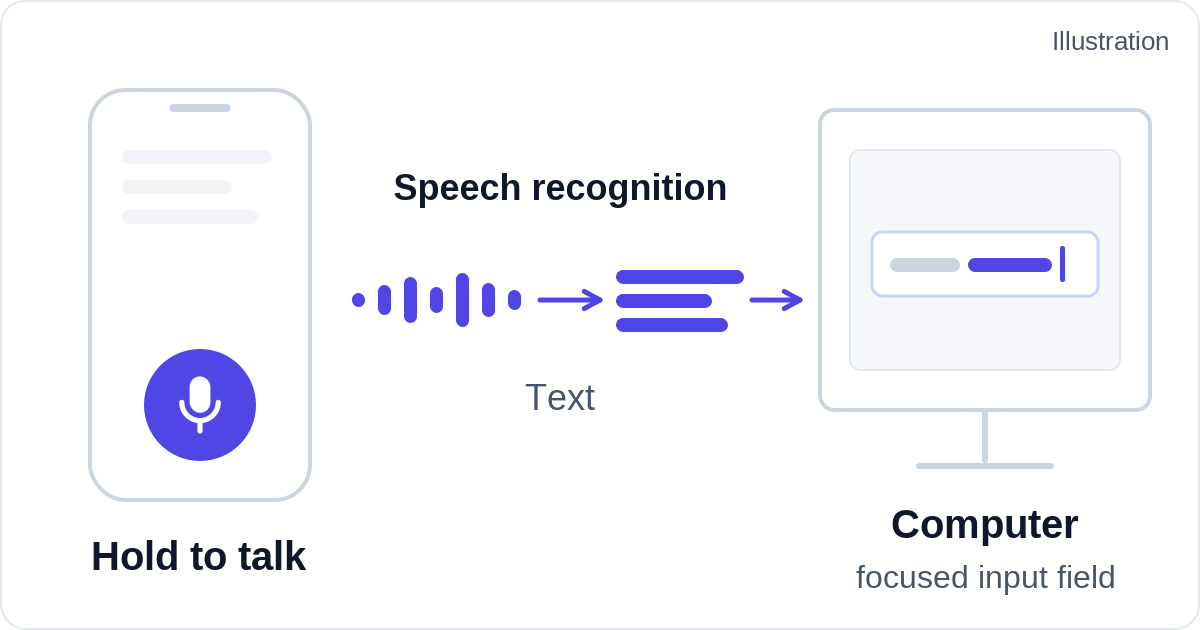
Why don't you have to switch input methods with FlowMic?
FlowMic does not install itself as an input method on your computer, so it does not appear in your list of keyboards and you do not switch to it. Speech happens on your phone, in the FlowMic app, and the computer app receives the finished text and puts it at your cursor. Your usual input method stays selected the whole time, ready for whatever you type by hand.
That also means the computer needs no microphone driver and no remote control software. You keep typing the way you do now, and when a sentence is quicker to say than to type, you pick up the phone, hold the button, and say it.
How do you set up voice typing next to your input method?
Install FlowMic on the computer and the phone, pair them once by scanning a QR code, then click the box you want to fill and hold the talk button on the phone. When you let go, the words go to your cursor. At no point do you open your input method settings.
- Get FlowMic for the computer from the download page: Microsoft Store or GitHub Releases on Windows, and the download page for Mac and Linux.
- Get FlowMic for the phone from Google Play or the App Store; on Android, the APK on GitHub Releases is another option.
- On the computer, open "Devices" and click "Add phone". A dialog shows a QR code, a 9-digit PCID, a 4-digit pairing code and "Pairing code expires in"; the code is valid for 5 minutes and refreshes by itself.
- On the phone, tap "Add device", stay on the "Scan" tab and point the camera at the code, or switch to "Enter manually".
- Click into the text box on the computer, leave your input method as it is, and hold "Hold to talk" on the phone. Speak while it reads "Release to end", then let go.

How does FlowMic put the words into the box?
In an ordinary text box, FlowMic puts the finished text on the clipboard, pastes it into the window in front, and then puts your previous clipboard back. The sentence goes in as one piece at the place where you clicked, and the input method you picked stays selected. You do not have to change anything in your keyboard settings for this to happen.
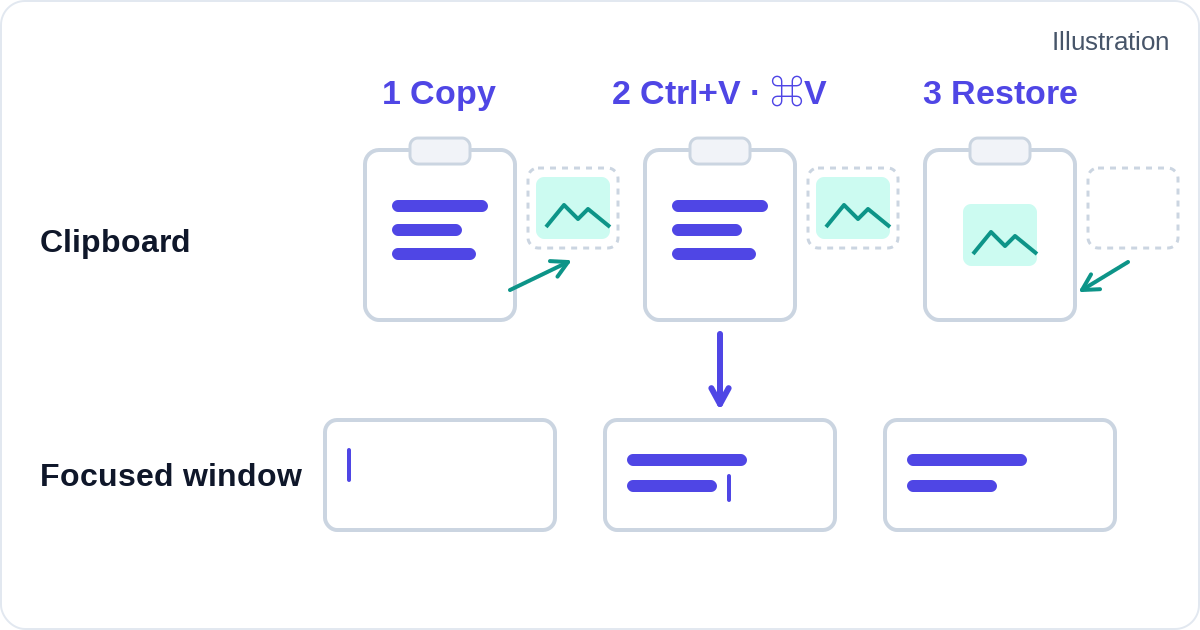
The paste goes to the cursor in ordinary text boxes in browsers and programs, which is where you clicked before speaking. For other ways to put your words on a Windows computer with the button on your phone, see push-to-talk dictation for Windows.
Which mode should you pick on the phone?
Each time you hold the button, your words go through one of three modes, all included on every plan. "Realtime" stays close to your own wording, in the language you spoke. "Translate" gives you only a translation, in the language you choose under "Translate into". "Organize" turns what you said into tidy written text in the same language.

Inside "Realtime", an "AI polish" switch can lightly edit the finished text; it is a switch, not a separate mode. If you are weighing different ways to dictate on a computer, read dictation on Windows and Mac: which approach fits you.
How do you know your words arrived?
The phone and the computer each show their own part of the trip. On the phone, the row for a sentence shows "Delivered" once the words reach the computer. On the computer, its own timeline shows what happened at the window, such as "Injected" when the text went into the box. For the full picture of using your phone this way, read voice typing for your PC using your phone, and see the pricing page for plans.
Common questions
Do I have to switch my input method to use FlowMic?
No. FlowMic is not an input method, so there is nothing to select in your list of keyboards or input methods. You speak into the FlowMic app on your phone, and the computer app puts the finished text at your cursor.
Do I need to install anything else on the computer?
No. Besides the FlowMic app, the computer needs no remote control software and no microphone driver, because you speak into your phone. The computer app comes from Microsoft Store or GitHub Releases on Windows and from the FlowMic download page for Mac and Linux.
Which computers and phones can I use?
FlowMic runs on Windows 10/11 64-bit, on macOS 11 or later with Apple silicon, and on Linux x86-64 in an X11 session. The phone app runs on Android 7.0 or later and on iPhone and iPad with iOS or iPadOS 15 or later.
How much does FlowMic cost?
Free is $0 with 20 managed transcription minutes a month and 2 computers. Pro is $12 a month with 1,000 minutes and 3 computers, and Max is $28 a month with 3,000 minutes and 10 computers. All three plans include Realtime, Translate and Organize, and you subscribe on the FlowMic website.