
 FlowMic
Push-to-Talk Dictation on Windows With Your Phone
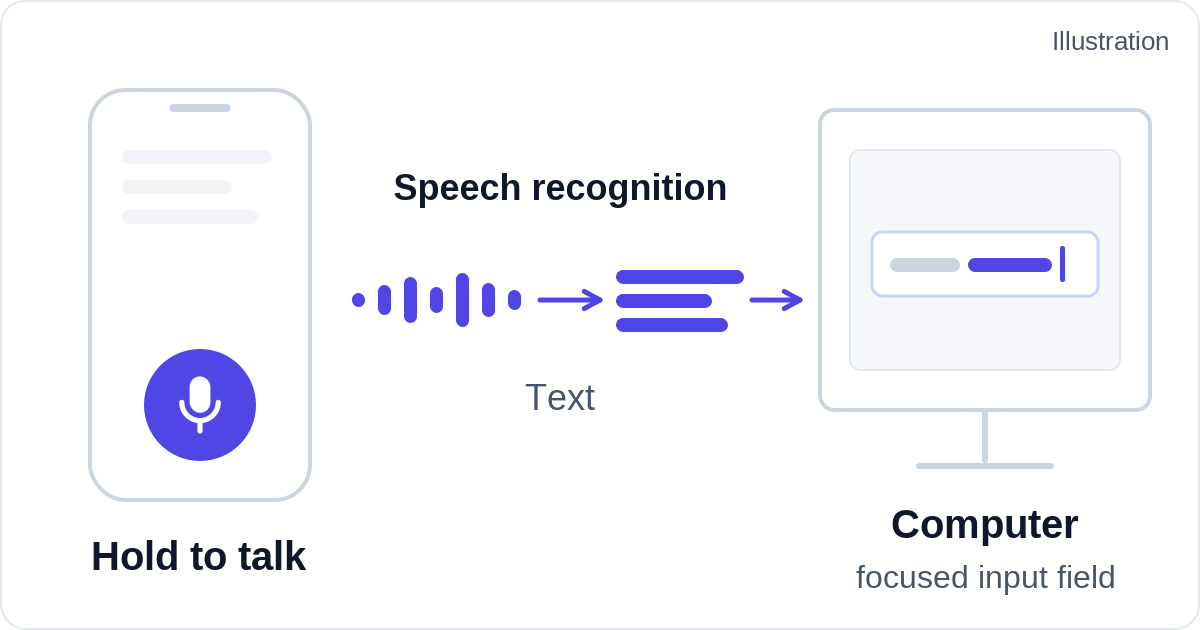
Push-to-talk dictation on Windows means the microphone records only while you hold a button and stops when you let go. FlowMic is an open source (AGPL-3.0) app that puts that button on your phone and sends the words to your PC's cursor. There is no hotkey to learn on the computer. You click into a text box on the PC, hold the button on the phone, speak, and release. Start on the Windows download page.
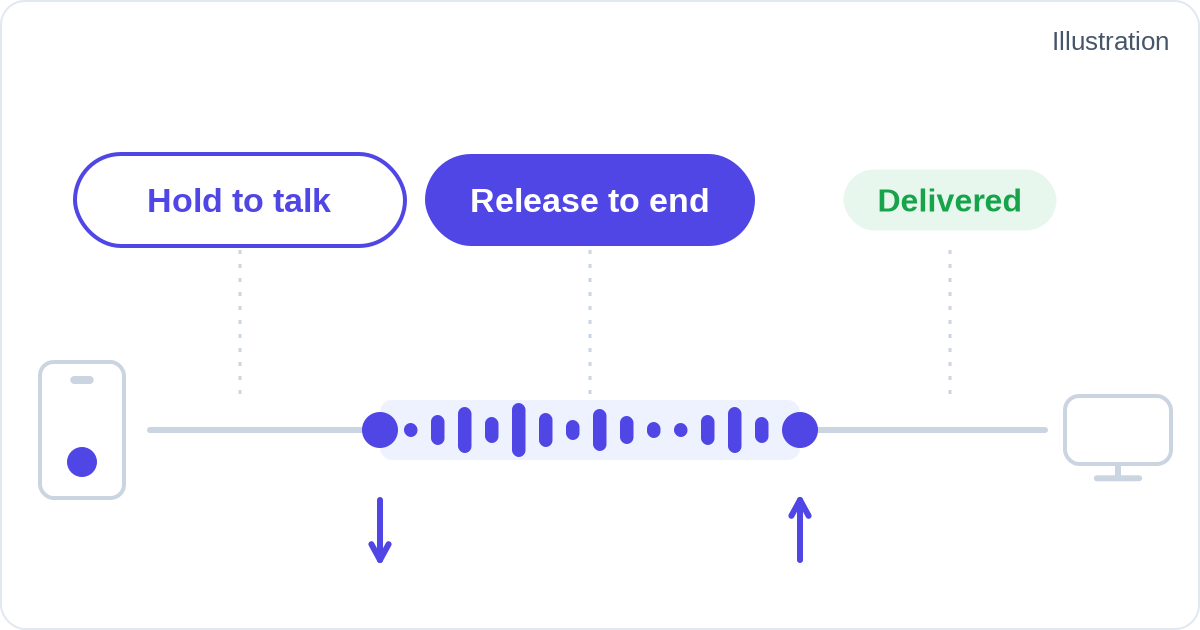
Where is the push-to-talk button when you dictate on Windows?
The button is on your phone, in the FlowMic app, labeled "Hold to talk". FlowMic has no global hotkey on the Windows side, so nothing on the keyboard starts a recording. Your PC keeps its keyboard for typing and shortcuts, and the phone takes over the talking. Press and hold, speak a sentence, and let go. The recording runs only for as long as your finger stays on the button, which is the whole point of push-to-talk.

This layout suits people who want a clear start and stop for every sentence. For the same idea seen from the privacy side, read push to talk on your phone.
How do you set up push-to-talk dictation on a Windows PC?
Setup takes one install on the PC, one on the phone, and a QR code scan to pair them. On Windows you can choose the MSI installer, a portable zip that needs no administrator rights, or Microsoft Store. On the phone, install FlowMic from Google Play or the App Store. Once the two are paired, the sentences you speak go to the PC, into the box where your cursor is waiting.
- Install FlowMic on the PC from the download page and open it. The Windows install guide walks through each option.
- In the PC app, open "Devices" and click "Add phone". A dialog shows a QR code, a 9-digit PCID, a 4-digit pairing code and "Pairing code expires in". The code is valid for 5 minutes and refreshes on its own.
- On the phone, tap "Add device" and point the camera at the QR code from the "Scan" tab, or switch to "Enter manually".
- Click into a text box on the PC.
- Hold "Hold to talk" on the phone, speak, and let go.
What happens while you hold and when you let go?
After a short hold, recording starts and the button changes to "Release to end". Words show up on the phone while you talk, which tells you it is listening. The words that go into the PC window are the finished text from after you let go. If you change your mind about a sentence, slide up while still holding until the button reads "Release to cancel", and let go to discard it.
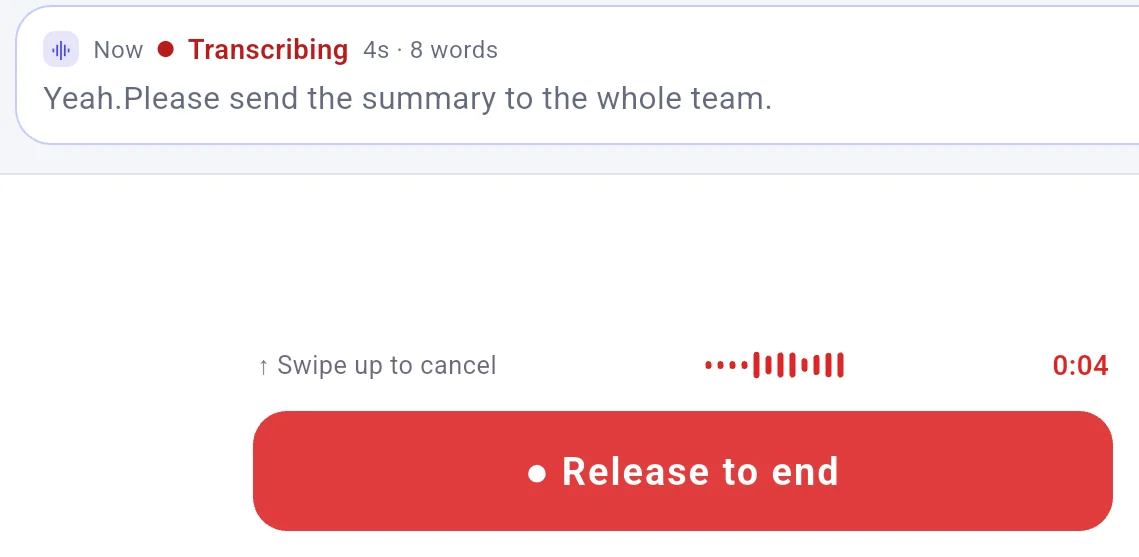
When you release, the phone row for that sentence shows "Delivered", which means the words reached the PC. Whether they went into the window is a second step that the PC timeline tracks, with labels such as "Injected" or "Not injected · buffered". Read the words at your cursor and send them the way you normally do.
Which mode should you use for each recording?
Above the talk button, choose one of three modes: "Realtime", "Translate" or "Organize". "Realtime" gives you your own words in the language you spoke, and its "AI polish" switch can lightly edit the final text. "Translate" returns only the translation, in the language set under "Translate into". "Organize" turns rambling speech into tidy written text in the same language, without fillers and false starts.
Each recording uses the one mode that is selected, and all three modes come with every plan. Plans differ in minutes and in how many computers you can use, and they are listed on the pricing page. If you are still choosing a way to dictate on Windows, Dictation on Windows and Mac: Which Approach Fits You compares the options.
Common questions
Is there a push-to-talk hotkey on the PC?
No. FlowMic has no global hotkey on the computer. The talk button is on your phone: hold Hold to talk to record, and let go to finish. On the PC, you click into the text box where the words should go.
How do I stop or cancel a recording?
Lift your finger to stop. To throw a recording away instead, keep holding, slide your finger up until the button reads Release to cancel, and then let go. That recording is discarded.
Which Windows versions and installers can I use?
FlowMic runs on 64-bit Windows 10 and 11. Pick the standard MSI installer, the portable zip that needs no administrator rights, or Microsoft Store. The MSI and the zip are on GitHub Releases.
Can I use an iPhone instead of an Android phone?
Yes. FlowMic is on the App Store for iPhone and iPad on iOS or iPadOS 15 or later, and on Google Play for Android 7.0 or later. The iOS app is on the App Store outside mainland China and the EU.
What does FlowMic cost?
The Free plan is $0 with 20 managed transcription minutes a month and 2 computers. Pro is $12 a month with 1,000 minutes and 3 computers, and Max is $28 a month with 3,000 minutes and 10 computers. Subscribe on the FlowMic website.