
 FlowMic
Dictation Without Setting Up a Speech Model
Dictation without setting up a speech model means speaking into a microphone and getting text on your computer without configuring recognition engines by hand, and FlowMic does this by turning your phone into a microphone for your computer. You hold a button in the phone app, speak, and let go to place words into ordinary text boxes in browsers and programs. FlowMic is open source (AGPL-3.0) and you can try it in the browser or get the installers.
How does FlowMic turn speech into text without manual model setup?
FlowMic gives you two ways to connect your phone and computer so you can start dictating. When you pair through "Cloud relay", the built-in cloud engine handles speech recognition after you sign in on your computer, with no model download needed on the desktop. When your phone and computer share a network on "Local LAN", you click a single button in the computer settings once to download the built-in model.
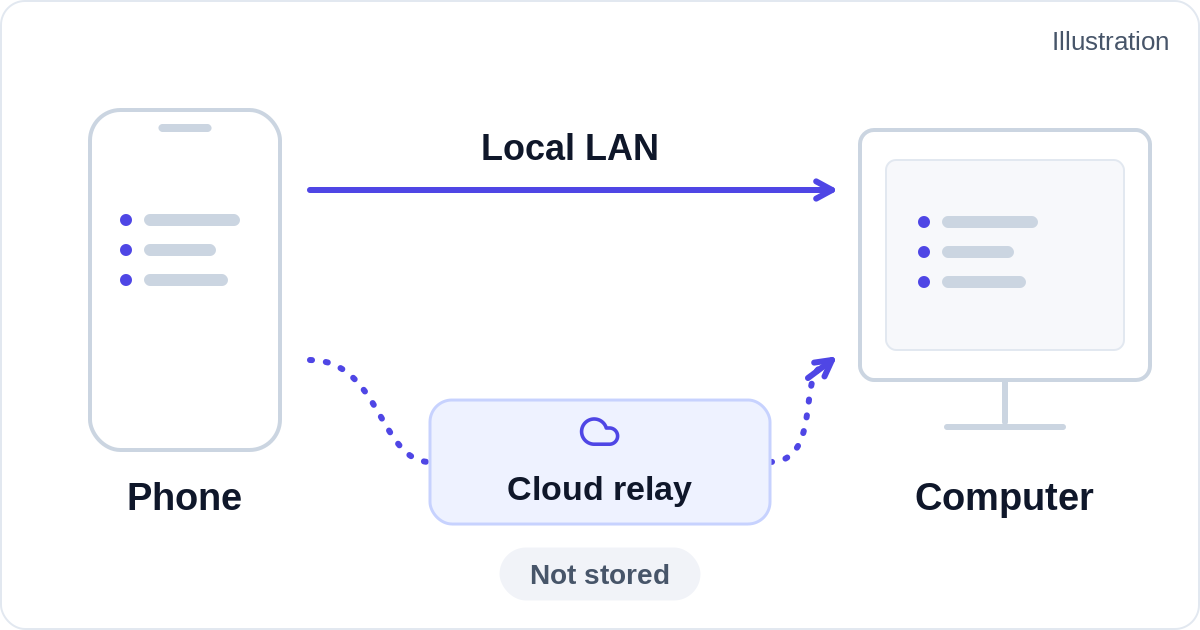
With "Cloud relay", your computer signs in through your browser and connects to your phone even across different networks, as shown in our cloud setup guide. With "Local LAN", your devices connect directly on the same network. If you select "Built-in speech model" over "Local LAN" before downloading it, the phone prompts you to download a speech model on the computer. Click "Download the model (one time)" in the computer settings, as explained in the local speech model guide.
How do you install, pair, and dictate your first sentence?
To dictate your first sentence without downloading a speech model on your computer, install FlowMic on both devices, sign in on the computer, scan a pairing QR code on the "Cloud relay" tab, and hold the talk button on your phone. Once you release the button, your recognized words land in the focused text box where your cursor rests on the computer screen.
- Visit the download page to install FlowMic on your computer from Microsoft Store or GitHub Releases, and on your phone from the App Store, Google Play, or the GitHub Releases APK.
- On macOS, move FlowMic into "Applications" before opening it, then grant Accessibility permission so it can type into other programs.
- Open the computer app and click "Sign in with browser" to sign in with email or Google in your browser, or paste a Cloud Key from the console.
- Go to "Devices" on the computer, click "Add phone", and choose "Cloud relay". The dialog displays a QR code, a 9-digit PCID, a 4-digit pairing code, and the countdown "Pairing code expires in". Codes stay valid for 5 minutes and refresh automatically.
- On your phone, tap "Add device" and aim the camera at the QR code on the "Scan" tab with no button to press, or use "Enter manually".
- Click inside an ordinary text box in a browser or program on your computer.
- On the phone conversation screen, press and hold "Hold to talk". After a moment, the label becomes "Release to end". Speak and let go when finished, or slide up to "Release to cancel" to discard.
- Look at the words at your computer cursor and send them the way you normally do.

When the phone item shows "Delivered", your words have reached the computer. The computer then types them into the focused window.

For platform details, see setup across all platforms.
What modes and languages can you use while dictating?
FlowMic provides three modes on the phone conversation screen: "Realtime", "Translate", and "Organize". Each time you hold the button and speak, your dictation runs through the single mode you chose before speaking. You can dictate in 8 recognition languages, view the app interface in 9 languages, and translate your speech into 9 target languages.
- "Realtime" outputs the recognized words in the language you spoke. Its "AI polish" switch has a language model lightly edit the final text; "AI polish" is a switch inside "Realtime", not a fourth mode.
- "Translate" lets you speak in one language and outputs only the translation, in the language you pick under "Translate into", with Simplified and Traditional Chinese counted separately among the 9 target languages.
- "Organize" turns your spoken words into tidy written text in the same language, with fillers and false starts removed.
Speech recognition works in English, Chinese, French, Spanish, German, Japanese, Korean, and Russian. Read more in voice typing for your PC with your phone.
How do managed minutes and plans work?
When you dictate with managed cloud recognition, FlowMic counts your speech against a monthly allowance of managed minutes. The Free plan gives you 20 managed transcription minutes a month at $0 across 2 computers, while paid monthly plans increase both the monthly minutes and the number of computers. All three plans include the exact same features and all three modes.
Pro costs $12 a month for 1,000 managed minutes across 3 computers, and Max costs $28 a month for 3,000 managed minutes across 10 computers. When signed in, long recordings have a separate per-recording limit of up to 10 minutes on Free and up to 30 minutes on Pro and Max. Plans are billed monthly in US dollars, with no yearly plan; see the pricing page on the FlowMic website. See Free and Pro plans for details.
Common questions
Do I need to download or train a speech model?
When you connect through Cloud relay, the built-in cloud engine recognizes your speech and you do not download any speech model on your computer. When you connect over Local LAN and use the Built-in speech model on your computer, you click Download the model once in the desktop settings before dictating.
Do you need to sign in to use the cloud relay?
Yes. Connecting through Cloud relay requires signing in on the computer using Sign in with browser, or pasting a Cloud Key from the console.
How much dictation does the free plan include?
The Free plan costs $0 and includes 20 managed transcription minutes a month across 2 computers, with a separate limit of up to 10 minutes per long recording when signed in. Pro costs $12 a month for 1,000 managed minutes across 3 computers, and Max costs $28 a month for 3,000 managed minutes across 10 computers.
Which systems and languages can I use?
FlowMic runs on Windows 10/11 64-bit, macOS 11 or later on Apple silicon, Linux x86-64 with X11, Android 7.0 or later, and iOS or iPadOS 15 or later. Speech recognition works in 8 languages: English, Chinese, French, Spanish, German, Japanese, Korean, and Russian, while the interface and translation output offer 9 languages.