
 FlowMic
Say Your Meeting Recap Right After the Call
Saying a meeting recap by voice means speaking your own takeaways right after a call so they turn into written text with FlowMic, instead of typing them out from memory. FlowMic is an open source (AGPL-3.0) app that uses your phone as the microphone for your computer: hold a button on the phone, speak, let go, and the words appear in the focused input box on your computer. You can also test speech recognition on the online trial page first.
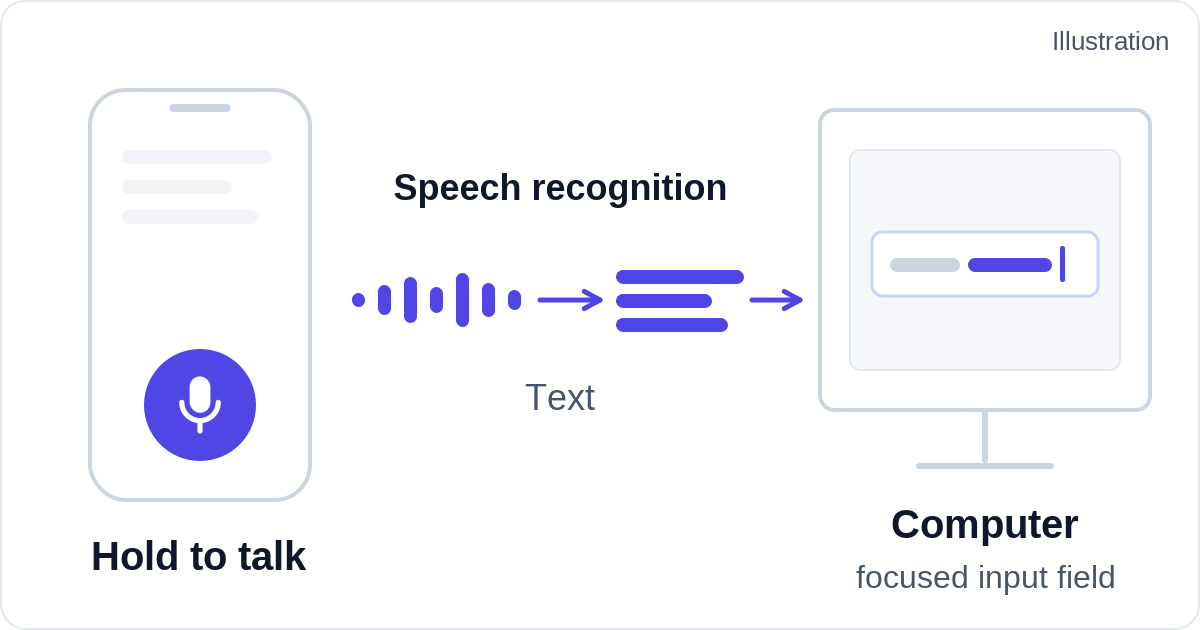
How do you dictate a meeting recap to your computer?
You install FlowMic on your computer and phone, scan the pairing QR code on the computer screen with the phone app, click inside the text box where you want your recap to go, and hold "Hold to talk" while you speak your points. When you release the button, FlowMic finishes recognition and puts the completed text into the focused box on your computer.
- Get FlowMic for your computer from the download page, Microsoft Store, or GitHub Releases, and for your phone from the App Store or Google Play.
- On your computer, open FlowMic, go to "Devices", and click "Add phone". A window shows a QR code, a 4-digit pairing code, and a "Pairing code expires in" countdown; each code lasts 5 minutes. For cloud relay across networks, sign in on the computer first.
- On your phone, tap "Add device" and use "Scan" on the QR code, or pick "Enter manually" to enter the address and 4-digit code.
- Click inside an ordinary text box in a browser or program on your computer.
- Hold "Hold to talk" on the phone and say your takeaways. The label turns to "Release to end", or slide up to "Release to cancel" and let go to discard.
- Release the button. With default "Direct send", your words go straight to the computer; once they appear in the box, review and save or send them as usual.


Should you choose Realtime, Organize, or Translate for your recap?
Before you speak, you pick one of three modes at the bottom of the phone screen: "Realtime", "Organize", or "Translate". "Realtime" outputs the recognized words in the language you spoke, "Organize" turns your spoken thoughts into tidy written prose in that same language with fillers and false starts removed, and "Translate" outputs only the translation in the target language you selected.
Inside "Realtime", the "AI polish" switch has a language model lightly edit the final text with Strict and Smooth options; "AI polish" is a switch inside "Realtime", not a fourth mode. "Organize" suits talking through a rough brain dump after a call, while "Translate" offers 9 target languages under "Translate into" (counting simplified and traditional Chinese separately).
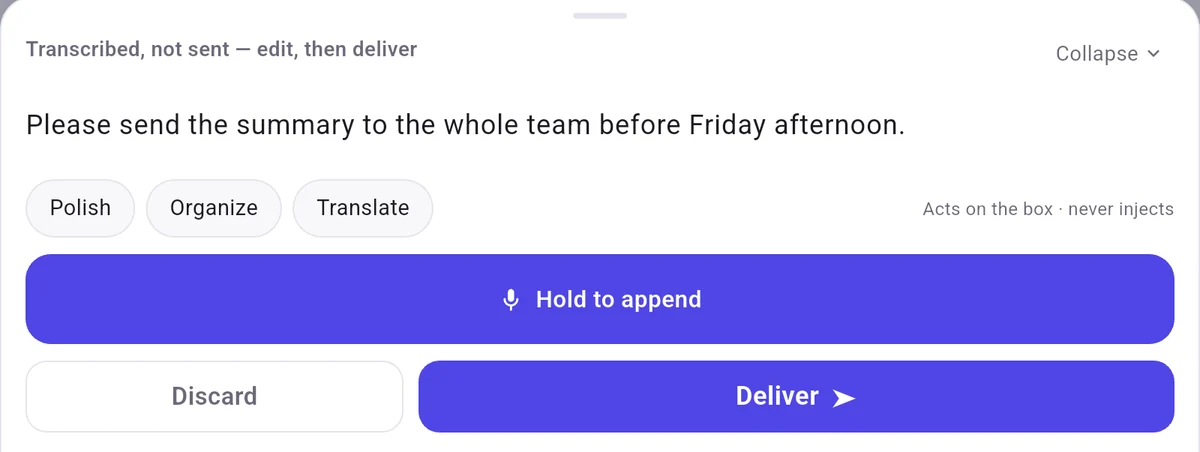
To edit on the phone before sending, switch from "Direct send" to "Manual send". Releasing the button opens a card with "Deliver" and "Discard".
How can you record your takeaways on your phone first and send them to your computer later?
When you step away from your desk right after a call, you can switch the destination in the phone app to "Record only", or use cloud "Notes", so your spoken recap stays on your phone without going to the computer. Later, when you return to the session with your paired computer, you can send a saved line from that session timeline to your focused computer window.
Switching to "Record only" changes the button to "Hold to talk · Record only" for the current session until you reconnect. Sign in to use cloud "Notes" without pairing a computer, as covered in say it now, send it to your computer later.
In a paired computer session on the phone timeline, the entry menu offers "Copy", "Copy original text", "Edit", "Inject to computer" (subtitled "Re-deliver to the focused window"), "Re-organize", "Re-translate", and "Select multiple". On the phone, "Delivered" means the words reached the computer; putting them into the window is a second step.
How does long recording work when your meeting recap takes several minutes?
If you have several minutes of takeaways to talk through without holding your finger on the screen, switch the phone destination to "Record only" and open "Long recording". After you tap "Start recording", FlowMic listens in "Realtime" mode, stops and saves on its own when it reaches your plan limit, and turns your speech into a segmented article on your phone.
"Long recording" requires sign-in under "Record only" and runs up to 10 minutes per recording on Free or 30 minutes on Pro and Max, with a notice one minute before the cap. This 10-minute per-recording limit is separate from the Free plan's 20 managed transcription minutes a month on the pricing page.
Where do your spoken words go and how do you manage saved records?
FlowMic servers, including the relay, do not store your transcripts. Your phone and your computer each keep a local timeline of your entries so you can copy, re-send, export, or clear them whenever you choose, and you can read the full details in Does FlowMic Keep What You Say?.
Built-in cloud recognition processes audio in memory only. For "Record only" entries, if "AI polish" is on, the final text goes once to the language model; when "AI polish" is off in "Realtime" mode, nothing goes to the language model. Use "Export records" or "Import records" on the phone, or "Data" then "Export…" on the computer, for an unencrypted zip, and use "Clear records" to permanently delete phone entries.
Common questions
When do you need to sign in?
If your phone and computer are on different networks and use the cloud relay, you must sign in on the computer first. You also sign in on the phone to use long recording or cloud Notes. Testing in the browser at /try needs no account.
What happens to the words I speak?
FlowMic servers, including the relay, do not store your transcripts. Built-in cloud recognition processes audio in memory without saving to disk. Your phone and computer each keep a local timeline that you can export as an unencrypted zip or delete with Clear records.
How much does FlowMic cost?
Free is $0 with 20 managed transcription minutes a month, 2 computers, and up to 10 minutes per long recording. Pro is $12 a month for 1,000 minutes and 3 computers, and Max is $28 a month for 3,000 minutes and 10 computers, both with 30-minute long recordings. Subscribe monthly in US dollars on the website.
Which computers and phones work with FlowMic?
Desktop supports Windows 10/11 64-bit, macOS 11 or later on Apple silicon, and Linux x86-64 with an X11 session for typing into other programs. Mobile supports Android 7.0 or later and iPhone or iPad on iOS or iPadOS 15 or later. Install from Microsoft Store, Google Play, App Store, or GitHub Releases.