
 FlowMic
Take Reading Notes by Voice From Your Phone
Taking reading notes by voice means saying your thoughts about a text out loud while you read and getting them as written notes. FlowMic, an open source (AGPL-3.0) app, puts what you say on your phone into the notes box at your computer's cursor. The talk button is on the phone, so the computer needs no key press. You can also keep notes on the phone and send them to the computer later. Get both apps from the download page.
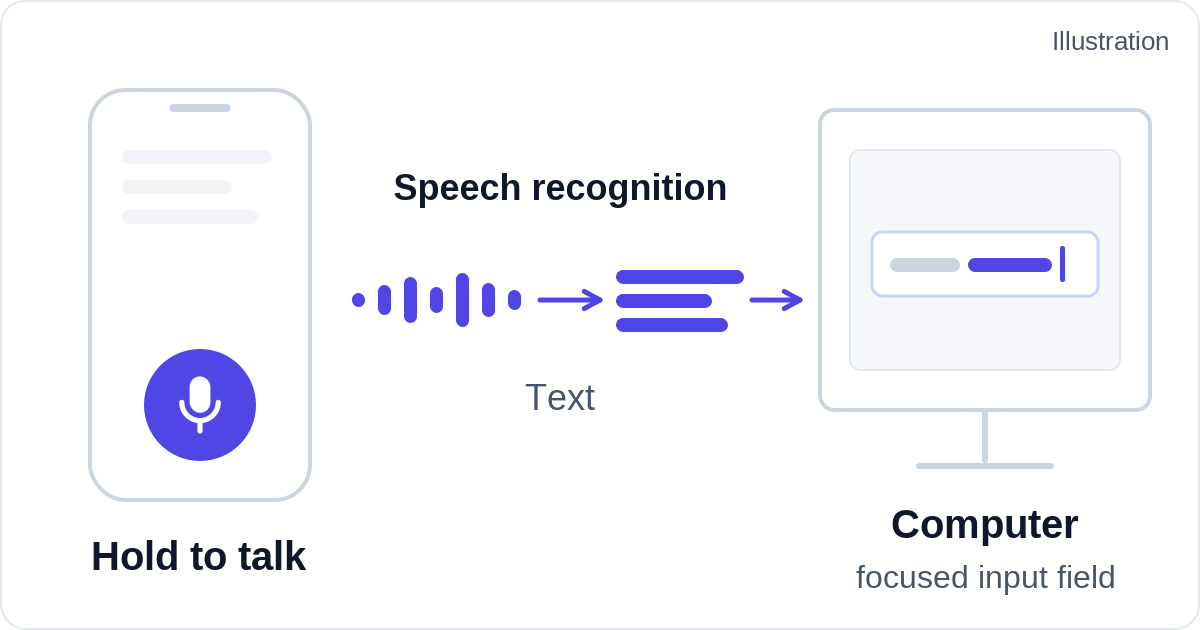
How do you take reading notes by voice with FlowMic?
Put the cursor in the box where your notes live, and keep the phone in your hand. When a passage sparks a thought, hold "Hold to talk", say it, and let go. The note lands at your cursor in an ordinary text box in a browser or program. You do not need a keyboard shortcut, because FlowMic has no global hotkey on the computer.

Each note is one held button, so short remarks and longer reflections work the same way. The words go to whichever box has the cursor on the computer, so keep the cursor in your notes while you read. For a wider look at talking ideas through, see the talk it through page.
How do you set up voice notes for reading?
You install FlowMic on the computer and the phone, pair them once with a QR code, and then talk whenever a note comes to mind. By default, "Direct send" puts each note on the computer when you let go. If you prefer to read a note before it goes, switch to "Manual send" and the note waits on the phone until you tap "Deliver". Both settings use the same talk button.
- Install FlowMic on the computer, then on the phone. The setup guide covers each system.
- On the computer, open "Devices" and click "Add phone". On the phone, tap "Add device" and scan the code from the "Scan" tab.
- Click into your notes box on the computer.
- Hold "Hold to talk" on the phone, say the note, and let go.
- Read the note at your cursor and carry on reading.

Can you keep notes on the phone and send them later?
Yes. Switch the destination to "Record only", and the phone shows "Saved on this phone only". Your notes stay on the phone instead of going to the computer. This choice applies to the current session, and the next connection goes back to sending to the computer. Every note becomes a row in the phone timeline.
Later, open the session with that computer, find a row and open its menu. The menu includes "Inject to computer", described as "Re-deliver to the focused window". You can also tap "Copy" and paste it yourself. The menu also offers "Copy original text", "Edit", "Re-organize" and "Re-translate".
What if you want to speak a longer summary after a chapter?
Use "Long recording". It appears when the destination is "Record only", needs you to sign in, and works in "Realtime" mode. Tap "Start recording" and talk through the chapter in one go. A single long recording can run up to 10 minutes on Free and up to 30 minutes on Pro and Max, and it stops and saves on its own at the limit. The result is saved as a single article split into parts.
This is handy when you finish a chapter and want to capture your summary before moving on. For more on spoken notes that you deal with later, read say it now, send it to your computer later.
How do you turn spoken notes into clean text?
Pick "Organize" above the talk button before you speak. It turns what you said into clear written text in the same language, with filler words and false starts removed. It keeps your language and does not turn notes into a list. For notes closer to your own wording, use "Realtime" instead. Each recording uses the one mode you selected.
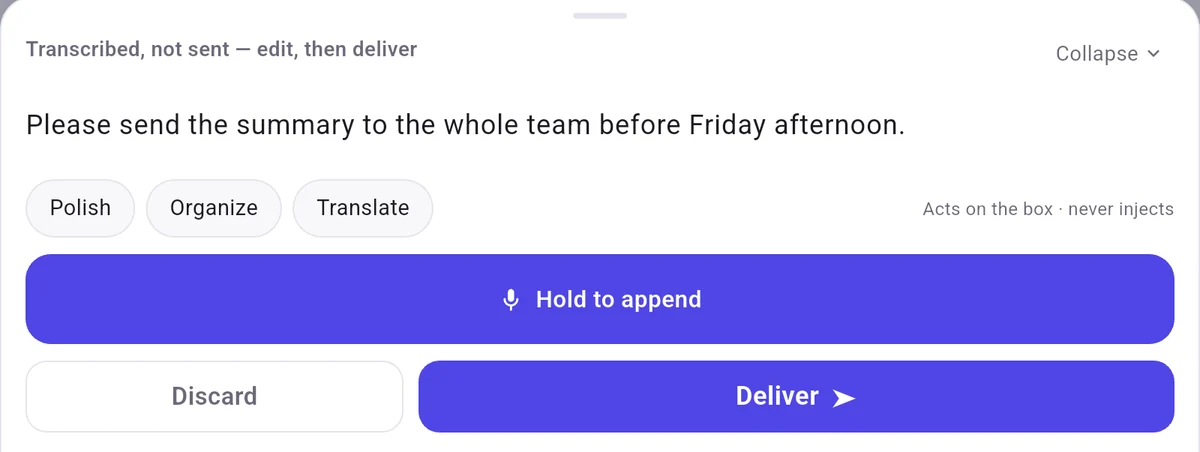
With "Manual send", the note stays on the phone as a card, and you can fix a word before you tap "Deliver". The plans differ in minutes and number of computers, and all of them include every mode, as listed on the pricing page.
Common questions
Do I have to press a key on the computer to start?
No. FlowMic has no global hotkey on the computer. The talk button is on your phone, so your eyes can stay on the book or the document while you hold it and speak.
Do I need an account?
Not when the phone and computer share a network and use Local LAN. Cloud relay needs the computer to be signed in. Long recordings and the cloud Notes also need you to sign in.
What does FlowMic cost?
The Free plan is $0 with 20 managed transcription minutes a month and 2 computers. Pro is $12 a month and Max is $28 a month, with the same features and more minutes and computers. Subscribe on the FlowMic website.
How long can one long recording be?
A single long recording can run up to 10 minutes on the Free plan and up to 30 minutes on Pro and Max. It stops and saves on its own when it reaches the limit.