
 FlowMic
Brain-Dump by Voice, Then Tidy It Up
Brain-dumping by voice means speaking ideas out loud as fast as they come to mind and tidying the draft afterward, and FlowMic lets you do it on your phone, sending the words to your computer or keeping them on the phone. When you think faster than you type, FlowMic, an open source (AGPL-3.0) tool, lets you hold a button, speak freely, and have "Organize" strip out filler words and false starts.
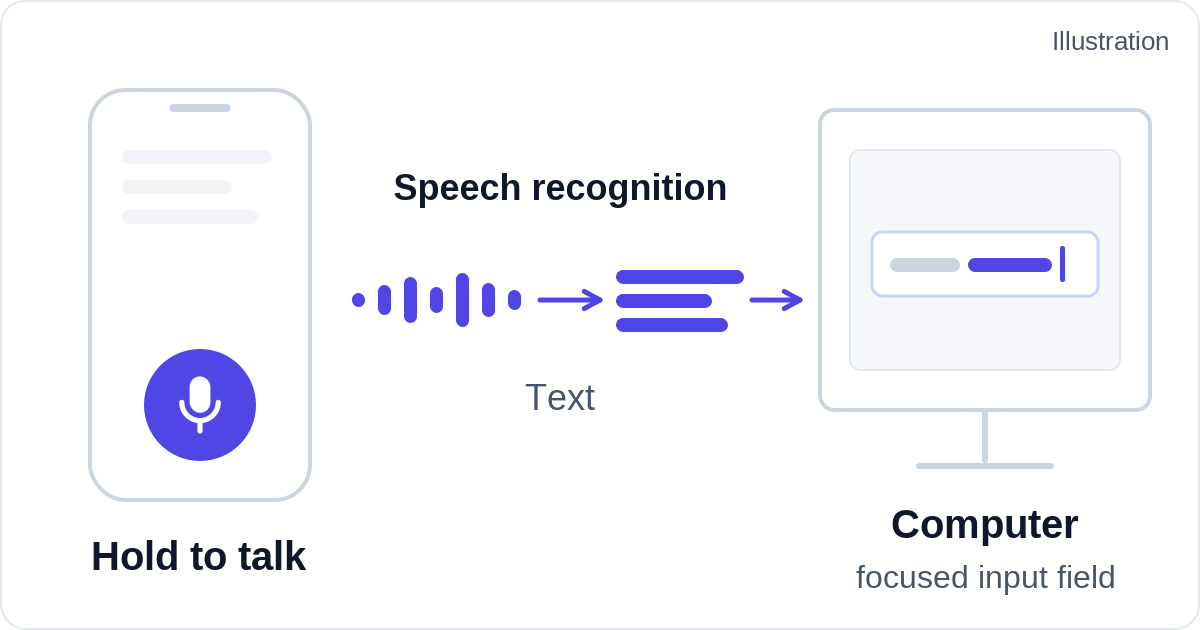
How do you pair your phone and brain-dump into your computer?
You install FlowMic on your computer and phone, scan the pairing QR code, choose "Organize" on the phone, and hold "Hold to talk" while you speak your thoughts out loud. When you release the button, FlowMic removes filler words and false starts, turns your spoken draft into clear written text in the same language, and puts the finished paragraph straight into the focused text box on your computer.
- Get FlowMic from the download page via the App Store, Google Play, Microsoft Store, or GitHub Releases.
- Open the computer app, click "Devices", and click "Add phone" to show a QR code, a 4-digit code, and "Pairing code expires in", which refreshes after 5 minutes.
- On the phone, tap "Add device" and use "Scan" on the QR code, or pick "Enter manually" to type the address and 4-digit code.
- Click inside an ordinary text box in a browser or program on your computer.
- On the phone, select "Organize" and hold "Hold to talk" while speaking. The label becomes "Release to end", or slide up to "Release to cancel".
- Release your finger to put the tidied text at your computer cursor, then review and send or save it as usual.

See the usage guide, or test a sentence in your browser on the Try it page.
How do you record thoughts on your phone without sending them to the computer right away?
You can switch the destination on your phone to "Record only", and what you say is saved on the phone instead of going to your computer; the setting lasts for the current session. The talk button changes to "Hold to talk · Record only", so your ideas wait on the phone while you are away from your desk, and you can send them over later from the timeline.
To capture without pairing a computer, sign in on the phone and use cloud "Notes", whose destination is fixed to "Record only". It suits the times you dictate while pacing or save a voice memo for your computer later.
When paired, switch from "Direct send" to "Manual send" to open a review card on release.
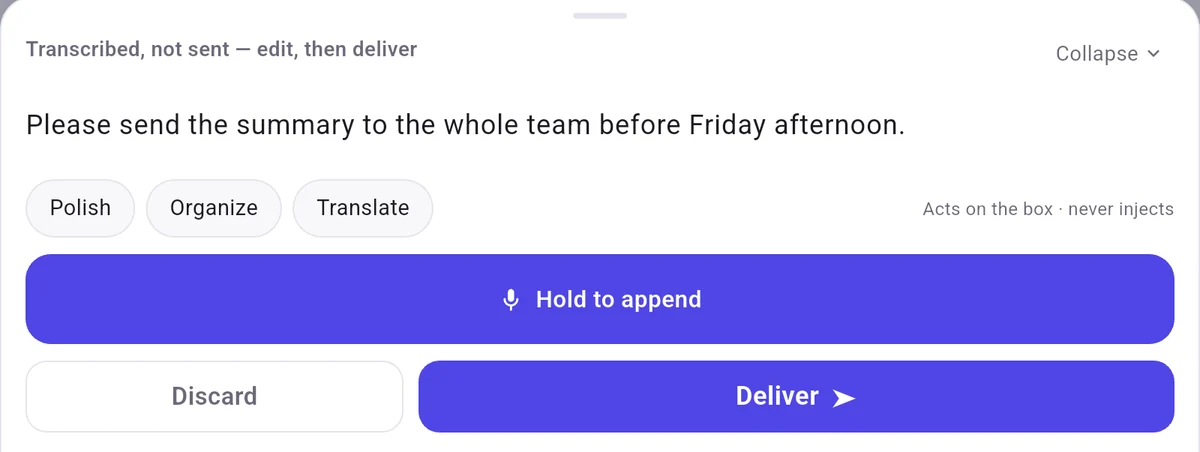
Hold "Hold to append" to add speech, tap "Polish", "Organize", or "Translate" to edit the box without sending it to the computer, and tap "Deliver" or "Discard".
How do you talk for ten or thirty minutes in a single brain-dump?
When you have a lot to get out of your head at once, you can use "Long recording" on the phone instead of holding your finger on the screen the whole time. You switch the destination to "Record only", sign in, keep the mode set to "Realtime", and tap "Start recording" to speak at length. When the recording ends, FlowMic turns it into an article split into sections.
"Long recording" appears only under "Record only", showing "Realtime mode only" and "Sign in to use long recordings". A session runs up to 10 minutes on Free and 30 minutes on Pro and Max, shown on the pricing page. You get a notice one minute before the limit, and then it stops and saves on its own. Use it when you need to talk a problem through.
How does Organize clean up rambling speech and mid-sentence corrections?
Every recording in FlowMic uses one of three modes: "Realtime", "Translate", or "Organize". When you choose "Organize", FlowMic takes your spoken words and tightens them into clear written prose in the same language, dropping filler words and false starts and fixing obvious recognition mistakes against your glossary.
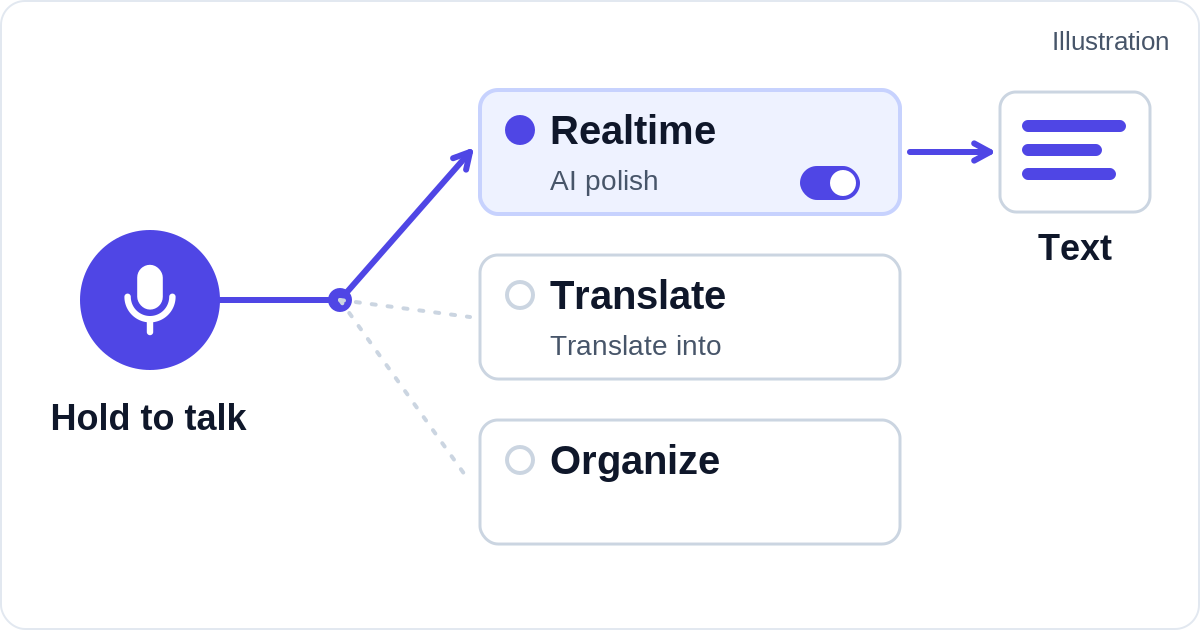
Only one mode runs per recording, and switching modes clears the input box while keeping your draft as "Record only". Choose "Realtime" for words as recognized, where the "AI polish" switch ("Strict" or "Smooth") is a toggle inside "Realtime" rather than a fourth mode. Choose "Translate" to output one of 9 target languages under "Translate into", or read about speaking a draft and tidying it.
How do you re-organize, edit, or send a brain-dump to your computer later?
Both the phone app and the computer app keep a timeline of your entries, so a brain-dump saved on your phone can be cleaned up or sent to your computer whenever you sit back down. Tapping an entry on the phone opens a row menu with actions to copy, edit, re-run "Organize", or send the text across to your paired computer.
- Tap "Re-organize" to run "Organize" again on the original words as a new entry.
- Tap "Copy", or "Copy original text" ("The original words, before translation or organizing") to copy what you said before "Organize" or "Translate".
- Tap "Edit" to change the text, or "Inject to computer" to send it across. On the phone, "Delivered" means it reached the computer.
Common questions
When do you need to sign in?
You sign in on the computer for Cloud relay, and on the phone for Long recording or cloud Notes. You can also test a sentence on the website Try it page without an account, with a 120-second allowance per browser identity.
What does Organize do to my spoken words?
Organize turns your dictation into clear written prose in the same language, removing filler words and false starts without changing the language. Your spoken words remain saved on the timeline entry, and you can copy them later by choosing Copy original text from the row menu.
How much does FlowMic cost?
Free is $0 with 20 managed transcription minutes a month, 2 computers, and 10-minute long recordings. Pro is $12 a month for 1,000 minutes and 3 computers, and Max is $28 a month for 3,000 minutes and 10 computers, both with 30-minute long recordings. Subscribe monthly in US dollars on the website.
Which systems work with FlowMic?
FlowMic runs on Windows 10/11 (64-bit), macOS 11 or later on Apple silicon, and Linux x86-64 in X11. On mobile, it runs on Android 7.0 or later and iOS or iPadOS 15 or later. Install it from the App Store, Google Play, Microsoft Store, or GitHub Releases.
Does my brain-dump go to a language model?
In Realtime mode with AI polish turned off, nothing goes to a language model. When you use Organize, Translate, or AI polish, even on a Record only entry, the text goes to a language model once. Your original words remain in your timeline under Copy original text.