
 FlowMic
Voice Memo to Text on Computer: Say It Now, Send It Later
Turning a voice memo into text on your computer means speaking a note into your phone while away from your desk and placing the written words into a computer text box later with the open source (AGPL-3.0) app FlowMic. Usually you hold a button on your phone, talk, and let go, and the words land at your cursor in an ordinary text box in a browser or program. You can also save notes on the phone first and send them later.
How do you record a voice note on your phone and send it to your computer later?
You pair the phone and computer apps once, switch the phone destination to "Record only" so spoken lines stay on the phone, and later open the line menu in that computer's conversation page to send the words to your focused window or copy them. You install both apps from the download page, which points to the App Store, Google Play, Microsoft Store and GitHub Releases.

- Open the computer app, go to "Devices", and click "Add phone" to display a QR code, PCID, and 4-digit code above "Pairing code expires in". The code lasts 5 minutes and refreshes on its own.
- On your phone, tap "Add device" and use "Scan" for the QR code, or "Enter manually" for the address and 4-digit code.
- In that computer's conversation, switch the destination to "Record only". The button reads "Hold to talk · Record only", and your notes stay on the phone. The choice lasts for the current session; after you reconnect, the phone sends to the computer again.
- Pick "Realtime", "Translate", or "Organize", then press and hold "Hold to talk" to speak. The button reads "Release to end" while you speak; let go to finish, or slide up to "Release to cancel" and let go to discard.
- At your desk, click a computer text box, open that computer's conversation timeline on your phone, and tap "Inject to computer" ("Re-deliver to the focused window") or "Copy" from the line menu. Review the text and send or save it as usual.

What happens if your computer is offline or you want to dictate a longer piece?
FlowMic gives you three ways to record voice notes when you are not sending text straight into an active computer window: speaking while your paired computer is offline, saving notes in cloud "Notes" without pairing, or starting a "Long recording" session. Each option keeps your words as text on your timeline for later. The same habits show up in dictating while pacing and in a brain dump by voice.
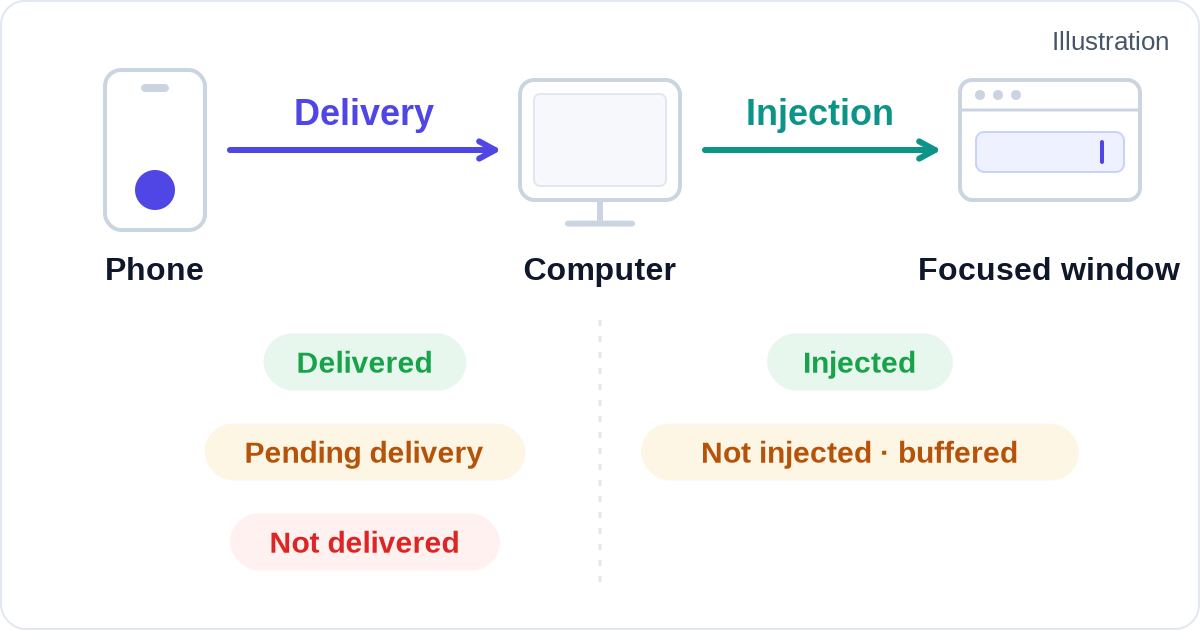
If you speak in a paired computer's conversation while the computer is offline, sentences stay on the phone and are delivered once it is back. On the phone timeline, "Delivered" means the words reached the computer, while placing them into the focused window is a second step. Sentences delivered this way sit on the computer timeline marked "Delivered · not auto-injected" for you to click. You can also sign in to cloud "Notes" ("Sign in to use · no pairing · capture without a computer"), where the destination is fixed to "Record only".
With "Record only" selected and while signed in, open "Long recording" in "Realtime" mode and tap "Start recording". The result is one article split into sections. A single session runs up to 10 minutes on Free and 30 minutes on Pro and Max, warns one minute before ending, and stops and saves on its own. That 10-minute single-recording cap on Free is separate from the 20 managed transcription minutes a month on the pricing page.
How can you edit, re-run, or export saved text on your phone and computer?
The phone app and the computer app each keep their own timeline, where you can copy, edit, rework or export your saved text. You can act on a single line from its menu, select several entries on the phone to copy or organize them together, or export your records as an unencrypted zip file on either device.
The phone line menu includes "Copy", "Copy original text", "Edit", "Re-organize", "Re-translate", and "Select multiple" for batch copying or organizing with AI. "Inject to computer" ("Re-deliver to the focused window") appears only in a paired computer's conversation page for lines from that computer, not in cloud "Notes" or on the all-history page. Computer lines have "Re-inject", and you can use "Export records" and "Import records" on the phone or "Data", "Export…", and "Choose a file…" on the computer; see the usage guide.
Where do your words go when you record on your phone?
When you capture notes in "Record only", nothing goes to your computer. FlowMic servers, including the relay, do not store your transcripts. You also control whether the optional "AI polish" switch inside "Realtime" mode sends your finished sentence to a language model.
"AI polish" is a switch inside "Realtime" mode. Even in "Record only", leaving "AI polish" on sends the finished text to the language model once, while turning it off sends nothing. For more, read Does FlowMic Keep What You Say?. To try FlowMic first, the Try it page gives each browser 120 seconds, and the words stay on that page.
Common questions
Do you need an account to record a voice note and send it to your computer?
Cloud relay needs the computer to be signed in first. Long recordings and cloud Notes also require signing in. You can test without an account on the Try it page with 120 seconds per browser.
How much does FlowMic cost?
Free is $0 with 20 managed transcription minutes a month, up to 10 minutes per single long recording, and 2 computers. Pro is $12 a month for 1,000 minutes and 3 computers, and Max is $28 a month for 3,000 minutes and 10 computers, both with 30-minute long recordings. Subscribe on the website, billed monthly in US dollars.
Which computers and phones work with FlowMic?
FlowMic runs on Windows 10/11 64-bit, macOS 11 or later on Apple silicon, and Linux x86-64, where typing into other programs requires an X11 session. On phones and tablets, it runs on Android 7.0 or later and iOS or iPadOS 15 or later. The iOS app is on the App Store outside mainland China and the EU.
Can you save spoken notes on your phone without a paired computer?
Yes. After signing in on the phone app, open cloud Notes to capture spoken words without pairing or a computer. Its destination stays fixed to saving on the phone, and you can copy or edit the resulting text lines from your phone timeline whenever you want.