
 FlowMic
Write Performance Reviews by Talking
Writing performance reviews by talking means speaking your comments about each person and getting them as written text in the review form. FlowMic, an open source (AGPL-3.0) app, puts what you say on your phone into the text box at your computer's cursor. You hold a button on the phone, talk through what you want to say, and let go. The "Organize" mode turns that speech into tidy written text. Get both apps from the download page.
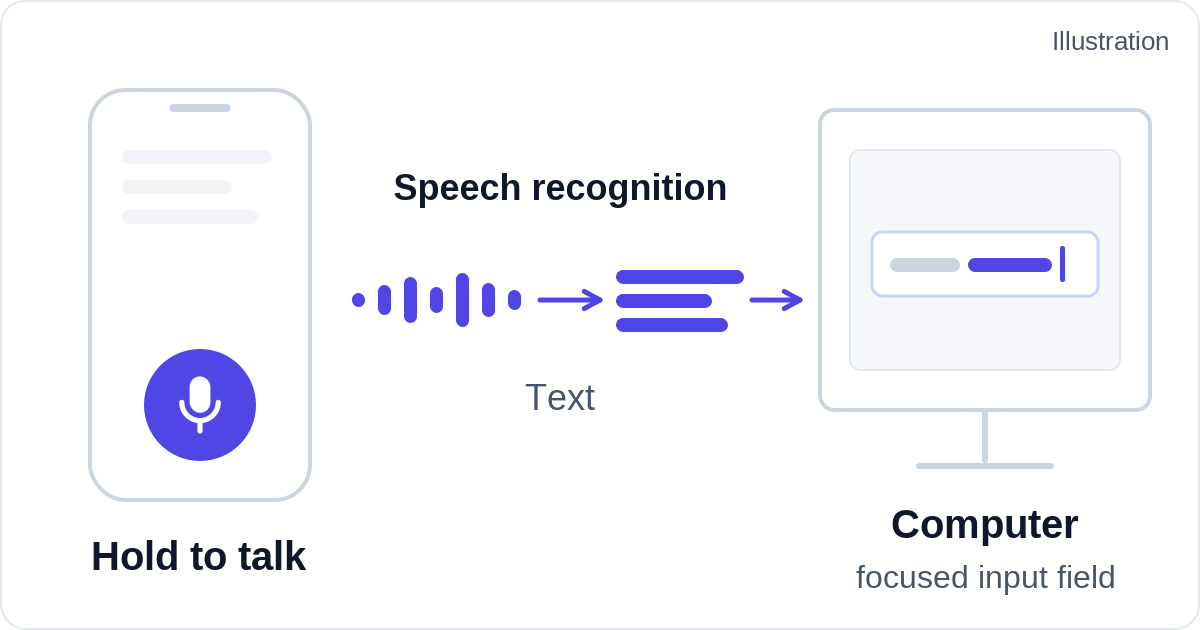
How do you write a performance review by talking?
Open the review form in your browser and click into the comment box for the first person. Pick "Organize" on the phone, hold "Hold to talk", and speak the comment for that person. When you let go, the text goes to the box at your cursor. Read it there, adjust anything you want with the keyboard, and submit the form yourself when the review is ready.
Then click into the next box and do the same for the next comment. The words land in ordinary text boxes in browsers and programs. For another example of speaking into a web form, see the support replies page.
How do you set up FlowMic for review writing?
You install FlowMic on the computer and the phone, pair them once with a QR code, and then each review comment is one held button. Most of the work is choosing a mode and a send setting that suit you. "Organize" is a good fit for spoken comments, and "Manual send" lets you check each one on the phone before it goes to the computer. After setup, open the form on the computer and start talking.
- Install FlowMic on the computer, then on the phone. The setup guide covers each system.
- On the computer, open "Devices" and click "Add phone". On the phone, tap "Add device" and scan the code from the "Scan" tab.
- On the phone, pick "Organize" above the talk button.
- Click into the review comment box on the computer.
- Hold "Hold to talk", speak the comment, and let go. The label reads "Release to end" while you speak.
- Read the text in the box and submit the form when you are done.
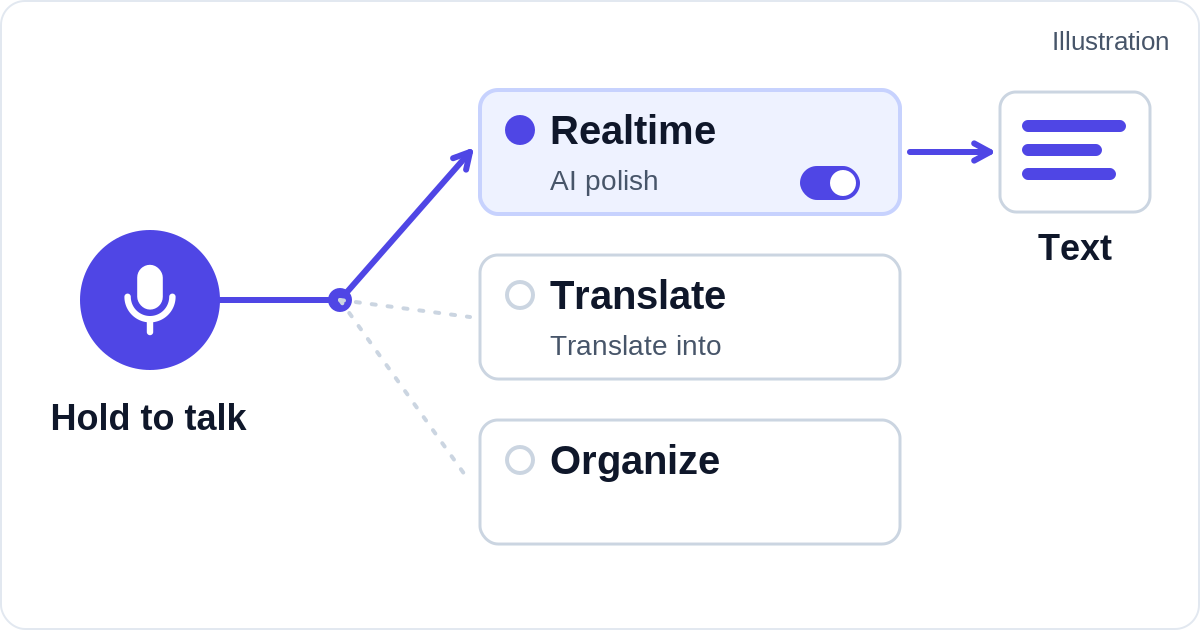
Which mode fits review comments best?
"Organize" turns what you said into clear written prose in the same language, removing filler words and false starts. It keeps your language, and it does not reshape your words into a list. If you would rather stay close to your own wording, pick "Realtime". Each recording goes through the one mode you chose, and you can switch modes between comments.
In "Realtime", the "AI polish" switch in the phone settings under "Recognition and AI" offers two strengths. "Strict" fixes mistakes and keeps your wording. "Smooth" also drops fillers, false starts and repeats and fixes grammar, so it reads better but sits further from what you said. For more on cleaning up spoken drafts, read From Rambling to Clean Text.

How can you check the wording before it reaches the form?
Switch from the default "Direct send" to "Manual send" with the small "⇄" control next to the input box. Each comment then stays on the phone as a card marked "Transcribed, not sent". You can edit the words on the phone, tap "Deliver" to send them to the computer, or tap "Discard" to drop them. This gives you a moment to reread each review comment before it reaches the form.
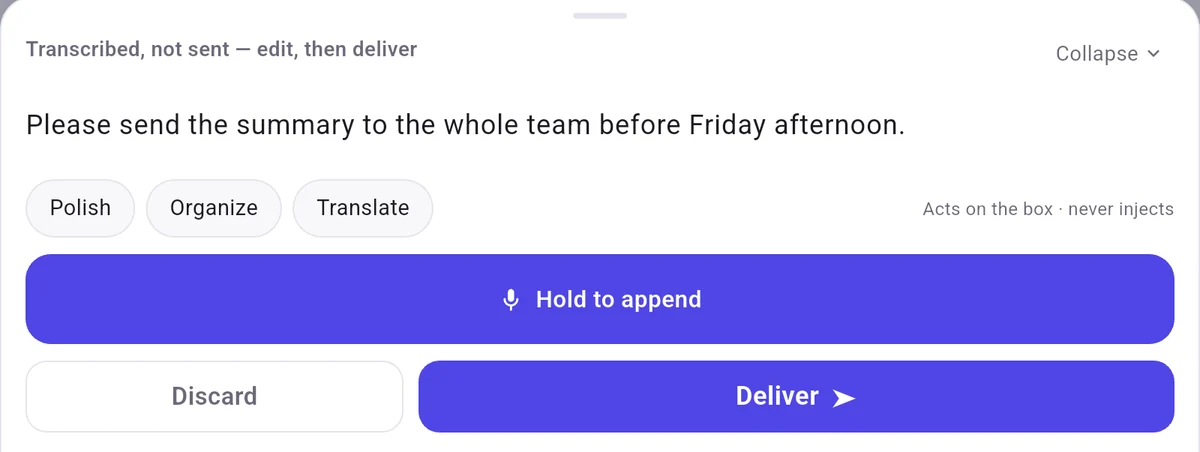
On the card, the "Polish", "Organize" and "Translate" buttons rework the text in the box. The card notes "Acts on the box · never injects", so nothing reaches the computer until you tap "Deliver". The plans differ in minutes and number of computers, and every plan includes all three modes, as shown on the pricing page. Does FlowMic Keep What You Say? explains where your words go along the way.
Common questions
Does Organize change the language I speak?
No. Organize keeps the language you spoke and turns your words into clear written prose, dropping filler words and false starts. To get the review in another language, use the Translate mode instead.
When do you need to sign in?
Cloud relay needs the computer to be signed in. Long recordings and the cloud Notes also need you to sign in.
What does FlowMic cost?
The Free plan is $0 with 20 managed transcription minutes a month and 2 computers. Pro is $12 a month and Max is $28 a month, with the same features and more minutes and computers. Subscribe on the FlowMic website.
Can I try it without installing anything?
Yes. The Try it page on the FlowMic website lets you speak a sentence with no install and no account, with 120 seconds per browser. The words appear on that web page only, not on your computer.