
 FlowMic
Move Phone Pictures to a PC Without a Cable or Cloud Drive
Moving pictures from your phone to your PC without a cable or a cloud drive means sending one picture straight from the phone to the computer, with nothing uploaded to storage on the way. FlowMic, an open source (AGPL-3.0) app, does this once your phone and computer are paired: tap the plus button, then "Photo", choose a picture, and it is pasted at the cursor on your Windows PC or Mac.
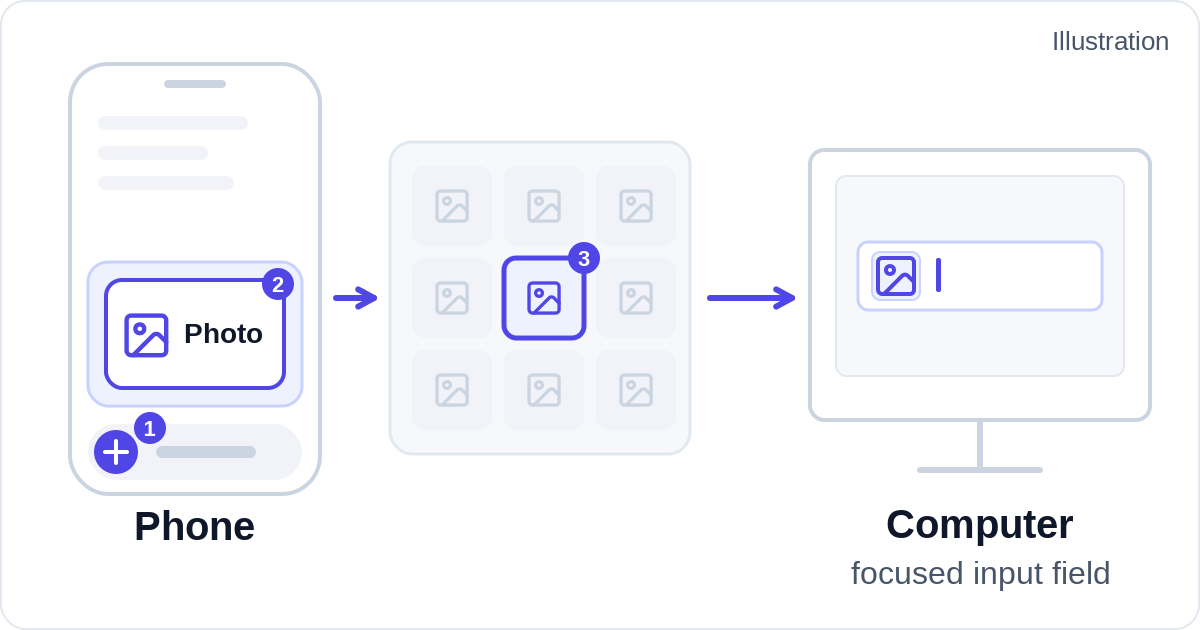
How do you move a picture from your phone to your PC with FlowMic?
Install FlowMic on the computer and the phone, pair them once, click the box on the computer where the picture should go, and send it from the phone. In the FlowMic chat screen, the plus button next to the input bar opens a panel whose top tile is "Photo". Tap it, choose one picture from your phone gallery, and it is sent right away, with no extra confirmation screen.
- Install FlowMic on your computer and phone from the download page, then pair them with the setup guide.
- On the computer, click where the picture should go, inside a box that accepts pasted pictures.
- On the phone, open the FlowMic chat screen and tap the plus button next to the input bar.
- On the same network, tick "Send original" first if you want the original file to go unchanged.
- Tap "Photo" and choose one picture from your gallery.
- Watch the phone show "Compressing the photo…" and then "Transferring to the computer", and look at the box on your computer.
Which pictures can you send, and how many at a time?
FlowMic sends PNG, JPEG and WebP pictures, chosen from your phone's gallery or photo picker. It recognizes the format from the file itself rather than from its name, and if you pick a picture in another format, the phone tells you which formats it accepts. You send one picture at a time.
Each send starts from the plus button, then "Photo", then the picture you choose. While a picture is on its way, the "Photo" tile is grayed out and shows that it is sending. For screenshots in particular, see send a phone screenshot to your computer.
How does the picture travel from the phone to the computer?
FlowMic has two ways to carry a picture, and both skip the cable and the cloud drive. When the phone and computer are on the same network, the phone sends the picture straight to the computer. When they are on different networks, the picture goes through Cloud relay, which passes it on to the computer and does not store it. Cloud relay needs you to be signed in on the computer.
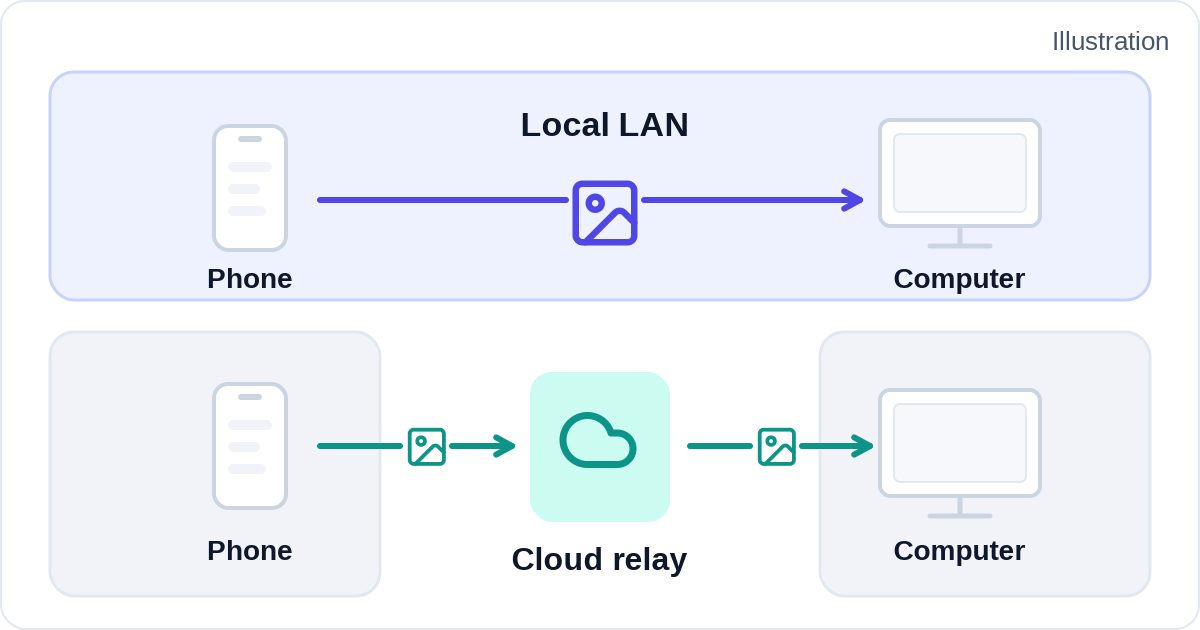
For working away from home over mobile data, read dictate from anywhere, and for what FlowMic keeps and does not keep, read does FlowMic keep what you say.
Will your picture be resized on the way?
On the same network, FlowMic by default re-encodes the picture and keeps its longest side within 3456 px. If you tick "Send original" before tapping "Photo", the original file goes byte for byte, with no resizing and no re-encoding; the box starts unchecked each time you open the panel. Over Cloud relay, the picture is fitted within 1920 px and kept to 1 MiB, and there is no "Send original" option.
Cloud relay also allows up to 200 pictures per account in a 24-hour window. These cloud limits are the same for every account, whatever the plan, and they do not apply on the same network. Plans are on the pricing page.
Where does the picture end up on the computer?
FlowMic places the picture on the computer's clipboard and pastes it into the window in front, at the cursor you left there. It lands in boxes that accept pasted pictures. The picture is also saved in the computer's own timeline, where "Copy image" lets you copy it again and paste it by hand somewhere else.
On the phone, each picture becomes a row in the timeline with its format, its size and a 256 px preview. That row shows "Delivered" once the picture reaches the computer. The computer's own timeline shows "Injected" for its part of the trip. To put a picture into a report or a chat, see put a photo into a document or chat.
Common questions
Do I need a cable or a cloud drive to get a picture onto my computer?
No. After your phone and computer are paired, you tap the plus button in FlowMic, then Photo, and choose a picture from your phone gallery. On the same network the phone sends it straight to the computer; across networks the relay passes it on without storing it.
Which picture formats can I send?
FlowMic sends PNG, JPEG and WebP pictures, one at a time. The phone recognizes the format from the file itself. If you choose a picture in another format, the phone tells you which formats it accepts.
Do pictures count against my plan?
No. Pictures are not part of any plan. The cloud relay limits of 1 MiB per picture and 200 pictures per account in 24 hours are the same for every account, and on the same network those two limits do not apply.
Where does the picture end up on my computer?
FlowMic pastes it at the cursor of the window in front, into a box that accepts pasted pictures. Each picture is also kept in the computer's own timeline, where Copy image lets you paste it again by hand.