
 FlowMic
Voice Typing for Slow Typists: Say It on Your Phone
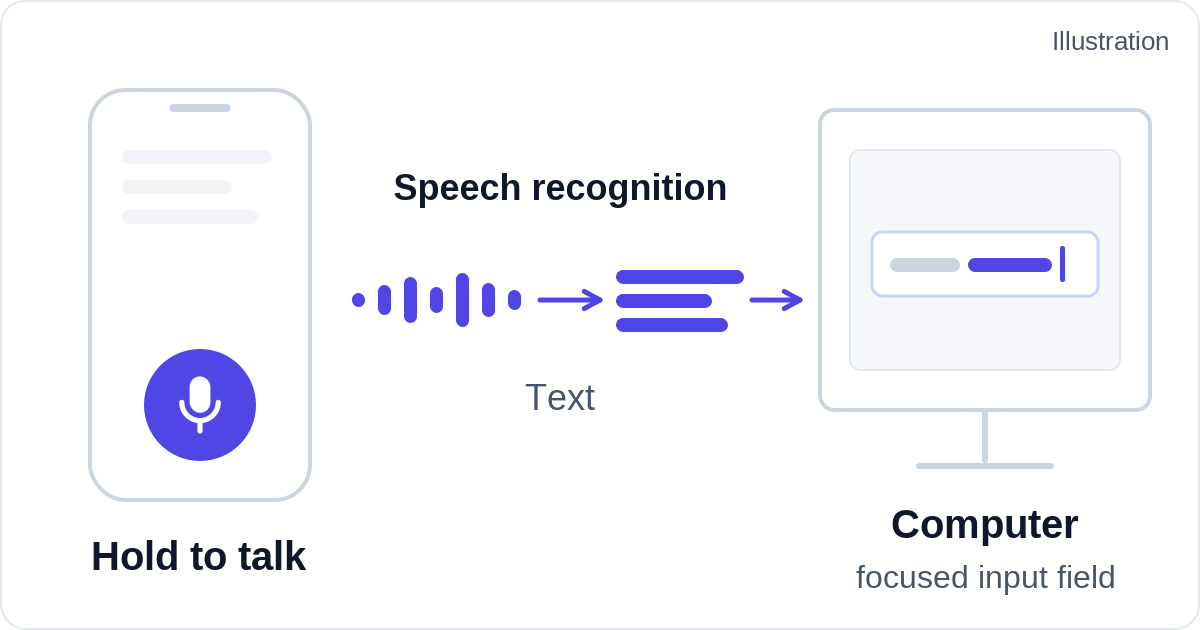
Voice typing for slow typists means saying a sentence out loud instead of picking it out key by key, and getting the text in the box where you were about to type. FlowMic, an open source (AGPL-3.0) app, uses your phone for this: hold a button on the phone, say the sentence, let go, and the words go to the cursor on your computer. You keep the keyboard for fixes and use your voice for the long parts.
How do you start voice typing on your computer with your phone?
You install FlowMic on the computer and the phone, pair them once with a QR code, then click the box you want to fill and hold the talk button on the phone. When you let go, the words go to your cursor. After setup, every sentence takes the same three moves: hold, speak, let go.
- Get FlowMic for your computer and phone from the download page.
- On the computer, open "Devices" and click "Add phone"; a QR code and a 4-digit code appear. On the phone, tap "Add device" and point the camera at the code under "Scan", or type the code under "Enter manually".
- On the computer, click inside the text box where you want the words, so the cursor sits there.
- On the phone, hold "Hold to talk" and say your sentence. The button reads "Release to end" while you hold it.
- Let go. Your words go to the cursor on the computer.
- Read the sentence, fix anything with the keyboard, and send or save it the way you normally do.

How does the talk button on the phone work?
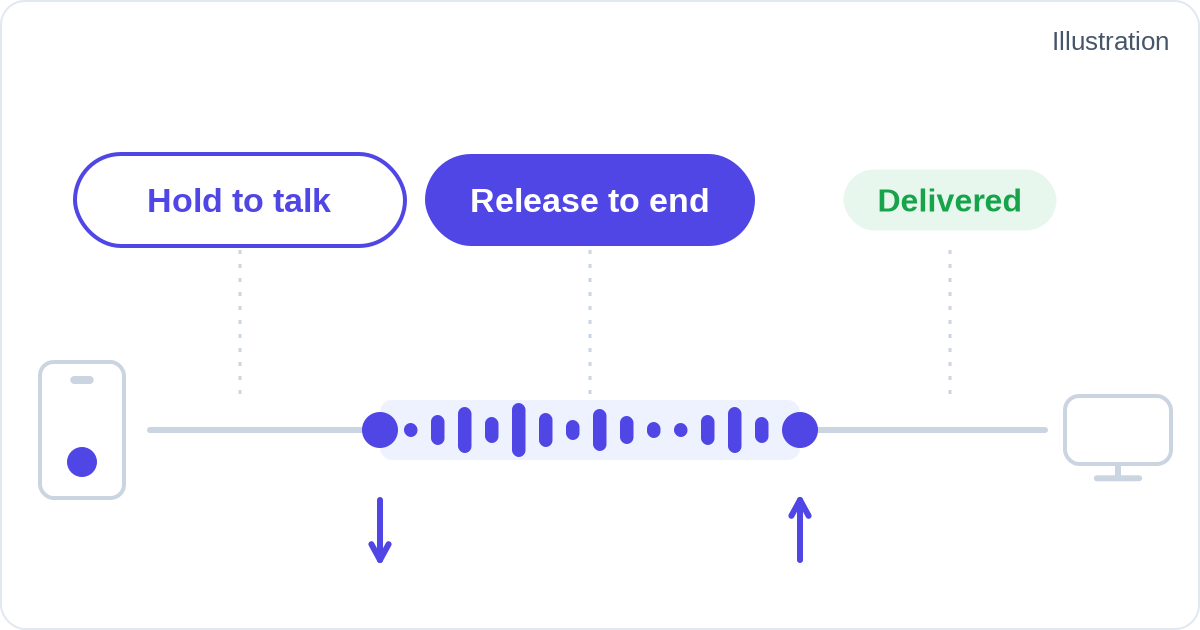
The talk button in the phone app is labeled "Hold to talk". After a short hold, recording starts and the label changes to "Release to end"; you speak while your finger stays on it, and lifting your finger finishes the recording. If you start a sentence and want to drop it, slide your finger up until it reads "Release to cancel", then let go.
You speak one sentence or a few at a time, read what arrived, and go on. If you only have one hand free, see reply to messages with one hand; for more on the button itself, see push to talk on your phone.
Can you check the words on your phone before they reach the computer?
The default is "Direct send": when you let go, the words go straight to the computer. If you would like to read them first, switch to "Manual send". Your words then stay on the phone in a card where you can change them, and nothing goes to the computer until you tap "Deliver", or you can tap "Discard" to drop them. Some people like to read every sentence before it lands, and this mode is for them.

On the phone, each sentence also gets a status. "Delivered" means the words reached your computer. Putting them into the text box is a second step that happens on the computer.
Can you use FlowMic without installing the phone app?
Yes. On the computer, open the "Add phone" dialog, choose "Cloud relay", and scan that code with your phone camera; a web page opens on the phone where you hold the button and speak. The words go to your computer the same way. This option uses the Cloud relay code, so you sign in to FlowMic on the computer first; the Local LAN code is for the phone app.
To try it before you install anything, use the demo on the try page: you speak a sentence and see it on the web page, with 120 seconds per browser. For the whole picture of using a phone as your computer's microphone, read voice typing for your PC using your phone, and see the pricing page for plans.
Common questions
Do I need a microphone on my computer?
No. You speak into your phone, so FlowMic does not install a microphone driver or a virtual sound card on the computer and does not ask the computer for microphone permission. The computer app receives the words from your phone and puts them at your cursor.
Do I need an account?
Cloud relay, for when your phone and computer are on different networks, needs you to sign in on the computer. Long recordings and the cloud Notes space also need sign-in. The Try it page on the FlowMic website lets you test one sentence first, with 120 seconds per browser.
How much does FlowMic cost?
Free is $0 with 20 managed transcription minutes a month and 2 computers, and each long recording can run up to 10 minutes when signed in. Pro is $12 a month with 1,000 minutes and 3 computers, and Max is $28 a month with 3,000 minutes and 10 computers. All plans have the same features, billed monthly in US dollars, and you subscribe on the FlowMic website.
Which computers and phones can I use?
FlowMic runs on Windows 10/11 64-bit, on macOS 11 or later with Apple silicon, and on Linux x86-64 in an X11 session. The phone app runs on Android 7.0 or later and on iPhone and iPad with iOS or iPadOS 15 or later.