
 FlowMic
Reply to Messages on Your Computer With One Hand
Replying to messages on your computer with one hand means saying the reply instead of typing it. FlowMic, an open source (AGPL-3.0) app, lets you hold one button on your phone and put the words in the reply box at your computer's cursor. One finger holds the button while you talk. The words land in ordinary text boxes in browsers and programs. Start from the download page.
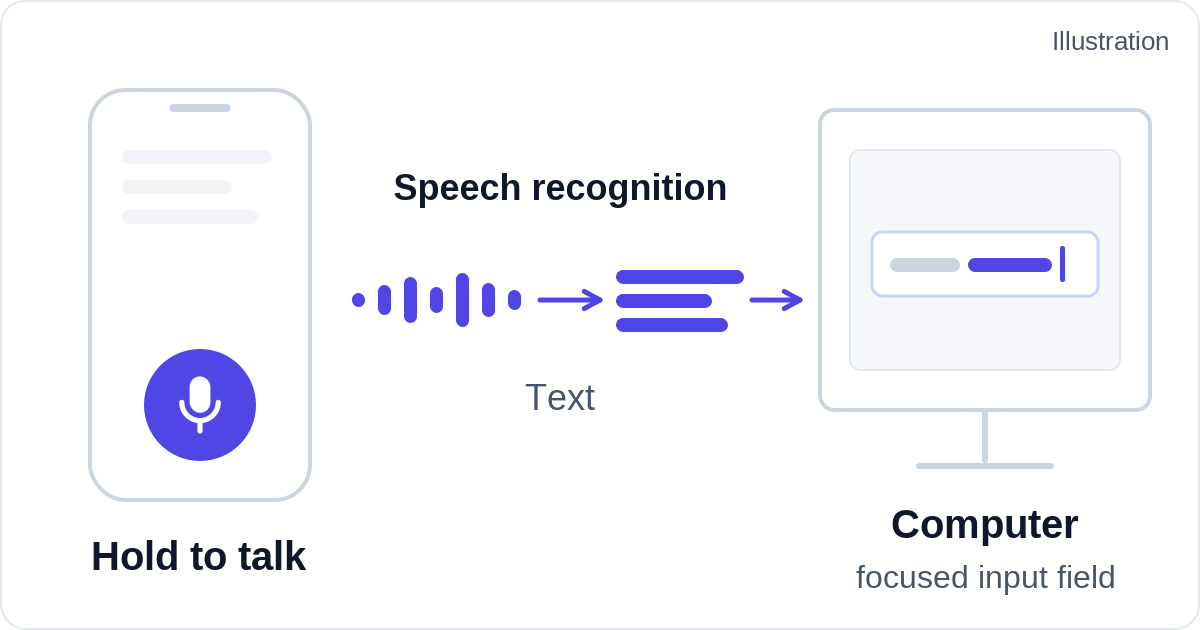
How can you reply on your computer with one hand?
You click into the reply box on the computer, then pick up the phone and speak the reply while holding "Hold to talk". When you let go, the words go into that box at your cursor. Typing a whole reply turns into one held button and a few spoken sentences. FlowMic puts the words in place, and the rest stays with you. Opening the message, placing the cursor and pressing send happen on the computer, with whichever hand is free.
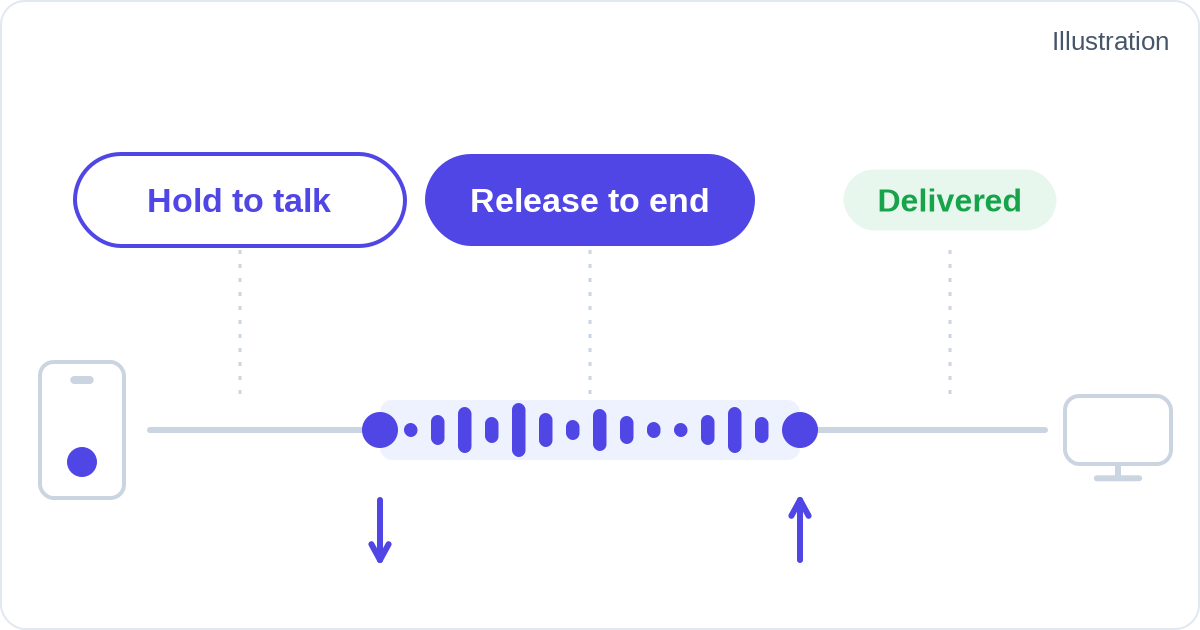
For a longer reply, hold the button again and say the next part. The one-button page shows the same setup from a different angle.
How do you set up one-handed replies?
You install FlowMic on the computer and on the phone, pair them once, and then reply by voice whenever you like. Pairing uses a QR code that the computer shows and the phone scans. After that, the reply box on the computer and the talk button on the phone are all you need for each message. Look at the words before you send them, the same way you would check something you typed.
- Install FlowMic on the computer, then on the phone.
- On the computer, open "Devices" and click "Add phone" to show a QR code and a 4-digit pairing code.
- On the phone, tap "Add device" and scan the code from the "Scan" tab, or use "Enter manually".
- Click into the reply box on the computer.
- Hold "Hold to talk" on the phone, say the reply, and let go. The label reads "Release to end" while you speak.
- Read the words at your cursor and send them the way you normally do.

Can you check a reply on the phone before it goes to the computer?
Yes. The default is "Direct send", where the words go to the computer as soon as you let go. Tap the small "⇄" control next to the input box and switch to "Manual send" if you want a look first. The reply then stays on the phone as a card that says "Transcribed, not sent", where you can edit the words, tap "Deliver" to send them to the computer, or tap "Discard".
On that card, three small buttons, "Polish", "Organize" and "Translate", rework the text in the box before you deliver it. The card notes "Acts on the box · never injects", so these buttons change only the text on the phone. When the reply reads the way you want, tap "Deliver".
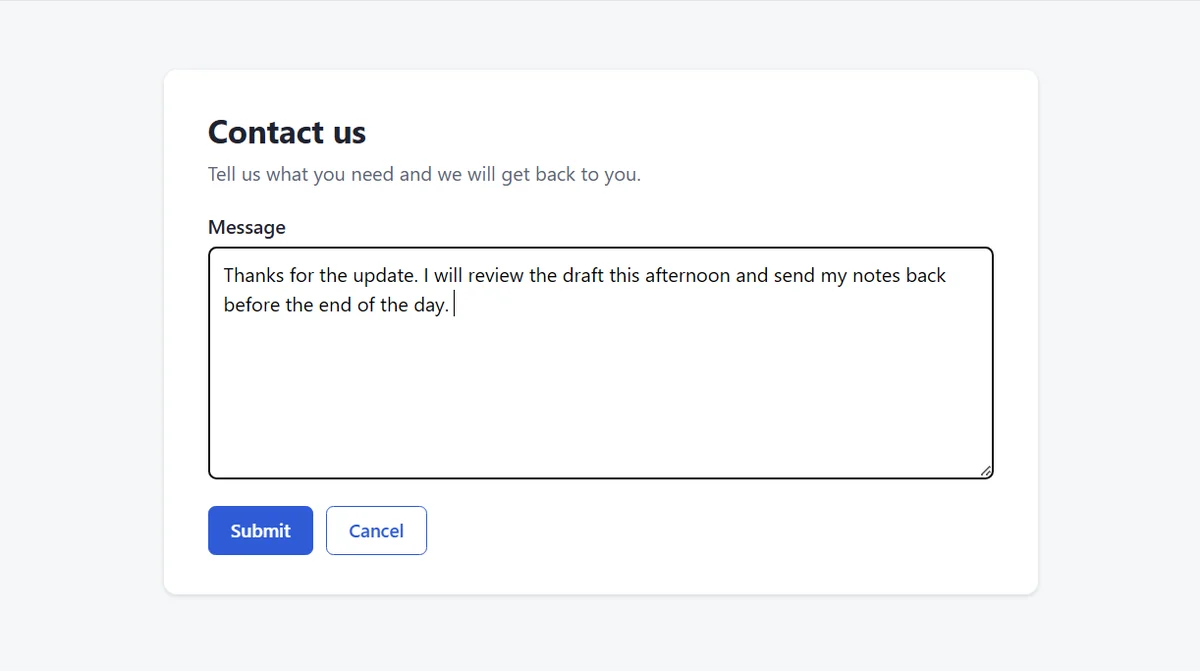
What happens if the computer is offline when you speak?
The reply is kept on the phone and sent once the computer is reachable again. A reply that arrives this way is not typed into the window on its own, so it does not drop into whatever box happens to be in front later. Its row reads "Delivered · not auto-injected", and you choose when to put it in place.
On the phone, "Delivered" means a reply reached the computer. Rows such as "Pending · queued" or "Pending · no answer yet" tell you it is still on its way. See What Happened to Every Sentence You Dictate explains each label.
Do the phone and computer need to be on the same network?
No. On the same network, the phone and computer connect directly over Local LAN. When you are apart, for example with the phone on mobile data, Cloud relay carries the words from the phone to the computer over TLS. Cloud relay needs the computer to be signed in. Either way, the reply lands in the box where your cursor is.
FlowMic servers do not store your transcripts. For the details, read Does FlowMic Keep What You Say?, and see dictating from anywhere on mobile data.
Common questions
Do I need an account?
Not when the phone and computer are on the same network and use Local LAN. To connect across networks through Cloud relay, the computer has to be signed in. Long recordings and the cloud Notes also need you to sign in.
Can I try it before installing anything?
Yes. The Try it page on the FlowMic website lets you speak a sentence without installing anything, with 120 seconds per browser. Those words appear on that web page only, not on your computer.
What does FlowMic cost?
The Free plan is $0 with 20 managed transcription minutes a month and 2 computers. Pro is $12 a month and Max is $28 a month, billed in US dollars, with the same features and more minutes and computers. Subscribe on the FlowMic website.