
 FlowMic
Why FlowMic Types the Words but Leaves Sending to You
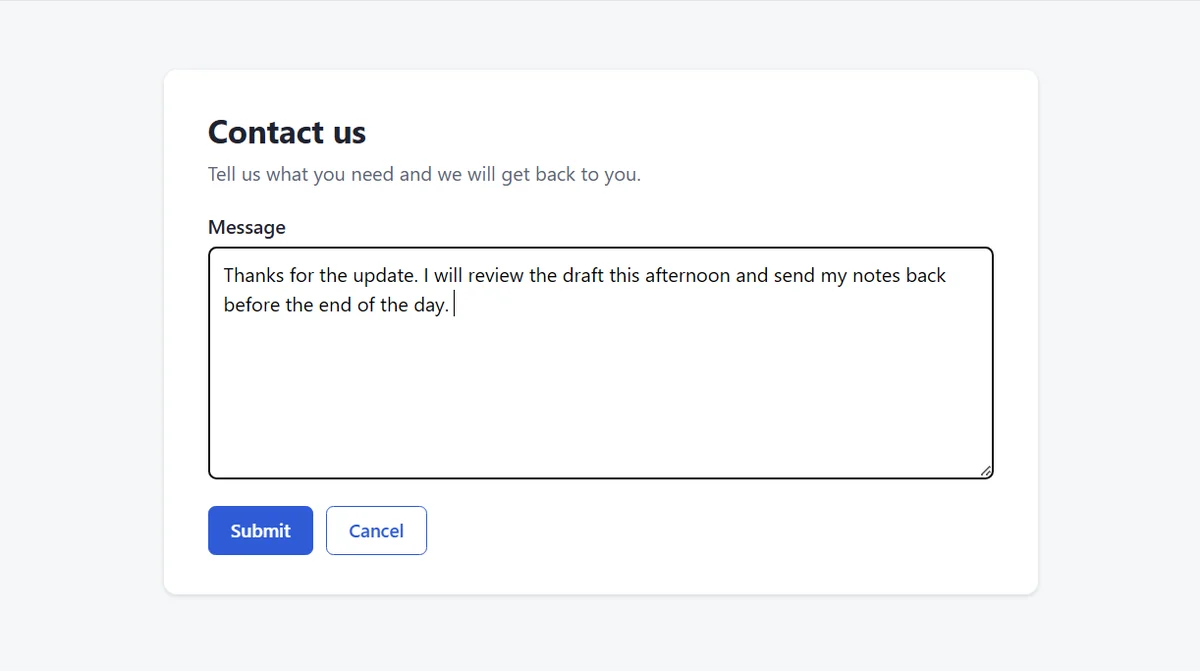
FlowMic leaving sending to you means that when you dictate, your words stop at the cursor in the box you clicked, and you decide when the message goes out. FlowMic is an open source (AGPL-3.0) app that turns your phone into a microphone for your computer: hold a button on the phone, speak, let go, and the text lands at the cursor, where you read it and press Send yourself.
Does FlowMic send the message for you after you dictate?
No. After you dictate, FlowMic puts the words at the cursor and does not press the send key for you. The text waits in the box you clicked. You read it, change what you want with the keyboard, and then send it with the program's own Send button or key, the same way you would with typed text.
After your words, FlowMic adds at most one space, and for some scripts, such as Chinese and Japanese, not even that. Everything after that point is in your hands.
What happens between letting go of the button and pressing Send?
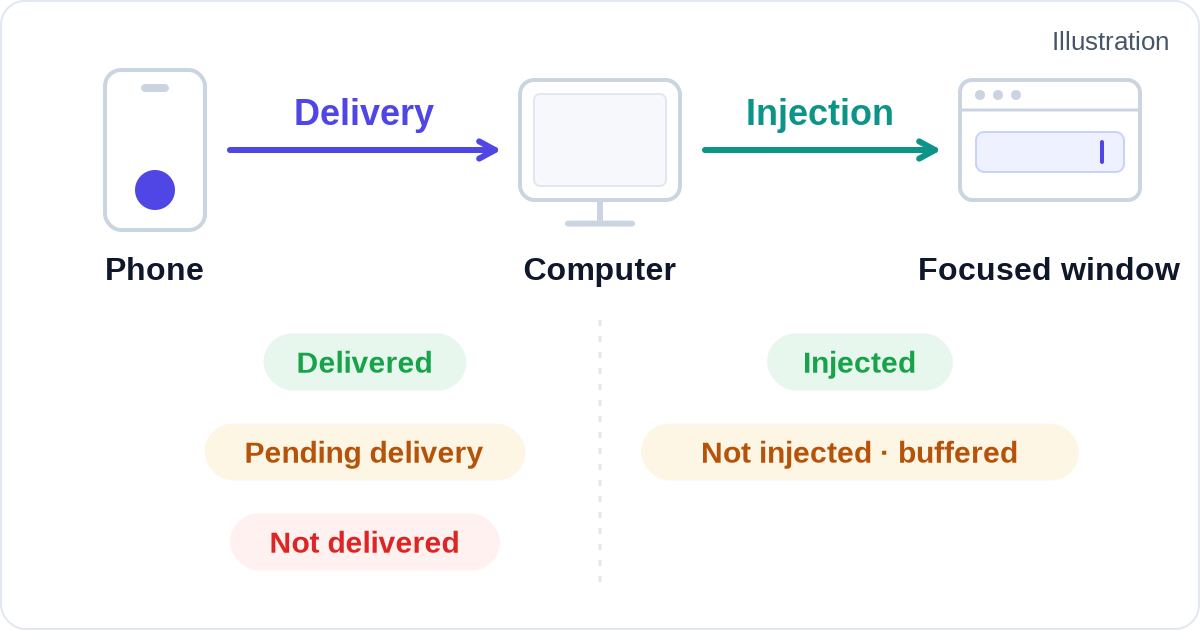
When you let go of "Hold to talk", the phone passes the finished text to your computer, and FlowMic places it at the cursor of the box you clicked. Then FlowMic stops. The text sits in the box of the program you are writing in, and its Send button or key stays yours to press when you are ready.
- Click into the reply box or form field on your computer.
- Hold "Hold to talk" on your phone and speak. The button reads "Release to end" while you hold it.
- Let go. If you slid your finger up to "Release to cancel" first, the recording is thrown away instead.
- Read the words at the cursor and fix anything you want.
- Send the message the way you normally do.
To follow what happened to each sentence on both devices, read see what happened to every sentence you dictate.
What do "Direct send" and "Delivered" mean, if not sending the message?
"Direct send" and "Manual send" are about the trip from your phone to your computer, not about the send button in your chat or email program. With "Direct send", the default, your words go to the computer as soon as you let go. With "Manual send", they stay on the phone first, where you can edit them, and go to the computer when you tap "Deliver".

"Delivered" on a phone row means the words reached your computer. It does not mean they went into a window, and it does not mean a message was sent. Putting the text into the window is a second step on the computer, and sending the message is a third step that belongs to you.
How can you press Enter on the computer from your phone?
The phone app has a row of keys that act on your computer: "Clear", "Backspace", "Undo" and "Enter". The "Enter" key is described in the app as a new line on the computer, and it acts when you tap it. If the program you are using sends a message on Enter, tapping that key on the phone is you pressing Enter, the same as on your keyboard.
That gives you a choice of where to finish. You can reach for the keyboard and mouse, or you can stay on the phone and tap the key yourself. For more on holding the button from the phone, see push-to-talk dictation for Windows.
How do you set up FlowMic to try this?
You install FlowMic on your computer and your phone, then pair them by scanning a QR code. Get the apps from the download page, open "Devices" on the computer and click "Add phone", and a dialog shows a QR code, a 9-digit PCID, a 4-digit pairing code and "Pairing code expires in". The code is valid for 5 minutes and refreshes by itself.
On the phone, tap "Add device", stay on the "Scan" tab and point the camera at the code; no button press is needed, and you can switch to "Enter manually" instead. After that, every dictation follows the same order: click the box, hold, speak, let go, read, and send it yourself. For a full walk-through, read voice typing for your PC using your phone, and see the pricing page for plans.
Common questions
Will FlowMic press Send for me after I dictate?
No. After you dictate, FlowMic puts the words at the cursor and does not press the send key for you. The words wait in the box, and sending them is up to you, with the Send button or key of the program you are using.
Can I press Enter on the computer from my phone?
Yes. The phone app has a row of keys for the computer, Clear, Backspace, Undo and Enter. The Enter key there is labeled as a new line on the computer, and it acts when you tap it.
Is Direct send the same as sending my message?
No. Direct send and Manual send decide how your words travel from the phone to the computer. Direct send passes them on when you let go of the button; Manual send keeps them on the phone until you tap Deliver. Sending the message itself happens in the program on your computer.
Where does my text go when I let go of the button?
It goes to the computer you paired with, and FlowMic places it at the cursor in the text box you clicked, such as an ordinary text box in a browser or program.