
 FlowMic
Dictate Long Prompts to Your AI Coding Assistant
Dictating prompts to an AI coding assistant means speaking your task background, requirements, and constraints aloud instead of typing them by hand, and FlowMic puts those words into the focused text box on your computer from your phone. With FlowMic, an open source (AGPL-3.0) app, you click the prompt input box, hold a phone button, speak, and release.
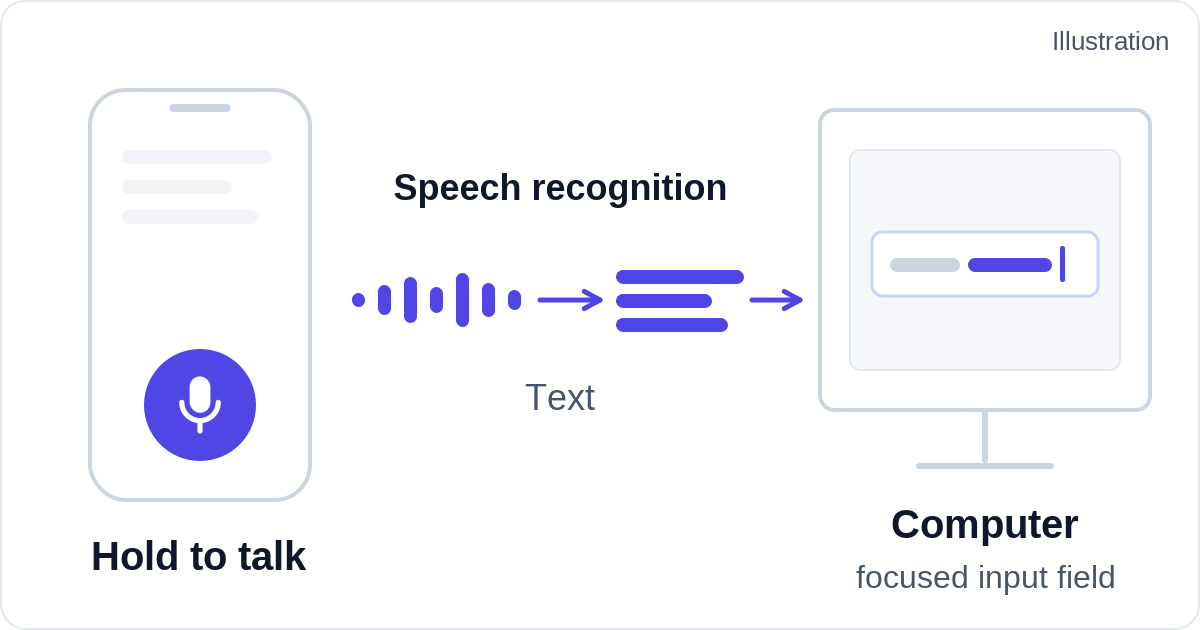
How do you set up FlowMic and dictate your first prompt?
To dictate a prompt into your AI coding assistant, install FlowMic from the download page on your computer and phone, pair them with a QR code or 4-digit code, click inside the prompt input box on your computer, and hold "Hold to talk" on your phone while you speak. Releasing the button places the text into that focused box.
- Install FlowMic on your computer from the Microsoft Store or GitHub Releases, and on your phone from the App Store or Google Play. On macOS, move it into "Applications" first and enable "System Settings ▸ Privacy & Security ▸ Accessibility".
- In the computer app, open the devices page and click "Add phone". The window shows "Local LAN" and "Cloud relay" tabs, a QR code, a 4-digit code, and a "Pairing code expires in" countdown. For "Cloud relay", sign in on the computer first; you can also scan the cloud QR code with your phone camera or browser.
- On your phone, tap "Add device", then use "Scan" for the QR code or "Enter manually" for the 4-digit code.
- On the phone conversation screen, pick "Realtime", "Translate", or "Organize". Start with "Realtime" if unsure.
- On your computer, click inside the prompt input box in your AI coding assistant panel.
- Press and hold "Hold to talk" on your phone and speak. The label turns to "Release to end" while you hold it; keep holding for as long as you talk, since the talk button lives on your phone. Slide up to "Release to cancel" to discard.
- Release when done. On the phone, "Delivered" means the words reached your computer; FlowMic then saves your clipboard, pastes the words into the text box at your cursor, and restores your clipboard.
- Check the words on your computer and send the prompt the way you normally do.

Which mode should you pick when explaining a coding task?
FlowMic provides three modes on the phone conversation screen: "Realtime", "Translate", and "Organize", and all three are included on every plan with the same features. Choose "Realtime" to stay close to your own wording in the language you speak, choose "Organize" to turn rough thoughts into tidy written text in the same language, or choose "Translate" to output another language.
In "Organize" mode, FlowMic removes fillers and false starts to produce smooth written text in the same language, without making lists or outlines and without changing the language. In "Realtime", you can turn on the "AI polish" switch and select Strict or Smooth so a language model lightly edits the final text; "AI polish" is a switch inside "Realtime", not a fourth mode. In "Translate", pick one of the 9 target languages under "Translate into", with simplified and traditional Chinese counted separately. See also how to dictate long prompts into AI chat and dictate comments and commit messages.
How can you review your prompt on the phone before sending it to the computer?
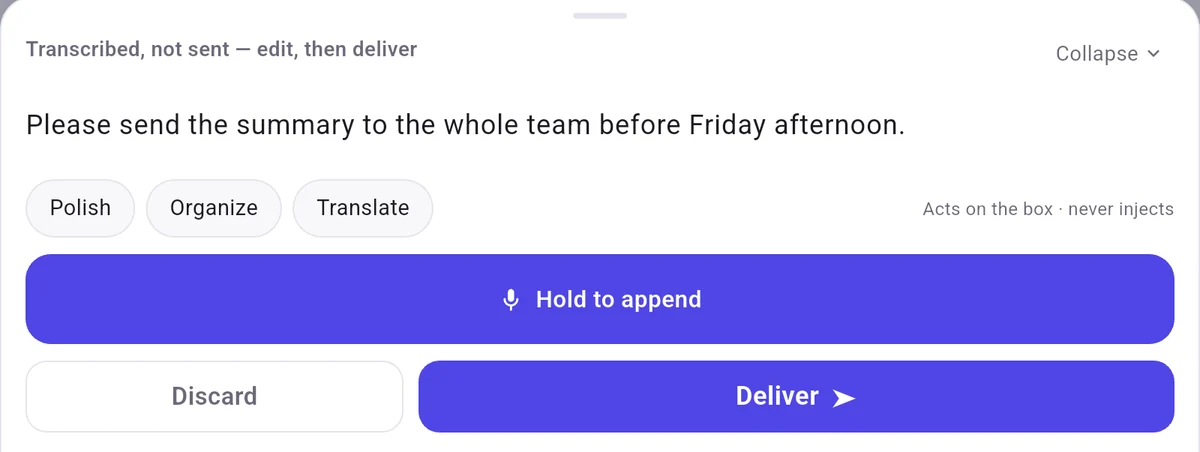
By default, FlowMic uses "Direct send", which sends your recognized words to the computer as soon as you release the talk button. If you want to read and edit your prompt on the phone screen before placing it into the focused text box on your computer, switch to "Manual send" first.
In "Manual send", described in the app as "Speech lands in the box; press ➤ to send", releasing "Hold to talk" places the recognized words into a card on your phone with "Deliver" and "Discard" buttons. Edit the text and tap "Deliver" to send it to your computer, or tap "Discard".
What if your prompt is too long to hold the button the whole time?
When you want to speak a long set of notes without holding your finger on "Hold to talk" the entire time, use FlowMic's long recording feature to record now and send the text to your computer later. Long recording requires signing in and allows up to 10 minutes per recording on Free or 30 minutes on Pro and Max.
That 10-minute per-recording limit on the Free plan is separate from the Free plan's 20 managed transcription minutes a month across 2 computers. Read how to say it now and send it to your computer later, learn how push to talk works, or check what the Free and Pro plans cover. FlowMic servers, including the relay, do not store your transcripts; see whether FlowMic keeps what you say.
Common questions
How do I install FlowMic on my computer and phone?
Install FlowMic from the App Store, Google Play, or Microsoft Store, or download desktop installers from GitHub Releases. On macOS, move FlowMic into the Applications folder before opening it, then enable it in System Settings under Privacy and Security and Accessibility.
Do you need to sign in to use the cloud relay?
Yes. On different networks your phone and computer go through the cloud relay: you sign in on the computer app, and the phone can pair without signing in.
What does FlowMic cost and what is in the Free plan?
Free is $0 with 20 managed transcription minutes a month across 2 computers, plus up to 10 minutes per long recording when signed in. Pro is $12 a month for 1,000 minutes across 3 computers, and Max is $28 a month for 3,000 minutes across 10 computers. All plans include Realtime, Translate, and Organize; subscribe on the FlowMic website.
Does FlowMic keep what I say?
FlowMic servers, including the relay, do not store your transcripts. Read the full details in our guide on whether FlowMic keeps what you say.