
 FlowMic
Dictate Comments and Commit Messages From Your Phone
Dictating code comments and commit messages means speaking plain sentences into your phone so FlowMic places the words into the focused text box on your computer. With FlowMic, an open source (AGPL-3.0) app, you click the text box where you write your comment, commit summary, or pull request description, hold a button on your phone, speak, and let go.
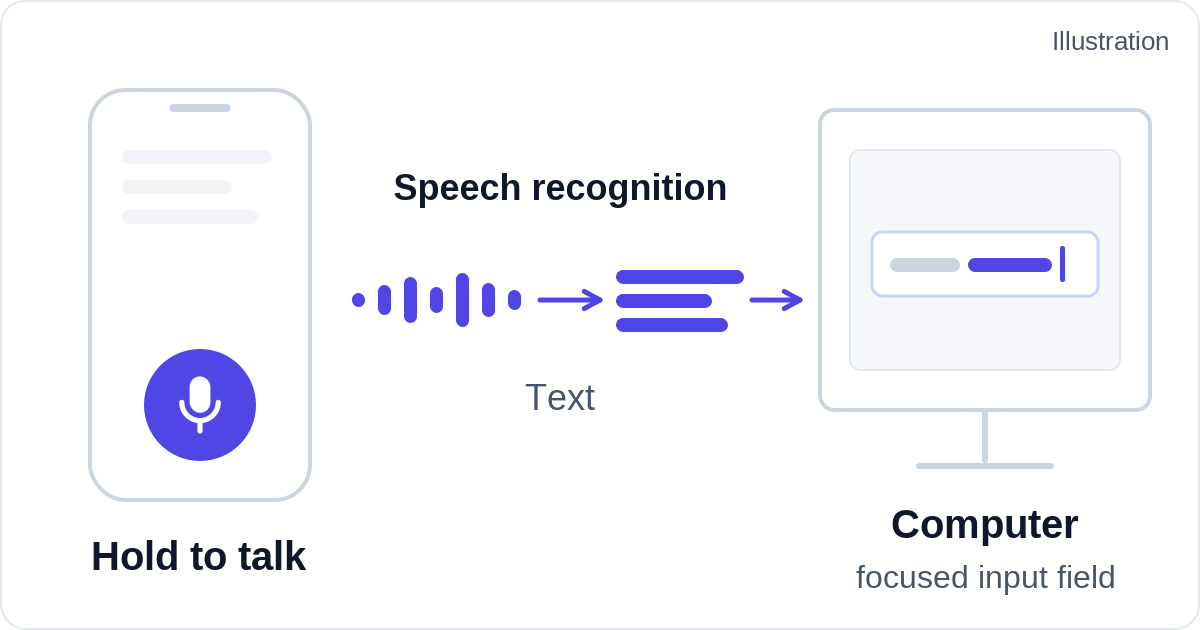
How do you set up FlowMic and dictate your first comment or commit message?
You pair the FlowMic desktop app with your phone using a QR code or a 4-digit code, click the text box on your computer where you want to write, and hold the "Hold to talk" button on your phone while speaking. When you release the button, FlowMic sends the text to your computer and pastes it at your cursor.
Install FlowMic from the download page, or from the App Store, Google Play, Microsoft Store, or GitHub Releases. See the pairing guide for connection details.
- Open FlowMic on your computer, go to the devices page, and click "Add phone". A dialog shows tabs for "Local LAN" and "Cloud relay", a QR code, a 4-digit code, and "Pairing code expires in".
- On your phone, tap "Add device". Use "Scan" for the QR code, or "Enter manually" for the 4-digit code. With "Cloud relay" on a signed-in computer, you can also scan the QR code with a phone camera or browser to speak from the web page.
- On the phone conversation screen, pick "Realtime", "Translate", or "Organize". Start with "Realtime" if unsure.
- Click inside the ordinary text box on your computer where you write your comment or commit summary so the cursor is inside it.
- Press and hold "Hold to talk" on your phone and speak. The label turns to "Release to end". Let go to finish, or slide up to "Release to cancel" and let go to discard.
- Check the words in your text box on the computer and save or submit the way you normally do.
Which mode fits commit messages, comments, and pull request descriptions?
FlowMic has three modes on the phone screen: "Realtime", "Translate", and "Organize". "Realtime" stays close to your own wording in the same language, "Organize" turns a rough spoken thought into tidy written text in the same language with fillers and false starts removed, and "Translate" outputs only the translation in your chosen target language.

For a short comment or single-line commit summary, use "Realtime". Inside "Realtime", you can turn on the "AI polish" switch for light language-model editing; "AI polish" is a switch inside "Realtime", not a fourth mode.
When explaining the reason for a change in a commit body or pull request description, switch to "Organize". It removes false starts and returns tidy written prose in the same language that you can trim as needed; see From Rambling to Clean Text: Speak, Then Get a Tidy Draft. To speak in one language and write in another, pick "Translate" and choose the language under "Translate into".
How can you review or edit a commit message on your phone before it reaches your computer?
You can switch the delivery setting on your phone from the default "Direct send" to "Manual send" whenever you want to read or edit your words on the phone screen first. In "Manual send", your transcribed speech stays in the phone box until you tap the send button or choose "Deliver" on the review card.
The app describes "Direct send" as "Speech is injected to the computer as soon as you finish" and "Manual send" as "Speech lands in the box; press ➤ to send". After you release the button, edit the text on the phone or use "Deliver" and "Discard". Once the words reach the computer, the phone status shows "Delivered".
How does the spoken text get into the focused box on your computer?
After your words arrive at the computer, the FlowMic desktop app puts them into the focused ordinary text box in browsers and programs by saving your current clipboard, copying the new text, pasting it with the system paste shortcut, and restoring your previous clipboard afterward.
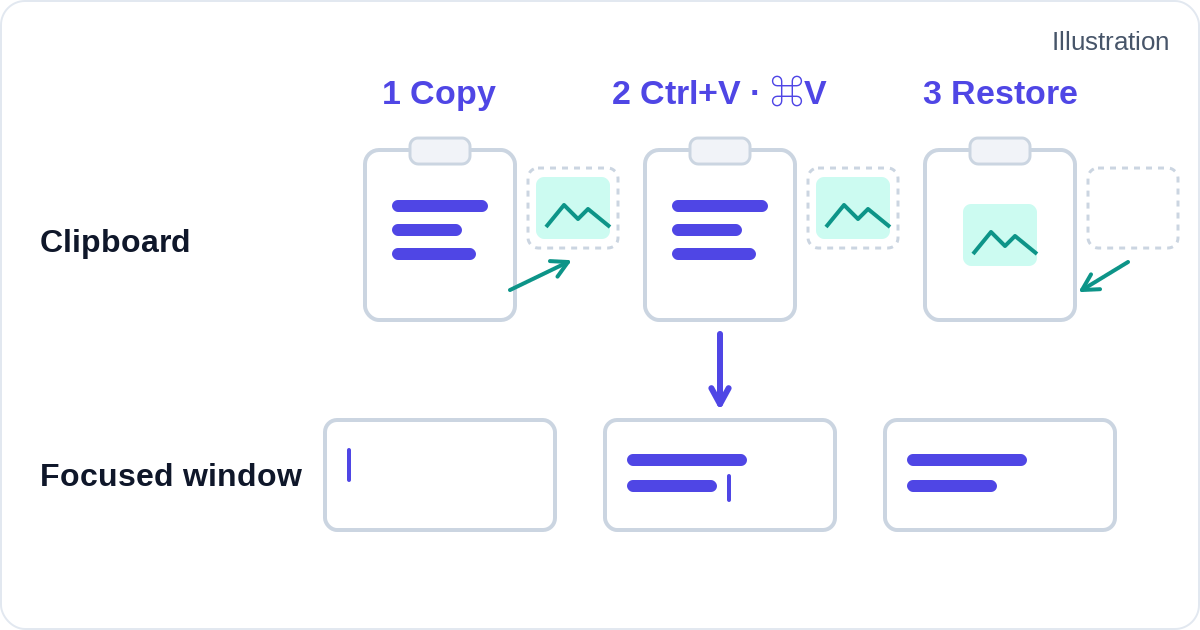
Because the talk button is on your phone rather than a computer hotkey, your keyboard shortcuts stay free; see push to talk on your phone and Dictate Long Prompts to Your AI Coding Assistant. FlowMic servers, including the relay, do not store your transcripts; see the privacy page and pricing page.
Common questions
Where can FlowMic put spoken comments and commit messages?
FlowMic puts your spoken words into the focused ordinary text box in browsers and programs on your computer by copying the text to the clipboard, pasting it, and restoring the clipboard afterward. Click inside the box where you write your comment or commit summary, then hold the button on your phone and speak.
Do you need to sign in to use the cloud relay?
Yes. On different networks your phone and computer go through the cloud relay: you sign in on the computer app, and the phone can pair without signing in.
How much does FlowMic cost?
The Free plan is $0 with 20 managed transcription minutes a month on 2 computers, plus a 10-minute limit per long recording when signed in. Pro is $12 a month for 1,000 managed minutes and 3 computers, and Max is $28 a month for 3,000 managed minutes and 10 computers, billed monthly on the website.
Which systems and stores have FlowMic?
FlowMic runs on Windows 10/11 64-bit, macOS 11 or later on Apple silicon, and Linux x86-64 in an X11 session, paired with Android 7.0 or later or iOS / iPadOS 15 or later. You can install it from the App Store, Google Play, Microsoft Store, or GitHub Releases.
Does FlowMic keep what I say?
FlowMic servers, including the relay, do not store your transcripts. You can read the full details on the privacy page and in the article on whether FlowMic keeps what you say.