
 FlowMic
Speak Your First Draft: Blog Posts and Newsletters
Dictating a blog post or newsletter means speaking your rough ideas out loud so they turn into written paragraphs in your editor, and FlowMic lets you do that by holding a button on your phone so the words appear at the cursor on your computer. FlowMic is open source (AGPL-3.0); you can download it, or try a sentence first on the Try it page, which gives each browser 120 seconds.
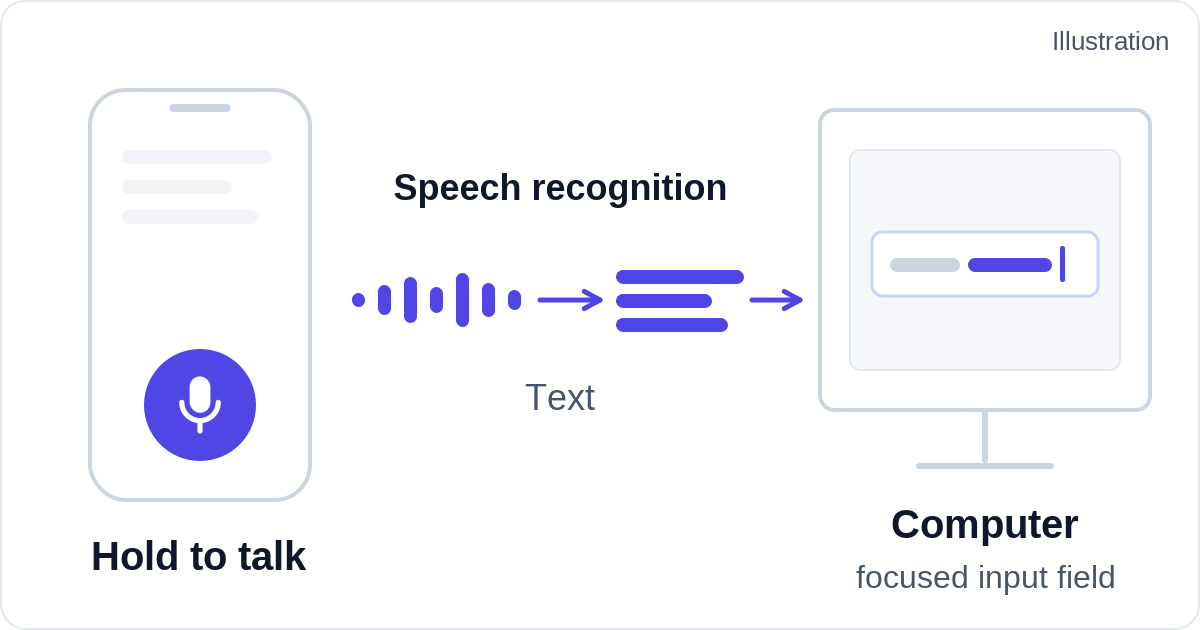
How do you set up FlowMic and dictate your first paragraph?
You install FlowMic on your computer and phone, scan the pairing QR code inside the app, click inside an ordinary text box on your computer, and hold the talk button on your phone to speak. When you let go of the button, your spoken sentence is transcribed and placed where your cursor sits on the computer screen.
- Install the computer app from Microsoft Store or the download page (also on GitHub Releases), and install the phone app from App Store, Google Play, or the GitHub APK.
- Open the computer app, click "Devices", and click "Add phone". The dialog shows a QR code, a PCID, a 4-digit code, and "Pairing code expires in", which lasts 5 minutes and refreshes automatically.
- On the phone, tap "Add device" and use "Scan" on the QR code, or pick "Enter manually" to enter the address and 4-digit code.
- Click inside the ordinary text box in the browser or program on your computer where you write.
- Press and hold "Hold to talk" on the phone and speak. The label becomes "Release to end"; let go when done, or slide up to "Release to cancel" to discard.
- Review the words at your cursor and edit or publish the way you normally do.
How do Realtime, Organize, and Translate shape your draft?
Before each recording, you pick one of three modes above the phone input bar: "Realtime", "Translate", or "Organize". Each recording runs through the single mode you select, letting you capture your spoken words in the same language, turn loose speech into clean written prose, or write directly in another language.
In "Realtime", FlowMic outputs the recognized words in your spoken language. Inside "Realtime", you can toggle the "AI polish" switch ("Strict" or "Smooth") to lightly edit the final text, or leave it off for dictating without AI rewording.
To turn rambling speech into a tidy draft, choose "Organize", which tightens speech into clear written prose in the same language, drops filler words and false starts, and fixes obvious recognition errors using your glossary. "Translate" outputs only the translation in the language chosen under "Translate into" (9 target languages, with simplified and traditional Chinese counted separately). Switching modes clears the phone box and keeps any draft as "Record only".

Should you use Direct send or Manual send when drafting?
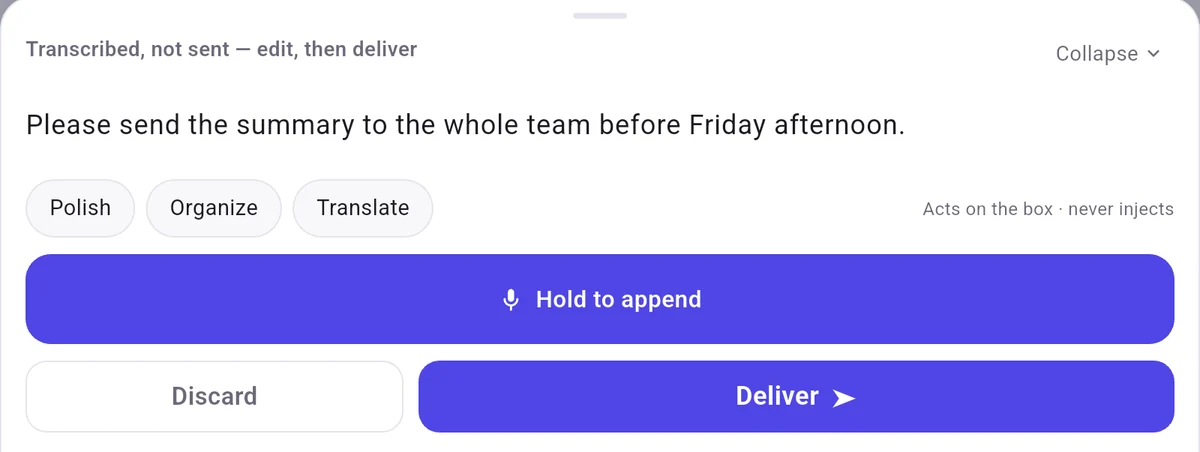
By default, FlowMic uses "Direct send", which delivers your words to the computer as soon as you release the talk button. If you prefer to read, edit, or append more sentences on your phone before anything reaches your computer cursor, tap the "⇄" control to switch to "Manual send".
Under "Manual send", releasing the button opens a review card where you can edit on the phone keyboard, hold "Hold to append" to add more speech, or tap "Polish", "Organize", or "Translate". The note "Acts on the box · never injects" means those three buttons only update the phone box. Tap "Deliver" when ready, or "Discard" to clear it.
How can you dictate a longer draft away from your desk?
When you want to dictate while pacing or capture ideas away from your computer, you can switch the phone destination to "Record only", use "Long recording" for continuous speech, or capture into cloud "Notes". What you record is saved on the phone, so you can copy it or send it to your computer later.
Switching a paired session to "Record only" changes the button to "Hold to talk · Record only" and keeps recordings on the phone for that session. Without a computer, signing in lets you use cloud "Notes", which is fixed to "Record only".
Under "Record only", signing in also opens "Long recording" in "Realtime" mode. Tap "Start recording" to speak up to 10 minutes on the Free plan or 30 minutes on Pro and Max (separate from the Free plan's 20 managed minutes a month on the pricing page); it warns one minute before the end, stops and saves on its own, and produces a multi-paragraph article.
How do you reuse and export drafts from the timeline?
Both the phone app and the computer app keep a timeline of your recordings so you can come back to what you said, run it through a mode again, or export it. From the timeline, you can copy text, inspect the original wording before organizing or translating, send an item to your computer, or export a zip file.
The phone timeline menu offers "Copy", "Copy original text", "Edit", "Inject to computer", "Re-organize", "Re-translate", and "Select multiple", while the computer timeline has "Re-inject" and "Data". "Delivered" on the phone means the words reached the computer. Tap "Export records" or "Import records" on the phone, or open "Data" and click "Export…" or "Choose a file…" on the computer to save an unencrypted zip file with your text as-is.
Common questions
When do you need to sign in?
Cloud relay pairing requires signing in on the computer first, or the cloud QR code is not drawn. You also sign in on the phone for Long recording or cloud Notes, while the Try it page needs no account.
How long can a single Long recording run?
Long recording requires signing in and runs in Realtime mode when your destination is Record only. Each recording runs up to 10 minutes on the Free plan and up to 30 minutes on Pro and Max, stopping and saving on its own with a reminder one minute before the end.
What does FlowMic cost?
The Free plan is $0 with 20 managed transcription minutes a month, 2 computers, and up to 10 minutes per Long recording. Pro is $12 a month for 1,000 managed minutes and 3 computers, and Max is $28 a month for 3,000 managed minutes and 10 computers, billed monthly in US dollars on the FlowMic website.
Does FlowMic keep what you say, and can you export your drafts?
FlowMic servers, including the relay, do not store your transcripts. To keep your drafts, use Export records on the phone, or Data and then Export... on the computer; you get an unencrypted zip file with your text as-is.