
 FlowMic
Make Voice Typing Spell Acronyms and Names Right
Standard voice typing knows everyday words, not your team's project names or code symbols. Teaching your dictation setup those exact spellings up front saves you from fixing the same homophone ten times a day. FlowMic—an open-source (AGPL-3.0) app that puts words spoken on your phone straight into your computer's focused input field—pairs a Custom terms list with exact Other spellings rules and optional app context so jargon lands right on the first pass.
Why does general dictation stumble on jargon and acronyms?
Everyday speech models pick whichever phrasing appears most often in normal conversation. When you say a niche library name, internal service, or product acronym, the engine guesses a close-sounding common word instead. Speaking louder or slowing down rarely fixes that, because the recognizer simply does not expect the word to exist in the sentence.
Feeding those terms in before transcription tips the odds back in your favor. Once FlowMic passes your active names forward as context, terms like Kubernetes or OpenTelemetry keep their proper spelling and case without constant hand editing.
How do Custom terms and Other spellings work together?
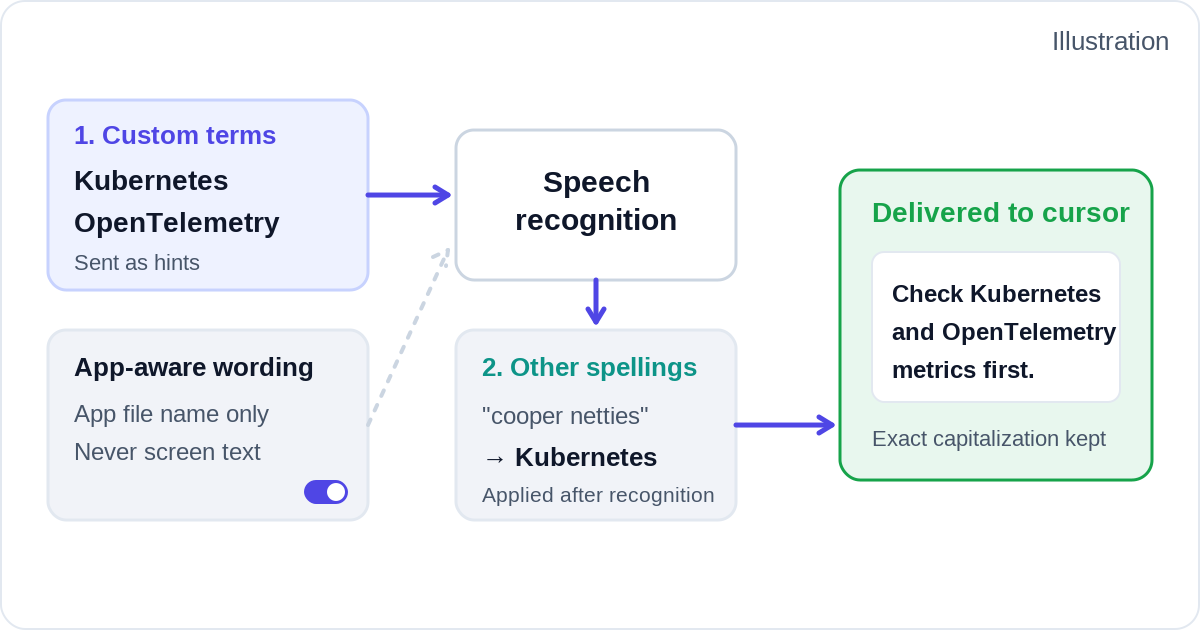
Inside phone Settings, FlowMic separates forward hints from cleanup rules between Custom terms and Recognition and AI. Keeping misheard variants out of the speech engine avoids polluting recognition while still catching repeat sound-alikes reliably.
- Open FlowMic on your phone and go to Settings → Custom terms.
- Add the exact spelling you want at the cursor, up to 40 characters (such as
PostgreSQLor an internal project codename). - If the recognizer keeps turning that word into one specific wrong phrase, list that wrong phrase under Other spellings, separated by commas (up to 8 aliases per term).
- Optional: pick your primary field under Scenario · Correction to nudge domain vocabulary.
Canonical spellings steer recognition ahead of time, while Other spellings only swaps matching text afterward. For first-time pairing steps across platforms, check the all-platform setup guide or grab the clients on the download page.
How does App-aware wording help without reading your screen?
Dictating inside a terminal or code editor follows different habits than writing a quick message to a colleague. Under Recognition and AI, switching on App-aware wording lets FlowMic adapt technical hints and common developer vocabulary when a coding tool has focus.
Your computer only shares the foreground app's executable file name to tell broad contexts like coding, email, or chat apart. It never reads window titles, code buffers, or screen text. If you dictate in editors often, pair this with dictating code comments and commits or writing AI coding prompts by voice.
Keeping your custom list sharp
A focused list beats a massive glossary dump. Hundreds of cold terms you say once a quarter just crowd out the twenty names you actually rely on every week across Realtime, Translate, and Organize.
- Start with 20 to 50 people, tools, client brands, and acronyms you dictate weekly, then add edge cases only when a real slip shows up.
- Save mixed-case identifiers and version tags exactly as you write them so recognition hints and AI polish preserve capitalization.
- Use Settings → Back up settings to export your terms alongside your AI preferences, and check plan allowances anytime on the pricing page.
Common questions
Does Custom terms read my editor or screen to learn project names?
No. Custom terms reads only the vocabulary list you save. Even if you turn on App-aware wording under Recognition and AI, your computer shares only the active application file name—never window titles or text on screen.
What is the difference between a term and Other spellings?
The canonical term goes into recognition hints so the speech engine expects that spelling first. Entries under Other spellings run only after recognition to replace recurring misspellings without confusing the recognizer.
How long can each custom term be?
Each term can be up to 40 characters, with up to 8 comma-separated aliases under Other spellings.