
 FlowMic
ChatGPT Voice Mode vs Dictation: Words in the Box
A voice conversation is talking back and forth with an assistant that answers aloud, while dictation turns your speech into text inside a box, which FlowMic does using your phone as the microphone for your computer. Hold the button in the phone app, speak, and let go so your words appear in the focused text box on your computer to read, edit, and send. FlowMic is open source (AGPL-3.0); get it from the download page, or read more about voice typing on your PC with your phone.
What is the difference between a voice conversation and dictation?
A voice conversation and dictation do two different jobs when you sit at your computer. In a voice conversation, you speak with an assistant back and forth and listen to spoken replies. Dictation turns what you say into written text inside the input box where your cursor rests, leaving the words on screen so you can read and change them before you send.
With FlowMic, your phone acts as the microphone and push-to-talk controller. The desktop app puts the finished text into ordinary text boxes in browsers and programs by saving your clipboard, pasting the words, and restoring your clipboard afterward.
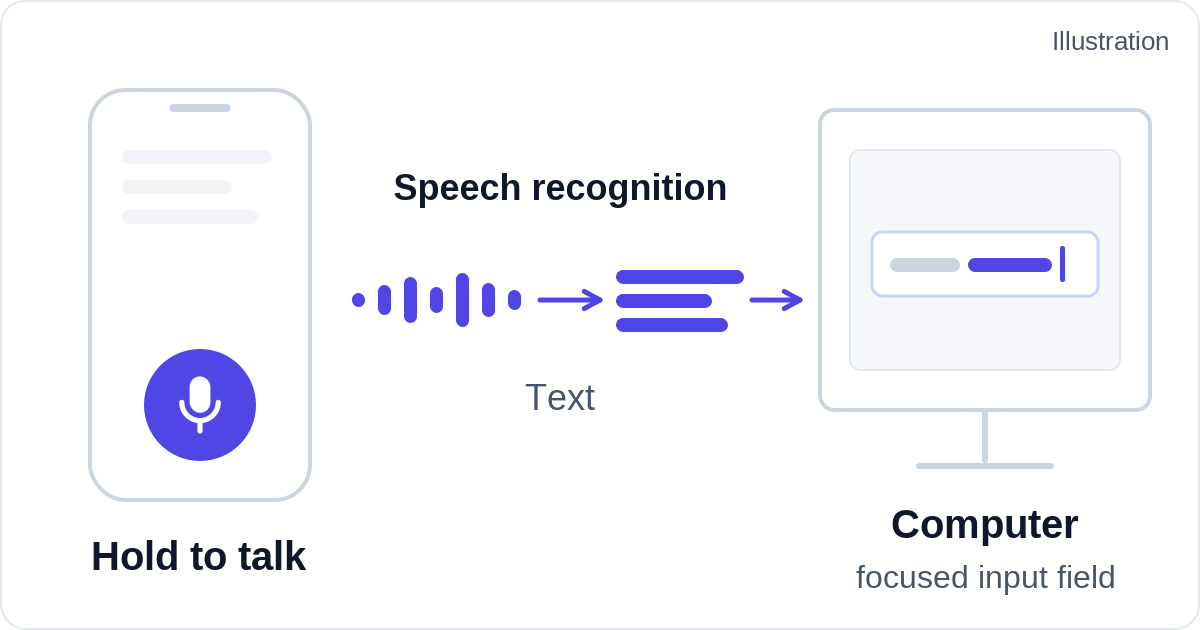
This fits desk work when you want to talk through long prompts instead of typing them.
How do you set up FlowMic and dictate into the message box?
Setting up FlowMic connects your phone to your computer over your local network or through the cloud relay. Once the two devices are paired, you click inside the text box on your computer, hold the talk button on your phone while speaking, and release the button so the transcribed words appear at your cursor.
- Install and open FlowMic on your computer from the download page, open the devices screen, and click "Add phone". A dialog opens with tabs for "Local LAN" and "Cloud relay", a QR code, a 4-digit code, and the "Pairing code expires in" countdown.
- Open FlowMic on your phone and tap "Add device". Use "Scan" to point your camera at the QR code, or "Enter manually" to type the 4-digit code. For "Cloud relay", sign in on the computer app first; you can also scan the cloud QR code with your phone camera or browser to talk from the web page.
- On the phone conversation screen, pick "Realtime", "Translate", or "Organize". Start with "Realtime" if you are unsure.
- On your computer, click inside the message box on the ChatGPT page so the cursor sits inside it.
- Press and hold "Hold to talk" on your phone and speak. While held, the label reads "Release to end", and letting go finishes the recording. Slide your finger up until "Release to cancel" appears and let go to discard the recording.
- Look over the words in the text box on your computer, make any edits, and send the message the way you normally do.

FlowMic listens for as long as you hold the button on your phone, as explained in push-to-talk control.
How do the three modes shape your spoken words?
Every time you hold the button and speak, FlowMic processes your recording using the single mode you have selected on the phone screen: "Realtime", "Translate", or "Organize". All three plans include the same three modes, and each recording gives you one piece of written text in the mode you chose.
In "Realtime" mode, FlowMic transcribes what you say in the same language, and you can turn on the "AI polish" switch inside "Realtime" for smoothing. "Translate" turns your spoken words into written text in the target language you pick. "Organize" takes rambling speech, false starts, and filler words and turns them into tidy written prose in the same language, which helps when you speak a rough draft and get clean text.
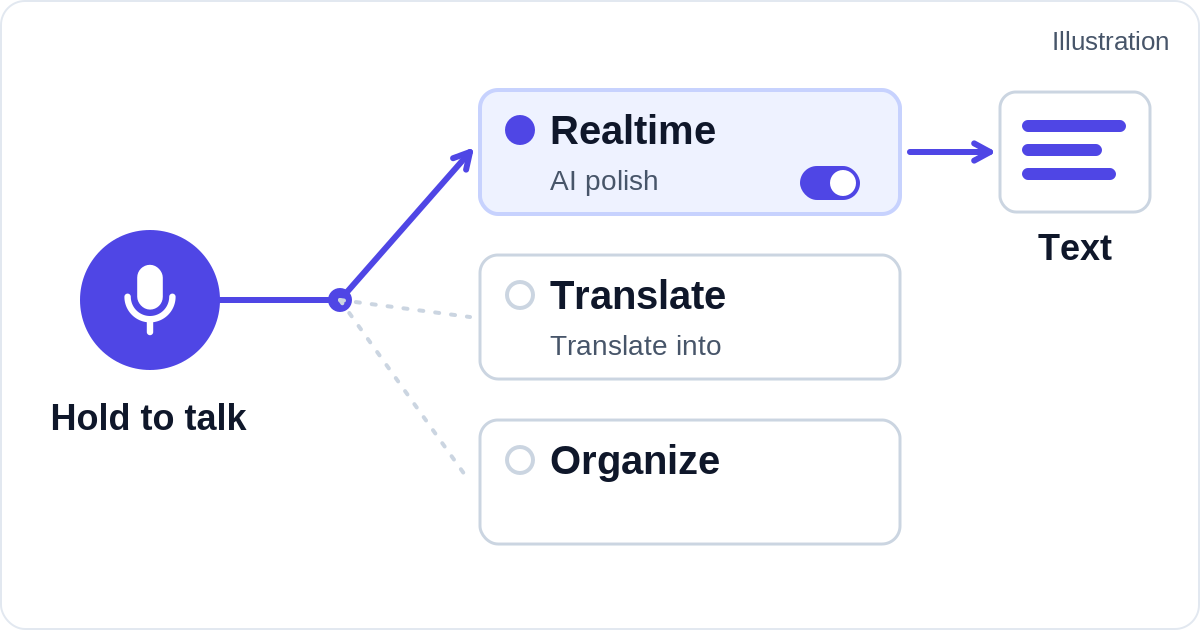
When your words reach the computer, the phone row shows "Delivered"; the computer then pastes them into the focused text box.
How can you review and edit on your phone before sending to the computer?
By default, FlowMic uses "Direct send", which means your speech is sent to the computer and pasted into the focused text box as soon as you let go of the talk button. If you want to read or change your words on the phone screen before they go to the computer, you can switch the delivery mode to "Manual send".
With "Manual send", releasing "Hold to talk" places your transcribed text inside a card on the phone instead of pasting it on the computer right away, so you can edit it there first.
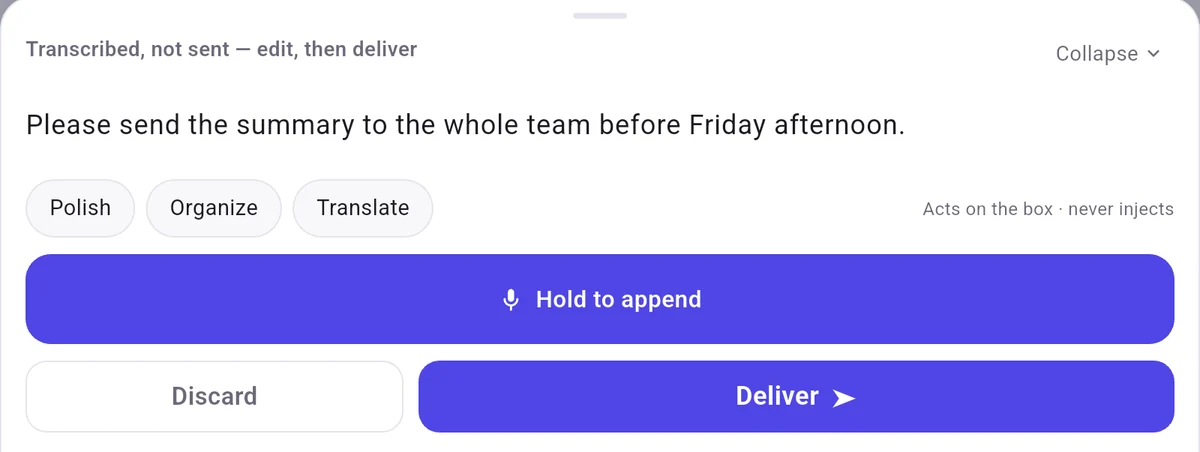
When the wording looks right, keep the cursor on your computer inside the target text box and tap "Deliver" to send the text across, or tap "Discard" to throw it away. Check plan limits on the pricing page and read how FlowMic handles spoken transcripts.
Common questions
What do you need to install on your computer and phone?
Install the FlowMic desktop app on your computer from Microsoft Store or GitHub Releases. On your phone, install FlowMic from App Store or Google Play, or scan the computer's Cloud relay QR code with your phone camera to talk from the web page that opens.
Do you need to sign in to use the cloud relay?
Yes. If your phone and computer are on different networks and connect through the cloud relay, you need to sign in on the computer app; the phone can pair without signing in.
Can you edit your dictated words before sending them?
Yes. With default Direct send, your words land in the focused text box on your computer, where you can read and edit them before you send. To edit on your phone first, switch to Manual send, edit the text on the card, and tap Deliver.
How much does FlowMic cost?
The Free plan is $0 with 20 managed transcription minutes a month on 2 computers, and long recording up to 10 minutes per recording when signed in. Pro is $12 a month for 1,000 minutes on 3 computers, and Max is $28 a month for 3,000 minutes on 10 computers, with 30-minute long recordings. All plans include the same features and are billed monthly on the website.
Does FlowMic keep what you say?
FlowMic servers, including the relay, do not store your transcripts. The guide on whether FlowMic keeps what you say covers how audio and text are handled.