
 FlowMic
Speak on Your Phone, Write in Google Docs
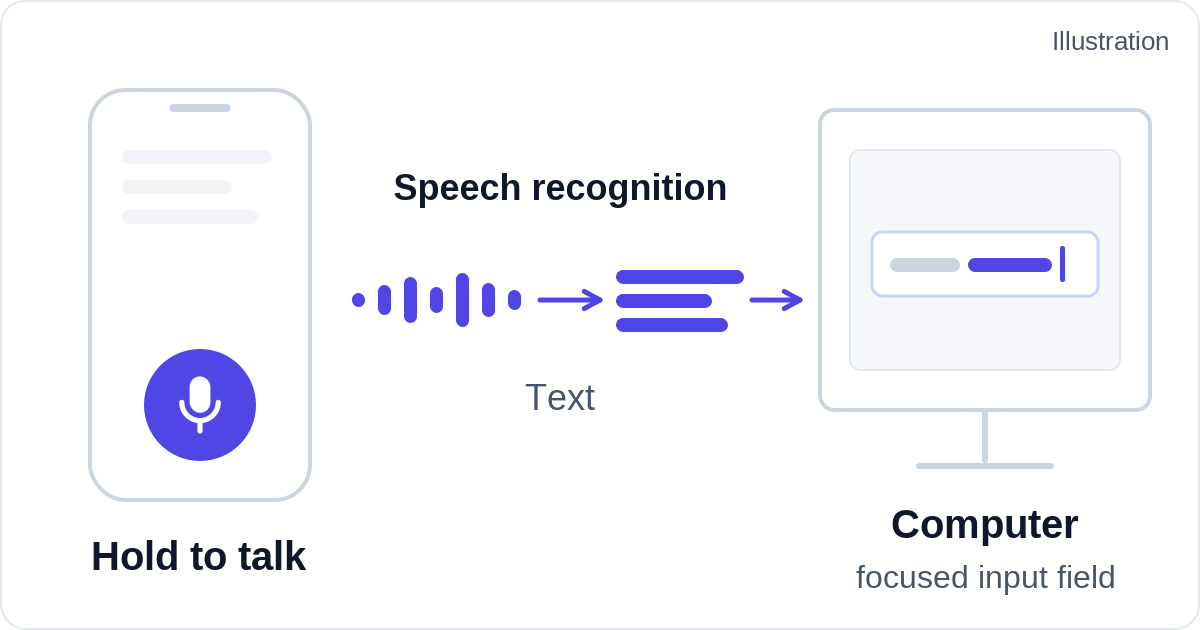
Dictating into Google Docs with your phone means speaking into the phone's microphone and letting the words land at the cursor in your document on the computer, which is what FlowMic, an open source (AGPL-3.0) app, does. You hold a button in the phone app, speak your sentence, and let go. FlowMic sends the recognized text to your computer and pastes it into ordinary text boxes in browsers and programs, restoring your clipboard afterward.
How do you set up FlowMic and dictate your first paragraph?
You need FlowMic on both devices and one pairing step. You install the computer app from the download page or Microsoft Store, install the phone app from the App Store or Google Play, pair them with a QR code or 4-digit code, click where you want to write on your computer, and hold "Hold to talk" on your phone.
- Open FlowMic on your computer, open the devices page, and click "Add phone". The dialog shows "Local LAN" and "Cloud relay" tabs, a QR code, a 4-digit code, and a "Pairing code expires in" countdown.
- Open FlowMic on your phone and tap "Add device". Use "Scan" to point your camera at the QR code, or tap "Enter manually" to enter the 4-digit code.
- On the phone conversation screen, pick "Realtime", "Translate", or "Organize". Choose "Realtime" for a straightforward draft.
- On your computer, click the spot in your Google Docs document where you want to write so the cursor sits there.
- Press and hold "Hold to talk" on your phone and speak. The label turns to "Release to end" while held. Let go when finished, or slide up to "Release to cancel" to discard.
- Check the words at your cursor, edit with your keyboard as needed, and hold "Hold to talk" again for the next section.
See the installation guide for platform details.
How does the talk button work while you are drafting?
You control recording on the phone screen by holding down "Hold to talk" the entire time you speak and lifting your finger when you want the words sent. The talk button lives on the phone, so the microphone listens only while your finger holds it down.

This rhythm works well when alternating between speaking and keyboard editing. You speak a few sentences, let go, check the text at your cursor, and revise at the keyboard. See dictating an essay draft and editing at the keyboard.
Which mode should you pick for drafting and cleaning up spoken thoughts?
FlowMic provides three modes on the phone conversation screen: "Realtime", "Translate", and "Organize", all included on every plan. Before holding the button, you choose whether to keep your spoken words in the same language, turn rough thoughts into tidy written prose in the same language, or output a translation in another language.
- "Realtime" outputs the recognized words in the language spoken. Its "AI polish" switch offers Strict and Smooth options for light language-model editing.
- "Organize" turns spoken thoughts into tidy written text in the same language with fillers and false starts removed, producing regular prose rather than lists or outlines. See speaking a draft and tidying it.
- "Translate" outputs only the translation in the target language selected under "Translate into", covering 9 target languages with simplified and traditional Chinese counted separately.
How do Direct send and Manual send change the way words reach your computer?
By default, FlowMic uses "Direct send", which sends your words to the computer and pastes them into the focused input box as soon as you let go of the talk button. When you want to check or edit a sentence on your phone before it reaches the computer, you can switch to "Manual send".

In "Manual send", speech lands in the phone box first, where you can edit and tap "Deliver" or "Discard". On the phone, "Delivered" means the words reached your computer; pasting into the window is a second step. Read speaking your first draft for blog posts and newsletters.
How do you connect over Local LAN or Cloud relay?
FlowMic links your phone and computer either directly on the same network through "Local LAN" or across separate networks through "Cloud relay". You pick one of these two tabs inside the "Add phone" dialog on your computer; "Cloud relay" needs you to sign in on the computer app first, and the phone can pair without signing in.
On the same network, "Local LAN" connects the two directly, and using your own engine, a local engine, or a self-hosted relay does not count toward managed minutes. On different networks, you can also scan the cloud QR code with the phone camera and talk from a phone browser. FlowMic servers, including the relay, do not store your transcripts; see the privacy page and pricing page.
Common questions
Do I need a browser extension to dictate on my computer?
No browser extension is needed. You install the FlowMic desktop app from the download page or Microsoft Store, and pair it with the phone app from the App Store or Google Play. Once you click where you want to write, FlowMic pastes the recognized words at your cursor and restores your clipboard afterward.
Do you need to sign in to use the cloud relay?
Yes. Across different networks your phone and computer connect through Cloud relay: you sign in on the computer app, and the phone can pair without signing in.
How much does FlowMic cost?
Free is $0 for 20 managed transcription minutes a month on 2 computers. Pro is $12 monthly for 1,000 managed minutes on 3 computers, and Max is $28 monthly for 3,000 managed minutes on 10 computers. Long recording, which needs sign-in, runs up to 10 minutes per recording on Free and 30 minutes per recording on Pro and Max. Plans are billed monthly in US dollars, and you subscribe on the FlowMic website.
Does FlowMic keep what I say?
FlowMic servers, including the relay, do not store your transcripts. When your phone and computer share a network, Local LAN connects them directly. Read more on our privacy page.