
 FlowMic
Give Your Wrists a Break: Dictate to Your PC From Your Phone
Dictating to your computer from your phone means you hold one button on the phone, speak, and let go, and FlowMic, an open source (AGPL-3.0) app, puts your words into the text box at your computer's cursor. If long typing days tire your wrists, it moves the words part of the job to your voice and one held finger. The one-button page for when typing hurts has a short version of the same idea.
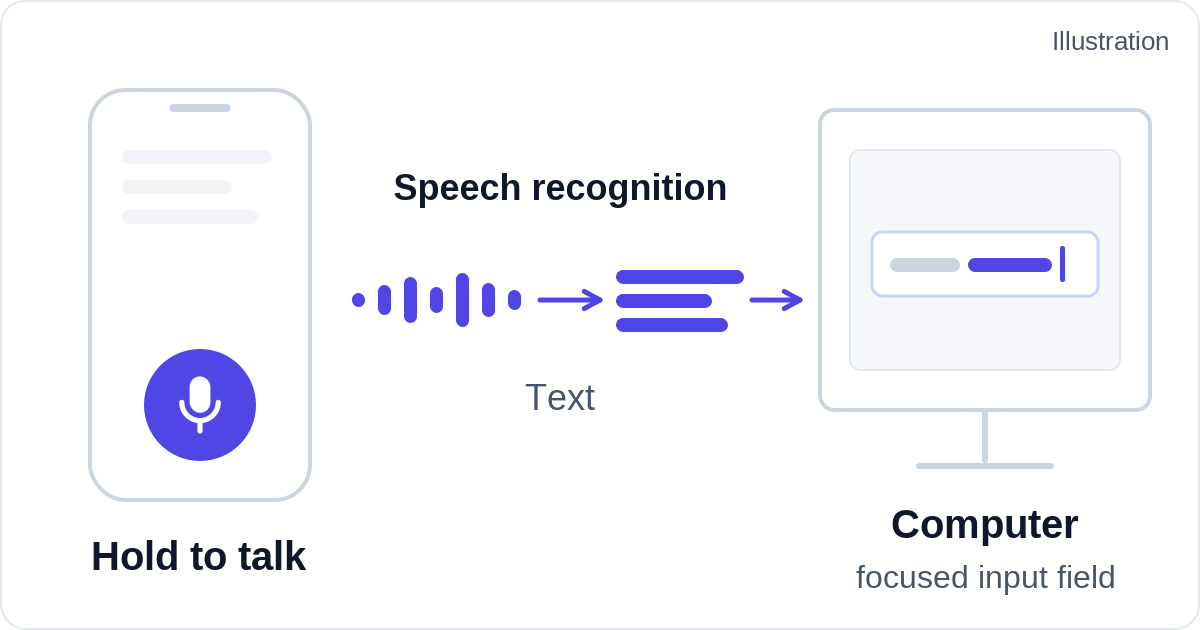
How does dictating from your phone cut down on typing?
You type fewer words by hand. You click into the place on your computer where the text should go, hold the "Hold to talk" button on your phone, say what you would have typed, and let go. The words then land at the cursor. Your phone does the listening, so the computer needs no microphone, no audio driver, and no virtual microphone, and it asks for no microphone access.
This fits the longer writing in a working day, such as replies, reports, and notes in ordinary text boxes in browsers and programs. Corrections and moving around stay on the keyboard and mouse.
How do you set up FlowMic on your computer and phone?
Setup takes one app on the computer, one app on the phone, and a QR code scan to pair them. Install the computer app first, because it shows the pairing code, then open the phone app and scan that code from the screen. From then on the phone works as the microphone for your computer, and the talk button lives on the phone rather than on the keyboard.
- Download FlowMic for your computer from the download page, and install the phone app from Google Play or the App Store.
- On the computer, open "Devices" and click "Add phone". A dialog shows a QR code, a 4-digit code, and "Pairing code expires in"; the code refreshes every 5 minutes.
- Choose the "Local LAN" tab when the phone and computer share a local network, or "Cloud relay" after signing in on the computer.
- On the phone, tap "Add device", stay on the "Scan" tab, and aim the camera at the screen. A tab named "Enter manually" is there too.
- Click into a text box on the computer, hold "Hold to talk" on the phone, speak, and let go.
What does speaking with one held finger look like?
The phone shows a large "Hold to talk" button. Press and hold it with one finger or thumb, and the label changes to "Release to end". Keep holding while you speak, because the microphone is on only while the button is held. Words appear on the phone while you hold the button, and the text goes to the computer cursor after you let go.
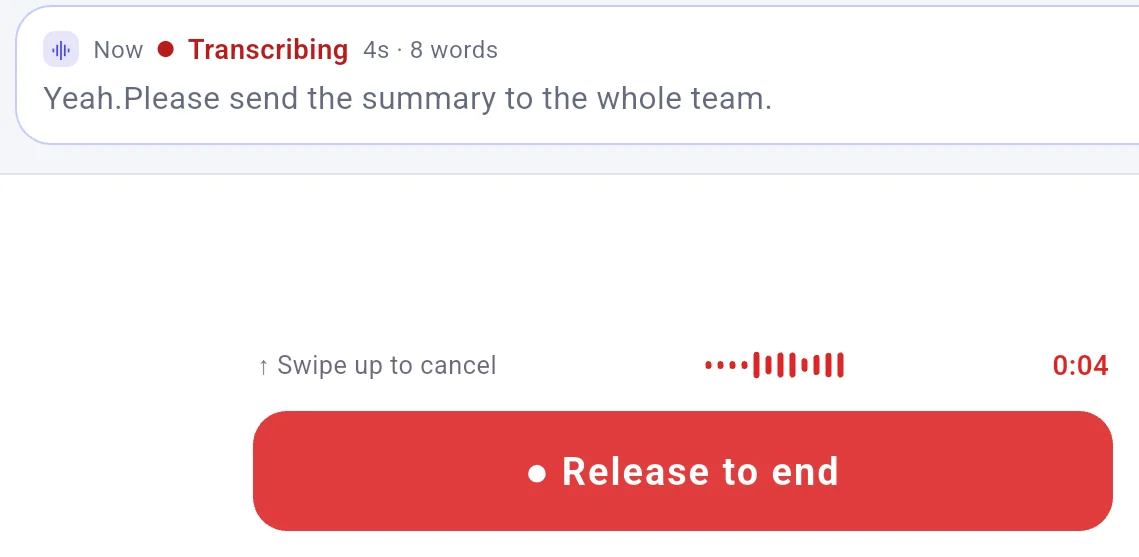
To drop a recording, slide your finger up while holding until the label reads "Release to cancel", then let go. To read each sentence before it reaches the computer, tap the small "⇄" control next to the input area and pick "Manual send": the text then waits on a card with "Deliver" and "Discard".

Which ways of speaking can you choose on the phone?
Each recording goes through one of three modes that you pick on the phone before you speak. "Realtime" stays close to your own wording, with an "AI polish" switch for light cleanup in the same language. "Translate" gives you the text in the language you choose. "Organize" keeps your language and removes fillers and false starts, so a spoken draft reads like written text.
All three modes come with every plan, and the plans differ in minutes and computers. Free is $0 with 20 managed transcription minutes a month and 2 computers, Pro is $12 a month with 1,000 minutes and 3 computers, and Max is $28 a month with 3,000 minutes and 10 computers; see the pricing page. For longer pieces, read speak naturally, get a tidy draft.
What happens after the words reach your computer?
On the phone, each sentence shows "Delivered" once the words have reached the computer. The text lands in the window in front, at your cursor, so click where you want the words before you hold the button. Read them, change a word on the keyboard if you like, and send the message the way you normally do.
Each device keeps its own timeline: the phone offers "Copy" and "Resend", and the computer offers "Re-inject". If a wrist or hand is out of use for a while rather than tired, writing by voice with a broken wrist covers that case, and push-to-talk dictation for Windows explains the button in more detail.
Common questions
Can I type less on my computer by speaking into my phone?
Yes. Click into a text box on your computer, hold the Hold to talk button in the FlowMic phone app, speak, and let go. The words land at the cursor, and the keyboard is left for corrections and moving around.
Does FlowMic replace my keyboard and mouse?
No. FlowMic handles the words. Moving the cursor, clicking, switching windows, and selecting text stay on your keyboard and mouse, and the talk button is on your phone rather than a key on the computer.
Do I need a microphone on my computer?
No. Your phone is the microphone. The computer needs no microphone, no audio driver, and no virtual microphone, and FlowMic on the computer does not ask for microphone access.
What do I need to get started?
A computer on Windows, macOS on Apple silicon, or Linux in an X11 session, and an Android phone, iPhone, or iPad. Install FlowMic on both, click Add phone under Devices on the computer, and scan the code with Add device on the phone.