
 FlowMic
Dictate to a Desktop Computer With Your Phone
Dictating to a desktop computer with your phone means the phone in your hand becomes the microphone, and FlowMic, an open source (AGPL-3.0) app, puts what you say into the text box at your computer's cursor. It fits a desktop with no microphone, or one with only a webcam microphone across the desk, and you do not need to buy hardware to try dictation. The no-microphone desktop page has the short version.
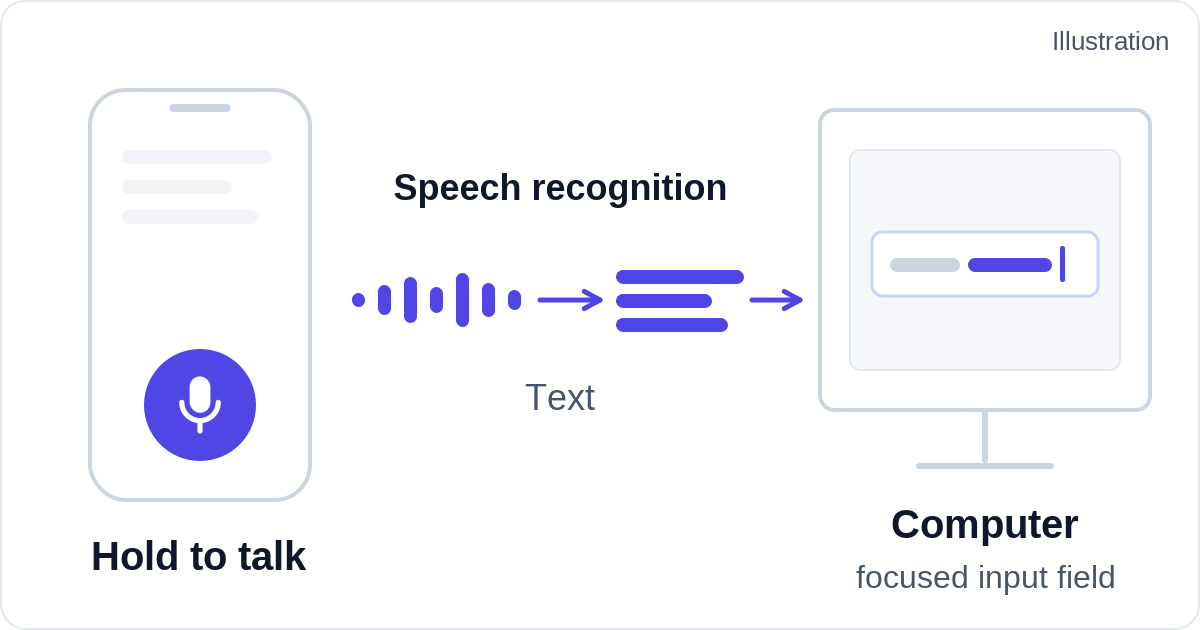
Can you dictate to a desktop that has no microphone?
Yes. The phone is the microphone, so the desktop needs no microphone plugged in, no audio driver, and no virtual microphone, and FlowMic on the computer asks for no microphone access. You hold a button in the phone app, speak, and let go, and the words land in the text box at your cursor. There is nothing extra to buy or plug in.
Bringing the phone up to your mouth puts the microphone close to your lips instead of across the desk. The phone listens only while you hold the button down.
What do you install on the computer and the phone?
FlowMic needs one app on your computer and one on your phone, both linked from the download page. The desktop app runs on Windows 10/11 64-bit, on macOS 11 or later with Apple silicon, and on Linux x86-64 in an X11 session. The phone app runs on Android 7.0 or later and on iPhone or iPad with iOS or iPadOS 15 or later.
- Windows: install from Microsoft Store, or use the digitally signed installer.
- macOS: move FlowMic into Applications before you open it, then grant Accessibility permission.
- Linux: pick the x86-64 build on the Linux download page.
- Phone: Google Play or the APK from GitHub on Android, and the App Store on iPhone and iPad.
How do you pair the phone with the desktop?
Each pairing is one QR code scan. FlowMic offers two connection types, and each one is paired on its own: "Local LAN" sends audio from the phone to FlowMic on the computer over your local network, and "Cloud relay" connects through the FlowMic relay once the computer app is signed in. Pick the one that fits where your phone and computer are.
- On the computer, open "Devices" and click "Add phone". A dialog shows a QR code, a 9-digit PCID, a 4-digit pairing code, and "Pairing code expires in", with tabs for "Local LAN" and "Cloud relay".
- The pairing code lasts 5 minutes and refreshes by itself.
- On the phone, tap "Add device", stay on the "Scan" tab, and aim the camera at the QR code; no button press is needed. You can also switch to "Enter manually".
How do you dictate once the phone is paired?
Make sure the computer is on, bring the window you want to the front, and click into its text box. Then press and hold "Hold to talk" on the phone. After a moment the label becomes "Release to end"; keep your finger on the button while you speak, and let go to finish. To drop a recording, slide up until "Release to cancel" appears, then let go.
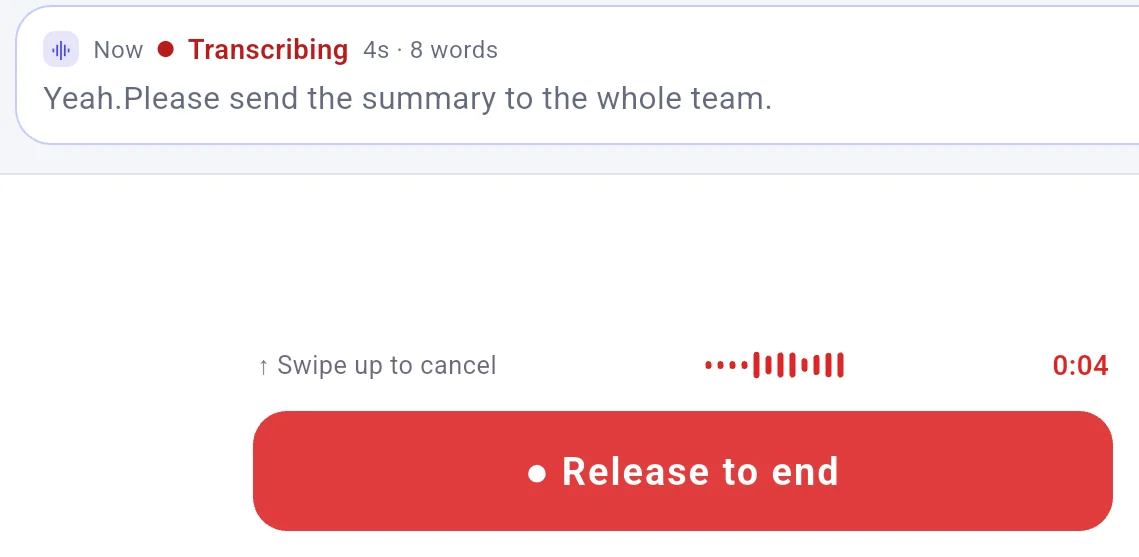
Words appear on the phone during the recording to show progress, and the full text lands at your cursor after you let go. A small "⇄" control beside the input area switches between "Direct send", which sends your words when you let go, and "Manual send", which opens a card with "Deliver" and "Discard" so you can edit first.

On the phone timeline, "Delivered" means the words reached the computer. To read the status words on both devices, see what happened to every sentence you dictate.
Which modes and plans can you use?
Each recording goes through one mode that you pick on the phone. "Realtime" stays close to your own wording, with an "AI polish" switch; "Translate" gives a translation once you finish; "Organize" removes fillers and false starts in the same language. Changing the mode empties the input box on the phone, so pick the mode before you start speaking.

All three modes are included in every plan. Free is $0 with 20 managed transcription minutes a month and 2 computers, Pro is $12 a month with 1,000 minutes and 3 computers, and Max is $28 a month with 3,000 minutes and 10 computers. Compare them on the pricing page. FlowMic servers, including the relay, do not store your transcripts; read does FlowMic keep what you say.
Common questions
Can I dictate to a desktop that has no microphone?
Yes. Your phone is the microphone. The desktop needs no microphone plugged in, no audio driver, and no virtual microphone, and FlowMic on the computer asks for no microphone access. You speak into the FlowMic phone app and the words land at your cursor.
Do I need to buy a microphone?
No. FlowMic uses the phone you already carry as the microphone for your computer, so you can try dictation on a desktop without buying a headset, a desk microphone, or other hardware.
What do I install?
One FlowMic app on your computer and one on your phone. The computer app is for Windows 10/11 64-bit, macOS 11 or later on Apple silicon, or Linux x86-64 in an X11 session, and the phone app is for Android 7.0 or later, iPhone, or iPad.
How do I connect the phone to the desktop?
On the computer, open Devices and click Add phone to show a QR code. On the phone, tap Add device, keep the Scan tab, and aim the camera at the code. The code is valid for 5 minutes and refreshes by itself.
Does the phone listen all the time?
No. The phone listens only while you hold the Hold to talk button down. When you let go, the recording ends, and with the default Direct send the words then go to your computer.